
AS02
Are You Suffering With The Ads In Your Mobile?
These days, so many people are suffering from the ads on their Android mobile phones. It’s a common issue where opening any browser redirects you to another browser and sometimes displays annoying ads. Some of these ads are even 18+. Every time we try to open a website it annoys us. That’s why I’m writing this helpful article to stop all those ads and the 18+ adult content on our mobile phones. Shall we start?

Why We Need To Stop The Ads In Our Mobile
- Stop the annoying ads
- Stop the adult content in mobile
- Stop the annoying redirects in the website
- Some apps also stop the ads in our mobile when we are using them (e.g., Remini)
- It completely blocks malicious ads
How To Setup The Private DNS
It is very simple, you just need your phone. Now we are going to setup our Private DNS.
Step 1:
You need to open the Settings in your mobile.
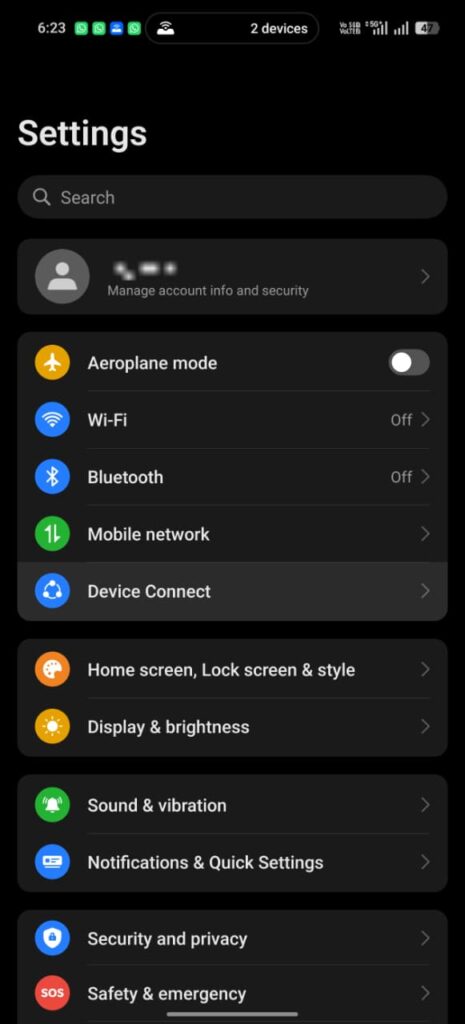
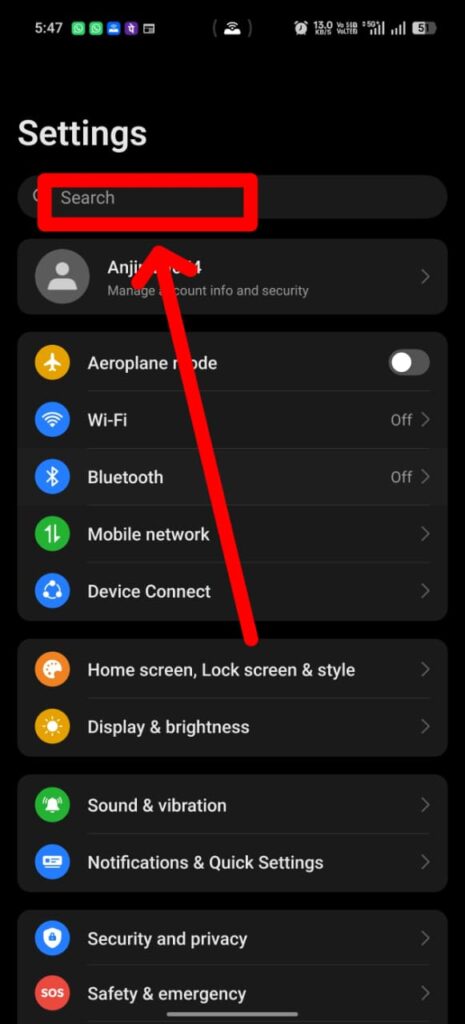
Step 2:
Select the Search option in the settings.
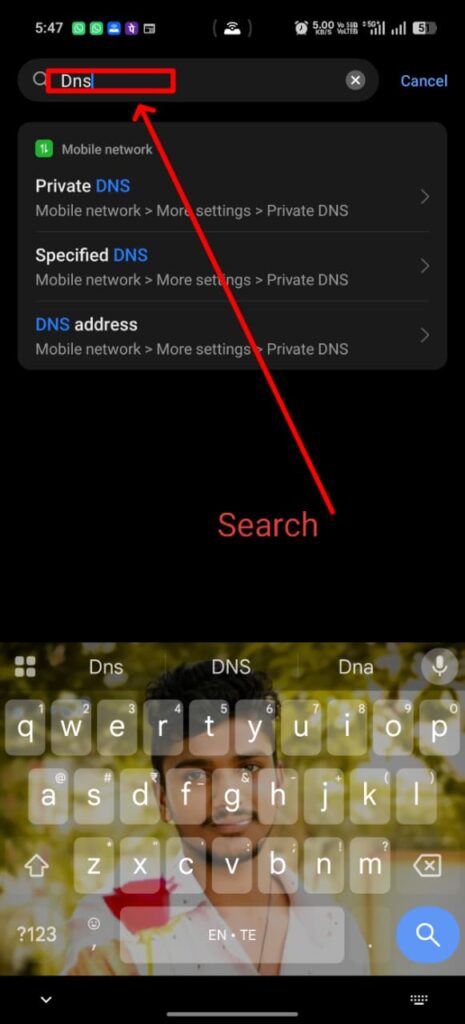
Step 3:
Now you need to search the name DNS.
It will automatically show some options, such as:
- Private DNS
- Specified DNS
- DNS address
Select the first option: Private DNS.
Step 4:
When you select the Private DNS option, it will open the settings where it typically shows the DNS option as Automatic or Off.
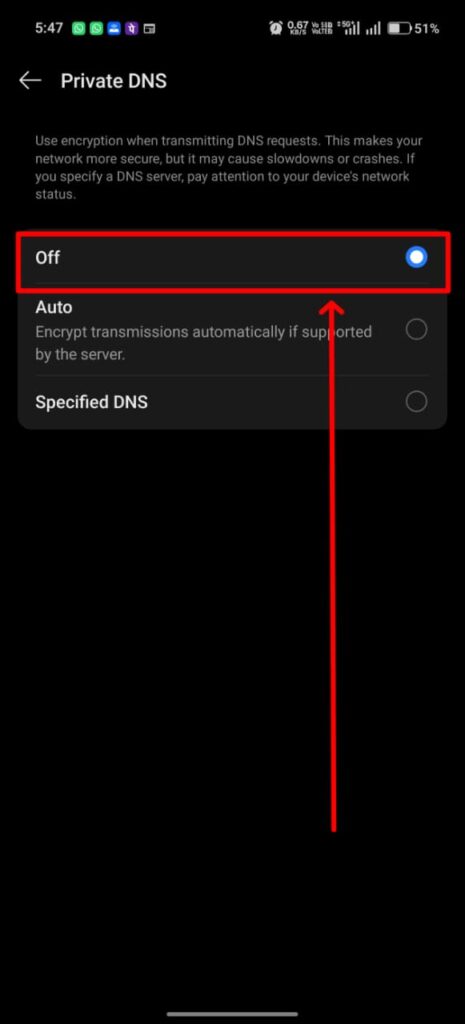
Step 5:
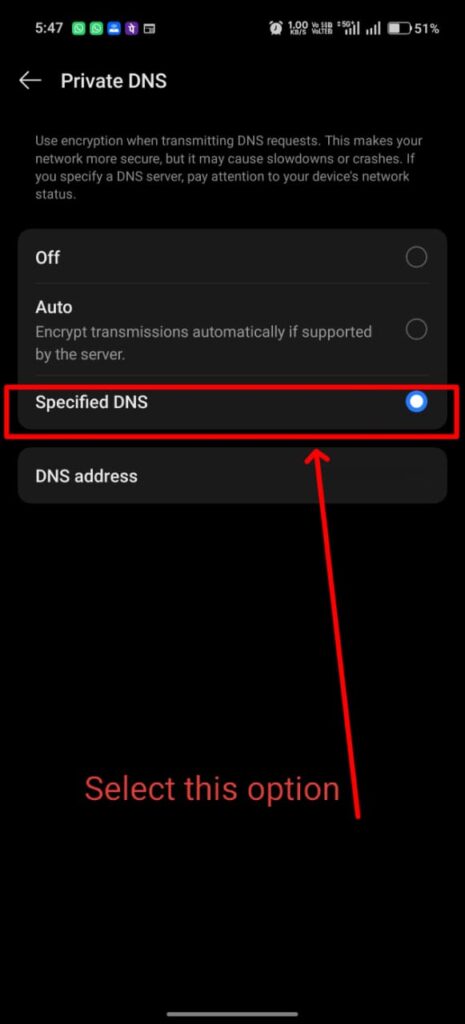
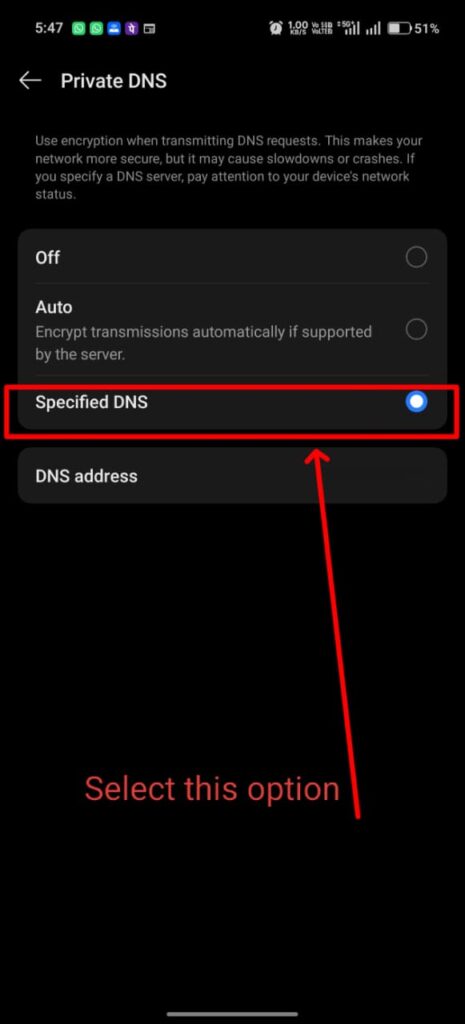
Now you need to select the option for Specified DNS (or "Designated Private DNS").
Step 6:
It will show a text input or search bar. Select that space to enter your custom provider.
Step 7:
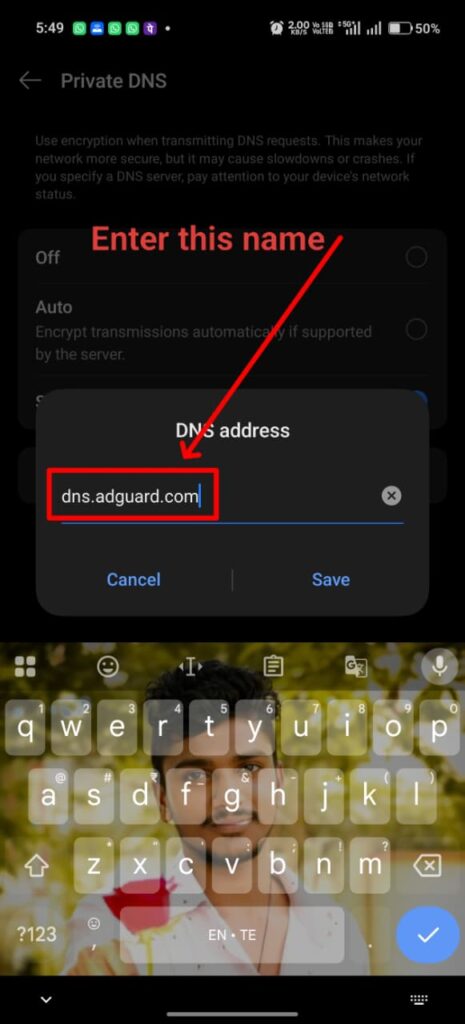
In that space bar, enter the following text depending on your needs:
👉 dns.adguard.com
(This is for stopping standard ads in the mobile.)
👉 family.adguard-dns.com
(This is for blocking adult content AND stopping ads in the mobile.)
Make sure it looks exactly like the image shown below:
Step 8:
After entering the address, select the Save option.
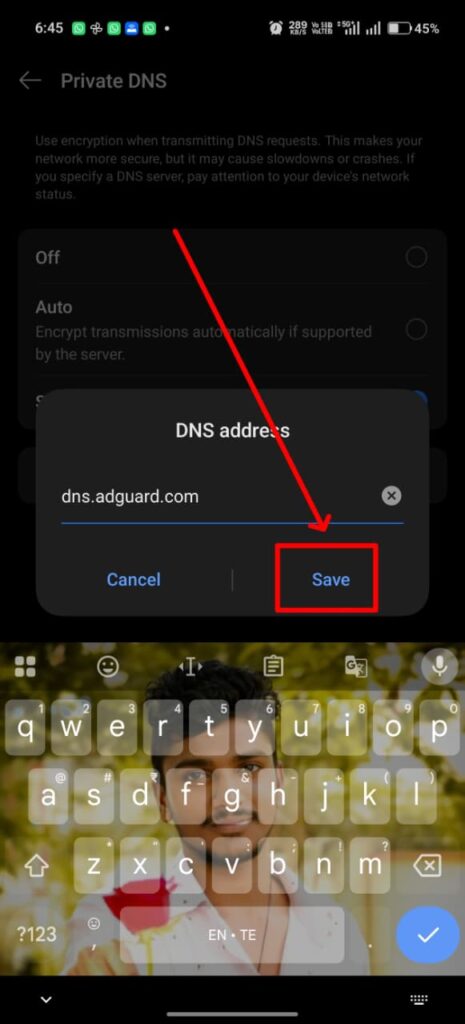
Now your Private DNS setup is complete! Once the setup is done, you need to restart or reboot your mobile device to ensure the changes take full effect.
Note: Some websites might show a warning like "We have detected an ad blocker." If that specific website is important for you to access, you may need to temporarily turn off the Private DNS option.
Extra Matter
This ad block DNS is not only for blocking ads; it also serves as user protection against malicious links and malware-contained websites.
How this DNS works:
When a user attempts to access a website from their mobile device, the web link is directly sent to the DNS. The DNS then checks whether the website is safe and immediately filters out bad elements before displaying its content. Think of the DNS as a secure guide leading the user safely to the website.
FAQ / Related Searches
- Mobile DNS server
- Adguard mobile DNS
- Adguard DNS
- How to setup DNS in mobile
- Mobile DNS address
- What is my DNS server on mobile?
- Which DNS is best for mobile?
- Which DNS blocks all ads?
- Private DNS provider hostname
Preset:

Font:
Contact Us
AS02