
Short answer: if WhatsApp is late only on Wi-Fi, your phone’s battery settings are usually not the main problem. WhatsApp alerts travel on a long, quiet connection between your phone and Google’s push servers. On Wi-Fi, that connection passes through your router or your hostel, college or office network. If that network cuts the idle connection or blocks its ports, the alert waits until your phone reconnects or you touch the screen.
Many people report this, for example in a Google Pixel Community thread, on Android Stack Exchange and in a OnePlus community post. Most replies say “turn off battery optimisation”, which does not help when mobile data works fine. Below is a way to find out which side is guilty and fix it.
Why Mobile Data Works but Wi-Fi Does Not
Think of a phone call that stays connected but nobody speaks. Your phone keeps one such line open to Google, and all push apps share it. When a message comes, Google sends it down this line and the phone shows the alert.
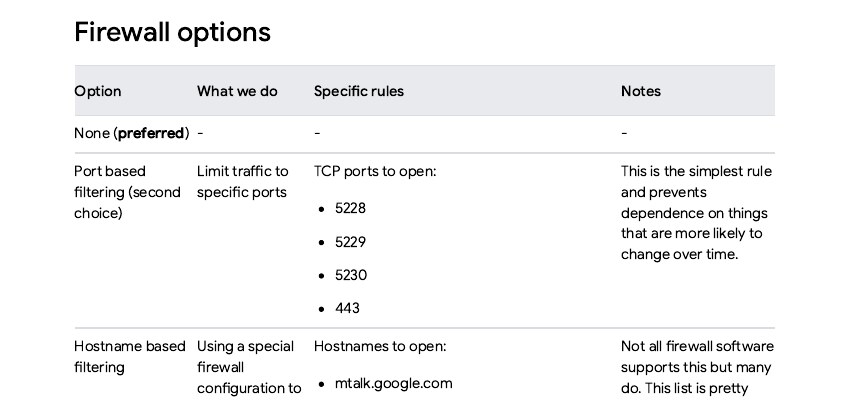
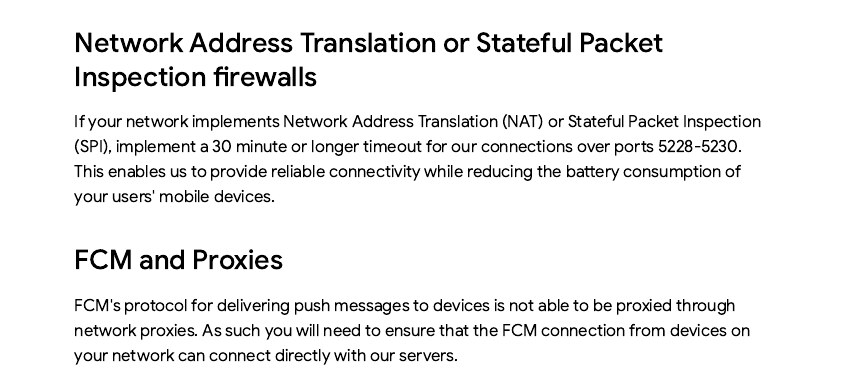
Firebase’s own network page tells network owners to allow TCP ports 5228, 5229, 5230 and 443 for this traffic. It also says that if a network uses NAT or a stateful firewall, the idle timeout for ports 5228 to 5230 should be 30 minutes or longer. It adds that this connection cannot go through a proxy. So a router with a short idle timer, or a college firewall that blocks those ports, can leave your phone with a dead line while it looks connected.
Mobile data often behaves better here. I found no document that explains exactly why, but the 15 minute test in Step 1 shows which side is failing. A home router is built for laptops and TVs, and a hostel firewall is built to block things.
What WhatsApp itself says
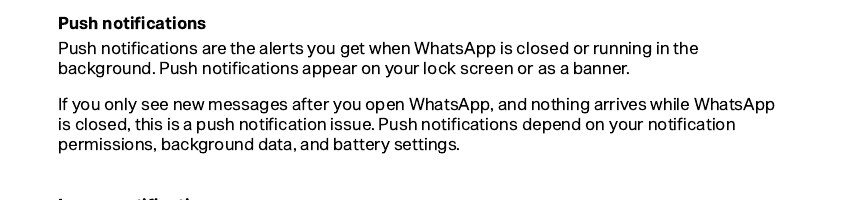
WhatsApp’s help page says that if you only see messages after opening the app, it is a push notification issue, and that push depends on notification permission, background data and battery settings. It does not mention Wi-Fi at all. That is the gap this article fills.
Step 1: Run a 15 Minute Test First
Do not change any setting before this test. It tells you which fix to use, and it saves an hour.
- Connect to the Wi-Fi where the problem happens. Lock the phone and put it on the table.
- Ask a friend to send you one WhatsApp message and note the exact time they sent it.
- Do not touch the phone. Watch the clock and write down when the alert appears.
- Repeat with Wi-Fi switched off and mobile data on, with the screen locked again.
- Repeat once on a different Wi-Fi, like a friend’s home or a hotspot from another phone.
| What you see | Likely cause | Go to |
|---|---|---|
| Late on Wi-Fi, instant on mobile data | The Wi-Fi network cuts or blocks the push connection | Steps 2 to 4 |
| Late on every network | Phone is putting WhatsApp to sleep | Step 5 |
| Late on one Wi-Fi only (for example college) | That network’s firewall | Step 4 |
| Fine at first, late after an hour idle | Idle timer on router or phone saving power | Steps 3 and 5 |
Step 2: Check the Wi-Fi Settings on the Phone
These take two minutes. Menu names differ, so use the Settings search bar if you do not see them.
- VPN: switch it off for the test. Firebase’s page says a VPN can break long-lived connections and cause missed or delayed messages, and that a VPN which cannot be bypassed makes the delay worse. If delays vanish with VPN off, check whether your VPN app has a setting that lets push traffic bypass it.
- Wi-Fi power saving: on Samsung phones, Android Authority points to Settings, Connections, Wi-Fi, the three-dot menu, Intelligent Wi-Fi, and the Wi-Fi power saving toggle. Switch it off for the test.
- Adaptive Connectivity: on Pixel phones, it is under Settings, Network & internet. Pixel owners in forum threads often name it as a cause of delay.
- Background data for WhatsApp: open Settings, Apps, WhatsApp, Mobile data usage, and make sure Background data is on. WhatsApp’s help page suggests turning it off and on again. Threema’s help page also tells you to check the Unrestricted mobile data usage option there.
I could not test these on a real phone, so treat the paths as the usual ones and search for the name if yours is different.
Step 3: Fix the Router
If only your home Wi-Fi is slow, the router is the first suspect. Open the router’s admin page. The address and password are often printed on a sticker under the router. Then try these in order and re-run the Step 1 test after each change.
- Restart the router. One forum user said a restart brought instant alerts back for a couple of days before the delay returned. That is a clue that the router’s connection table gets stuck over time.
- Look for a timer setting. Names vary: TCP timeout, session timeout, NAT timeout or connection tracking. If you find one, set it to 30 minutes (1800 seconds) or more, which is the figure Firebase gives.
- Update the router firmware from the admin page or the ISP’s app.
- Last resort, IPv6: one Stack Exchange user said switching off IPv6 on the router fixed his Android 5.1 phones in 2015. That is an old report and I could not confirm it today. Try it only as a test and turn it back on if nothing changes.
Many routers given by internet providers hide the timer setting, and I cannot say which Indian models show it. If yours does not, ask the provider’s support to check the NAT or session timeout, or move to Step 4 and test a different network.
Step 4: Hostel, College or Office Wi-Fi
You cannot change this router, but you can prove the cause and send the admin a clear request. Use a laptop on the same Wi-Fi and run this small test. It tries to connect to Google’s push server on each port. I ran it on October 31, 2026 from my own test machine, and all four ports said open, so that is what a clean network looks like.
import socket

HOST = "mtalk.google.com"
for port in (5228, 5229, 5230, 443):
    try:
        socket.create_connection((HOST, port), timeout=5).close()
        print(port, "open")
    except OSError:
        print(port, "BLOCKED")
Save it as ports.py and run it with python ports.py (on Windows, py ports.py). Expected output on a clean network:
5228 open
5229 open
5230 open
443 open
If any line says BLOCKED, show the result to the network admin. I did not find a Google statement on what happens when only some ports are blocked, so I would treat any BLOCKED line as a strong clue, not as proof. If all four are open and alerts are still late, the problem is more likely the idle timer from Step 3. Here is a message you can send:
Hello, WhatsApp and other apps on Android phones are not showing alerts on our Wi-Fi until the screen is opened. Google's Firebase Cloud Messaging documentation says networks should allow outbound TCP ports 5228, 5229, 5230 and 443, should not force these connections through a proxy, and should keep idle timeouts for ports 5228 to 5230 at 30 minutes or longer. Could you please check this on our network? Thank you.Meanwhile, a hotspot from another phone’s mobile data is the quickest workaround.
Do I need port forwarding?
No. These ports are outbound, meaning your phone calls out to Google. One Stack Overflow asker forwarded the ports to his phone and saw no change. Do not open anything inbound on your router for this.
Step 5: When It Is Late on Every Network
Then Wi-Fi is not the culprit and your phone is putting WhatsApp to sleep. Android’s own developer page explains that Doze and App Standby hold back network access for idle apps, and that the user can manage the exempt list under Settings, Battery, Battery optimisation. Phone makers add their own layers on top, so the exact menu changes.
| Phone | Where to look | What to set |
|---|---|---|
| Samsung (One UI) | Settings, Battery and device care, Battery, Background usage limits | Remove WhatsApp from Sleeping apps and Deep sleeping apps; set WhatsApp battery to Unrestricted |
| Pixel and other near-stock phones | Settings, Apps, WhatsApp, Battery (called App battery usage on some versions) | Pick the option that allows background use |
| Xiaomi, Redmi, Poco | App info for WhatsApp | Forum users report turning on Autostart and setting battery to No restrictions |
| Others (Vivo, Oppo, Realme, Motorola) | App info, battery or power section | Look for words like Allow background activity or Unrestricted |
Do not force-stop WhatsApp to ‘refresh’ it. Android Authority notes that a force-stopped app gets no push alerts until you open it again.
What I Would Not Do
- Do not use adb commands to switch Doze off for good. One XDA guide did this, but it needs a computer and the setting returns after a restart.
- Do not install ‘push fixer’ apps without checking reviews. The old ones in forum threads were made for much older Android versions.
Common Mistakes
- Testing with the screen on. An awake phone pulls data actively and hides the problem.
- Waiting only one minute. Run the test for at least 15 minutes, because the idle connection may take time to die.
- Changing five settings together, then not knowing which one helped.
- Blaming WhatsApp. Gmail, Telegram and other push apps are hit by the same dead connection, as the Stack Overflow thread notes.
- Setting every app to Unrestricted. That drains the battery. Do it only for the few apps whose alerts matter.
Frequently Asked Questions
Why do my messages arrive as soon as I wake the screen?
Waking the screen usually makes the phone reconnect, so the waiting messages arrive together. This matches what many users describe.
Is this a WhatsApp bug?
The evidence points away from it. The same delay shows up with other apps that use Google’s push system, and it changes when you change the network.
Will a Wi-Fi extender or a new router help?
I can’t promise that. If a new router has the same short idle timer, nothing changes. Run the Step 1 test again after any change so you have proof.
Sources & Documentation
- WhatsApp Help Center: Can’t see or hear notifications
- Firebase: Configure your Network for FCM
- Android Developers: Optimize for Doze and App Standby
- SamMobile: Why do my notifications arrive late?
- Android Authority: What causes Android delayed notifications, and how to fix them
- Threema Help: Problems with push notifications
This guide was checked on October 31, 2026. The port test was run on a Linux machine with Python 3. Phone menus change between versions and brands.
Written & Verified by Sampath Anji
Sampath Anji is a technology researcher, systems developer, and digital creator based in Telangana, India. He specializes in on-device AI architectures, autonomous agent workflows, high-throughput inference engines, and digital media production. Every tutorial on ISMARTANJI CREATIONS is grounded in code reproducibility, verified documentation, and transparent test environments. Read our full testing methodology on our About Us page, or submit feedback and code updates via our Contact Desk.