
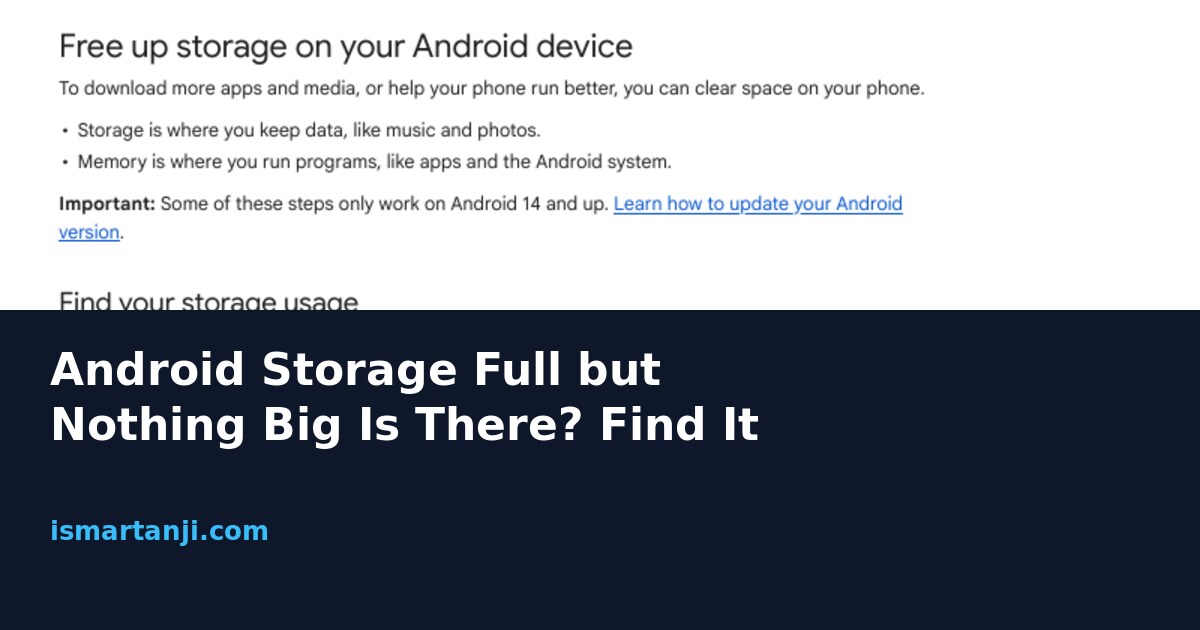
Short answer: the space is almost never gone. It is sitting in a bucket you did not look at. Phone storage is split into Apps, Images, Videos, Audio, Documents, System and Other, and the biggest surprises hide in two places: app data (the app’s own downloads, offline files and cache, which count under the app and not under your photos) and the System bucket, which Android fills and empties by itself. Check the Apps list sorted by size first. That finds the missing gigabytes on most phones.
The same question keeps showing up on r/AndroidQuestions and Android Stack Exchange. One person sees 50 GB used on a 64 GB phone while the files add up to about 14 GB. The replies are mostly "clear cache" and nothing more. Here is a better way to hunt the space down.
Why does storage look full when your files are small?
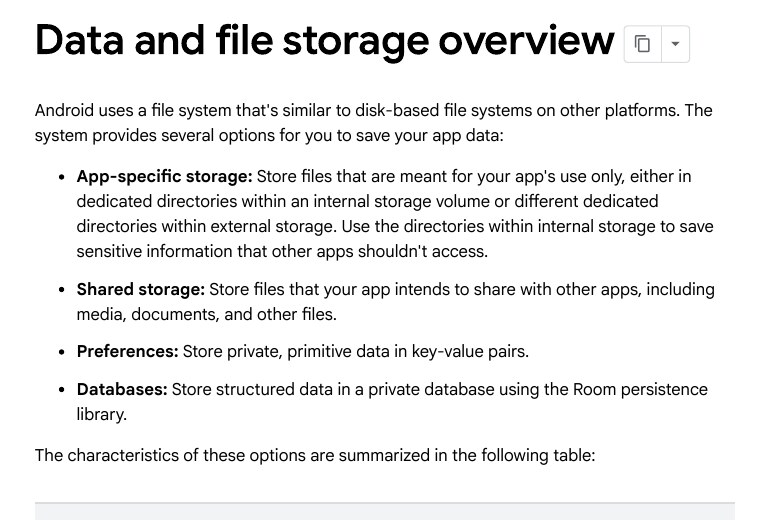
Your gallery and your file manager show only files you can see. They do not show what apps keep for themselves. Android’s developer documentation says every app gets its own private storage area inside internal storage, other apps cannot read it, and it is deleted when the app is uninstalled. It also says that internal storage is hidden from the user. So a file manager can show 14 GB while the phone counts 50 GB.
Think of a hostel room. Your bag (photos and videos) is easy to see. But the cupboard of each roommate (each app) is locked, and you can only see how full it is from the main register (Settings, Storage).
What fills those private areas?
- Offline downloads. OTT apps, music apps, and learning apps (the ones students use for recorded classes) keep downloaded videos in their own space.
- WhatsApp and Telegram media. Forwarded videos, good morning images, and voice notes pile up. A family or college group can add several GB in a few months.
- Maps offline areas. A few downloaded city maps are big.
- Games. Many games download extra data after install, often bigger than the app itself.
- Cache. Temporary data that apps make so they open faster. Browsers, social apps, and shopping apps can grow a lot.
- Old backups and half downloads. A failed download can leave a partial file behind.
Step 1: Read the storage screen the right way
The path is the same idea on every phone, but the names differ a little. On a Pixel and on most phones close to stock Android, open Settings, then Storage. On Samsung it is usually Settings, then Battery and device care (or Device care), then Storage. On Xiaomi, Redmi and Poco phones, look in Settings, then About phone, then Storage. If you cannot find it, use the search box inside Settings and type Storage.
- Open the storage screen and note two numbers: used and total.
- Tap the biggest category first. Do not start with the small ones.
- Open the Apps list and sort by size. If your phone has no sort option, open each of the top 5 apps.
- In each big app, look at two lines: App size and Data (or User data). Cache is shown separately on most phones.
- Write the top 5 apps on a paper. These five usually explain most of the missing space.
Quick maths check:
Add your Images, Videos, Audio and Documents. Then add the top 5 apps. If the total is close to your used number, you have found the gap. If a big gap remains, it is the System bucket, covered below.
Used space (Settings): 50 GB
Images + Videos + Audio + Documents: 11 GB
Top 5 apps (size + data): 24 GB
System: 12 GB
Total: 47 GB, close to 50 GB (the rest is small apps and cache)
Step 2: Clean app data in the safe order
The order matters because some actions cannot be undone. Go from the safest to the most risky one.
- Delete inside the app first. Open WhatsApp, then Settings, then Storage and data, then Manage storage. Remove the big forwarded videos. Google’s own page also says to try deleting data within the app before wiping it from phone settings, because Clear storage deletes all app data for good.
- Clear cache. In Settings, Apps, pick the app, then Storage, then Clear cache. This is safe. The app may open slowly once.
- Remove offline downloads. Delete downloaded videos in the OTT or class app you finished with.
- Archive or uninstall apps you do not use. Google lists automatic archiving in Play Store, then your profile photo, Settings, General, Automatically archive apps. Archived apps keep your data and the icon stays.
- Clear storage (clear data) last. It works like a fresh install. You can lose chats that are not backed up, game progress, and logins.
Step 3: Use the phone’s own clean-up screen
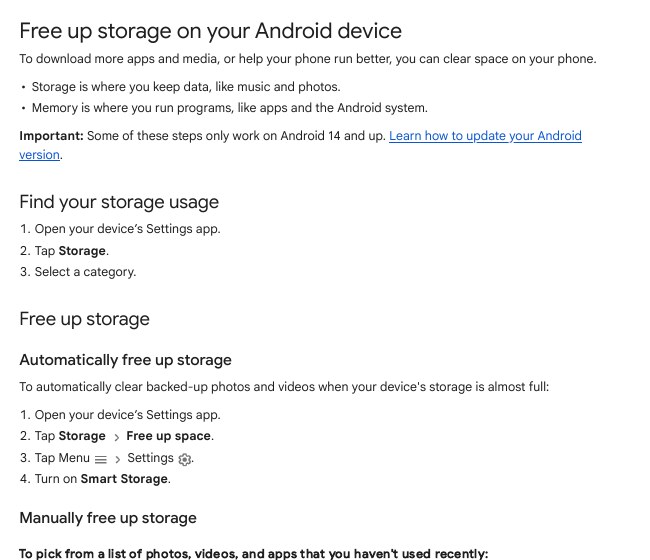
Google’s page says some steps need Android 14 or newer. On such phones, open Settings, then Storage, then Free up space. You get lists of old photos, videos and apps. Select what you want and tap Move files to Trash. There is also Smart Storage in the menu on that screen, which clears photos and videos that are already backed up when the phone is nearly full. Turn it on only if you trust your Google Photos backup. Open the Photos app on a Wi-Fi network and confirm that backup finished before you rely on it.
Remember that Trash holds files for a while. Space may not come back until Trash is emptied, so check the Trash screen too.
What is the System bucket, and can you reduce it?
System is a mix. It holds the Android system itself and also things the system uses temporarily: update files, logs, indexes and caches. On some phones the extra virtual memory feature also counts there. A guide by the Cleanor team says this number rises and falls, for example after an update or after many photos change. You cannot delete this bucket by hand, and you should not try.
What you can do is simple:
- Restart the phone, then check again after a few hours. A number that drops back means normal housekeeping.
- Check for a pending system update. Install it on Wi-Fi with enough charge, because an update staged but not finished can keep extra files.
- If your phone has a memory extension or RAM Plus type setting, note that it may use storage as virtual memory. Turning it off can free several GB on some phones, but the phone may feel slower with many apps open. Try it only if you have 6 GB RAM or more.
- If System stays huge for days after all this, back up your data and ask the brand service centre. Do not use random cleaner apps for it.
Do not do this:
Do not delete hidden folders with a file manager to shrink System. The Cleanor guide warns it can cause instability and does not give back meaningful space, and there is no Trash to undo it.
Which fix gives the most space?
| Where the space is | What to do | Risk |
|---|---|---|
| Chat app media | Delete big videos inside the app | Low, if you keep backups |
| Offline OTT or class downloads | Remove finished videos | Low |
| Cache | Clear cache per app | Very low |
| Unused apps | Archive or uninstall | Low |
| Backed-up photos and videos | Smart Storage or Free up space | Medium, check backup first |
| App data you still need | Clear storage | High, can lose data |
| System | Restart, update, wait | Do not delete by hand |
A real situation
Take a college student in Karimnagar with a 64 GB phone. He has 600 photos, a few songs and a dozen apps, so he thinks the phone cannot be full. But his class group on WhatsApp sends two videos a day, his OTT app has six downloaded movies, and a game keeps extra data. Clearing those three things can give back more space than deleting every photo he owns. The biggest saving is rarely where people look.
If the number still does not match
- Wait for the screen to refresh. Some phones update the storage numbers slowly after you delete. Reopen the screen after a minute or restart.
- Empty the Trash. Gallery apps and the Free up space screen both keep deleted items for some time.
- Check the second user or work profile. On phones with guest or second user profiles, that profile has its own app data.
- Look at Downloads. APK files and PDFs from old exams pile up there.
- Check the SD card. If one is fitted, check whether the numbers are for the card or the phone.
Common mistakes
- Clearing cache again and again. It comes back and gives only small space.
- Using Clear storage on a chat app without a backup. You can lose chats.
- Trusting a cleaner app. Many show scary numbers and push paid plans. The phone’s own Settings is enough.
- Only deleting photos. Photos are often not the biggest part.
- Forgetting the Trash. The files are deleted but the space is not free yet.
- Ignoring pending updates. Half-finished updates keep extra files.
FAQ
Why does my phone say storage is full when I have few files?
Because app data, cache and System are not shown in your gallery or file manager. Open Settings, Storage, Apps and sort by size to see them.
Is it safe to clear cache?
Yes. Google describes it as temporary data, and the app may be slower the next time you open it. Clear storage is different and removes all app data.
Why is System storage so big?
It includes the operating system, update files, logs and system caches, and its size changes over time. Restart, check for updates and wait a few hours before worrying.
Will uninstalling an app delete its data?
Yes. Android’s developer documentation says app-specific files are removed when the app is uninstalled. Archiving keeps your data, as Google’s help page explains, so choose archive if you may return.
Do I need a cleaner app?
No. Settings, Storage and Free up space show the same big items, and you stay in control of what is deleted.
Sources & Documentation
- Google Android Help: Free up storage on your Android device (Free up space, Smart Storage, archive apps, clear cache vs clear storage)
- Android Developers: Data and file storage overview (app-specific storage, removed on uninstall)
- Cleanor: Why Android’s System storage fluctuates (what the System bucket holds, why not to delete it)
Written & Verified by Sampath Anji
Sampath Anji is a technology researcher, systems developer, and digital creator based in Telangana, India. He specializes in on-device AI architectures, autonomous agent workflows, high-throughput inference engines, and digital media production. Every tutorial on ISMARTANJI CREATIONS is grounded in code reproducibility, verified documentation, and transparent test environments. Read our full testing methodology on our About Us page, or submit feedback and code updates via our Contact Desk.