
To reset a forgotten UPI PIN on Google Pay, open the app, tap your profile picture at the top right, tap Bank account, pick your bank, and tap Forgot UPI PIN. You will need your debit card or Aadhaar details. If you remember the PIN and only want a new one, use More then Change UPI PIN on the same bank account screen.
This guide covers both paths with the exact taps, what happens after wrong tries, why the reset sometimes will not work, and a special case: a Google Pay screen that blocks payments and tells you to change your PIN. Every step comes from Google Pay Help pages that we opened on October 18, 2026.
Reset or Change: Which One Do You Need?
People mix these two up, so pick the right row first.
| Your situation | Use this | What you need |
|---|---|---|
| You forgot the PIN | Reset (Forgot UPI PIN) | Debit card or Aadhaar details |
| You know the PIN but want a new one | Change UPI PIN | Your old UPI PIN |
| You entered 2 wrong PINs in 24 hours | Reset now, to avoid the lock | Debit card or Aadhaar details |
| You entered 3 wrong PINs in 24 hours | Wait 24 hours, or reset | Debit card or Aadhaar details |
| Google Pay says payments are blocked due to suspicious activity | Remove the unknown app, then change the PIN | Your old UPI PIN |
A UPI PIN is a 4 or 6 digit code that you enter when you add a new payment account or make a payment. It is set for a bank account, and the same PIN can work in other UPI apps. That matters later in this guide.
How to Reset a Forgotten UPI PIN on Google Pay
Before you start, keep your debit card in your hand. If you added the bank account with Aadhaar verification, Aadhaar details can work instead. More on that in the next section.
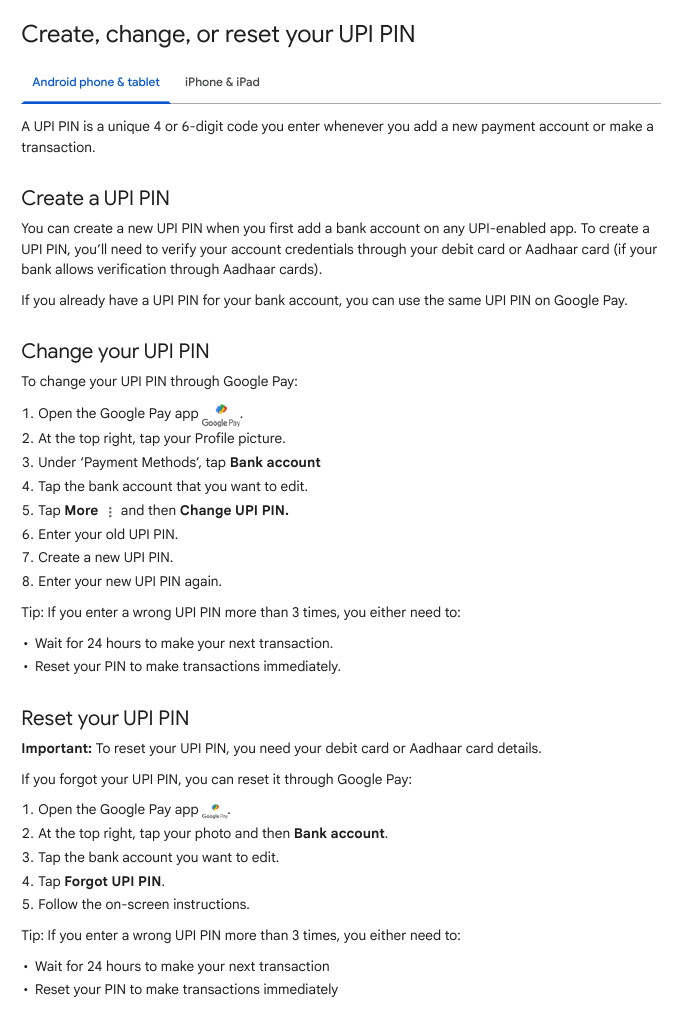
- Open the Google Pay app.
- At the top right, tap your profile picture.
- Tap Bank account.
- Tap the bank account you want to edit.
- Tap Forgot UPI PIN.
- Follow the on-screen instructions.
Google Pay > Profile picture (top right) > Bank account > [your bank] > Forgot UPI PINGoogle’s troubleshooting page adds what the app asks for when you use the debit card: the expiry date of the card and the last 6 digits of the card number. Then you choose your new PIN. Keep the card details private and never read them out to anyone on a call.
Use the same PIN on every UPI app?
Google says that if you already have a UPI PIN for a bank account, you can use the same PIN on Google Pay. After a reset, remember the new PIN in your head, not on paper or in your notes app.
How to Change Your UPI PIN (You Remember the Old One)
- Open the Google Pay app.
- At the top right, tap your profile picture.
- Under Payment methods, tap Bank account.
- Tap the bank account you want to edit.
- Tap More (the three dots), then Change UPI PIN.
- Enter your old UPI PIN.
- Create your new UPI PIN.
- Enter the new UPI PIN again to confirm.
Google Pay > Profile picture > Bank account > [your bank] > More (three dots) > Change UPI PINOne Google page ends this flow with a Done button and another does not mention it. If you see Done, tap it. Your app screen is the final word.
Why the Reset Asks for Your Debit Card or Aadhaar
Google’s help page lists two ways to prove the account is yours. The way you used when you first added the bank account is the way you must use now.
| How you first added the bank | How you reset the PIN |
|---|---|
| Verified with your debit card | Use your debit card details |
| Verified with your Aadhaar card | You can use your Aadhaar card |
There is a catch with Aadhaar. Google says your Aadhaar must be linked to the same mobile number that is registered with the bank account. Not every bank allows Aadhaar verification, so ask your bank if it does.
Check which mobile number is linked to your Aadhaar
uidai.gov.in > Select preferred language > My Aadhaar > Aadhaar services > Verify email/Mobile numberThis is the path Google’s page gives. The official site is uidai.gov.in. If you cannot find the reset option in Google Pay, Google says to contact your bank, which will help you link the bank account to your Aadhaar. For the bank’s contact details, Google points to digisaathi.info.
What Happens When You Enter a Wrong UPI PIN
Google Pay watches the wrong tries in a 24 hour window. The Fix incorrect UPI PIN page says:
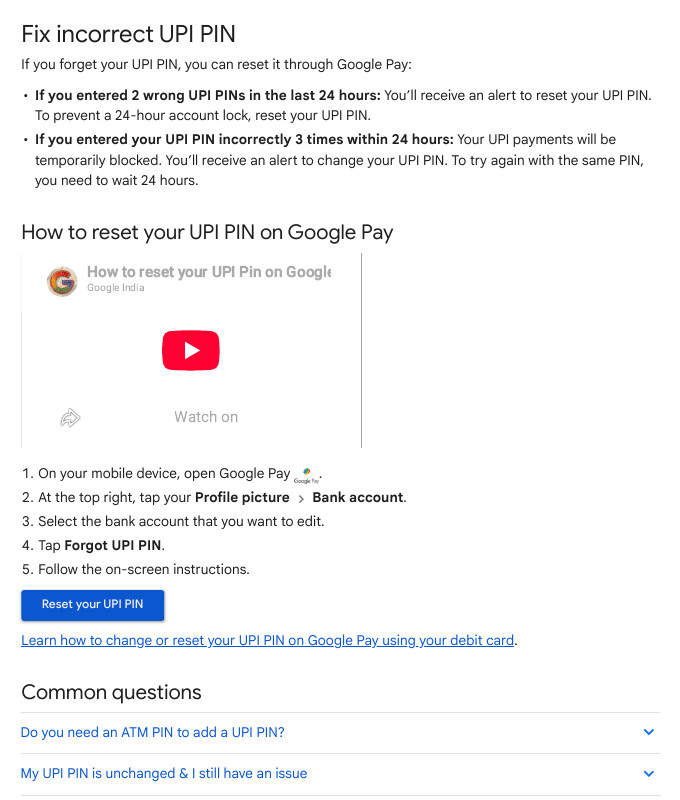
- 2 wrong PINs in the last 24 hours: you get an alert to reset your PIN. If you reset now, you avoid a 24 hour account lock.
- 3 wrong PINs within 24 hours: your UPI payments are blocked for a while. You get an alert to change the PIN. To try the same PIN again, you must wait 24 hours.
Google’s other pages say “more than 3 times” in one place and “3 times” in another. Do not test the exact number. Stop after two wrong tries and reset.
Google says you can either wait 24 hours or reset the PIN to pay again immediately.
If You Changed the PIN but Payments Still Fail
Google lists a cause that many people miss: you may have set a different UPI PIN in another UPI app outside Google Pay. If you are not sure which PIN you used last, reset the PIN and then remember the one you just set.
Also check that the app is updated, your bank’s daily limit is not over and your UPI ID works. If it still fails, contact your bank. DigiSaathi, the helpline that Google’s page names, is on 14431 or 1-800-891-3333.
Payments Blocked Due to Suspicious Activity: Change Your PIN After This
Sometimes Google Pay shows a screen that says Payments blocked due to suspicious activity, take immediate action. Google says it does this temporarily to protect you from remote phone takeover scams. In these scams, a caller talks you into installing an app that can watch and control your screen.
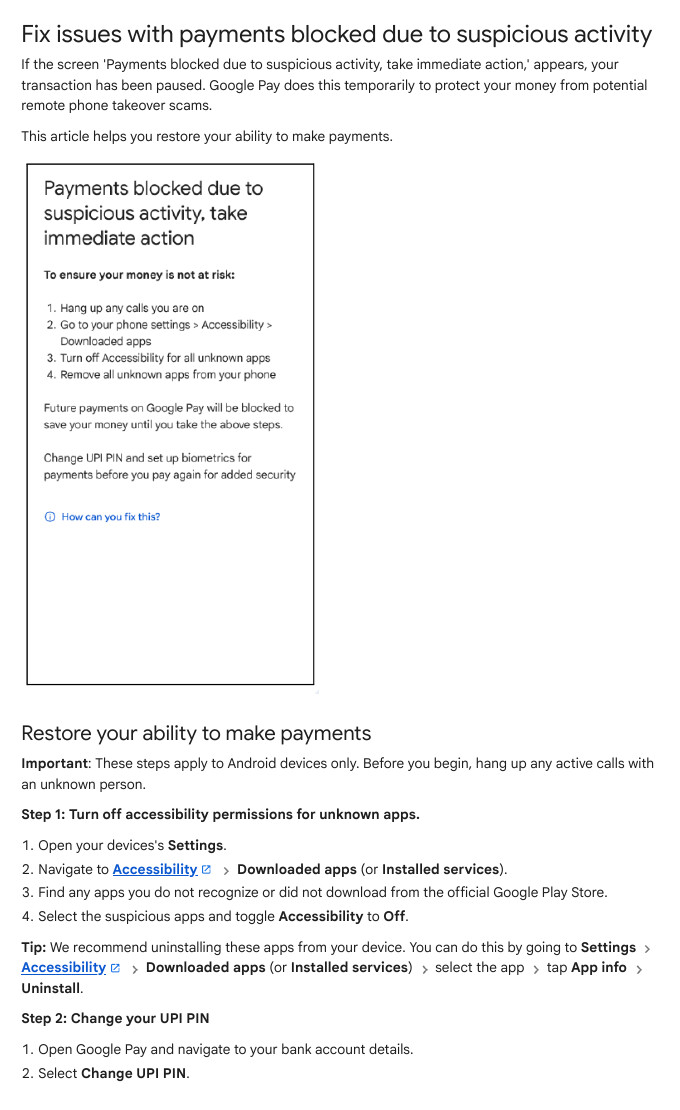
These steps are for Android phones, and Google says to hang up any call with an unknown person before you begin.
Step 1: Turn off Accessibility for unknown apps
- Open your phone Settings.
- Go to Accessibility, then Downloaded apps (some phones say Installed services).
- Find any app you do not recognise or did not install from the official Google Play Store.
- Switch Accessibility to Off for that app.
Settings > Accessibility > Downloaded apps (or Installed services) > [unknown app] > App info > UninstallGoogle recommends uninstalling the app, not only switching it off. The menu words can differ a little on OxygenOS and other phone skins, so look for the same names under Accessibility.
Step 2: Change your UPI PIN
- Open Google Pay and go to your bank account details.
- Select Change UPI PIN.
Google says that once you remove the suspicious app, your device state clears and you can safely pay again.
If you cannot open Settings or cannot remove the app
- Google says a factory reset will wipe the phone and erase hidden malicious software. It also deletes your local files, and you must sign in to all apps again.
- If your screen does not respond, the phone may be controlled remotely. Disconnect calls, hold the power button for 30 seconds to turn the phone off, turn it on, and switch on Airplane Mode. If you cannot do this, take the phone to the manufacturer’s service centre.
Google Pay India support
Google lists a toll free number, 1-800-419-0157, with phone support in Hindi, English, Tamil, Kannada and Telugu. In the app, tap your profile picture, tap Get help, then Contact support for chat or a call.
Google Pay > Profile picture > Get help > Contact supportIf money has already left your account in a scam, our guide on reporting UPI fraud on 1930 and cybercrime.gov.in shows what to do first.
Keep the PIN to yourself
Google’s blocked-payments page says: do not share your screen or UPI PIN with anyone, and Google Pay will never ask you to install remote-access software. If you also use UPI Lite, read our UPI Lite on Google Pay guide.
Common Mistakes
- Trying the PIN a third time. Stop after 2 wrong tries and reset, so the 24 hour block never starts.
- Resetting at the shop counter. Do the reset at home when you have your debit card and a good network.
- Using Aadhaar when you added the bank with a debit card. Google says the way you first verified is the way to reset.
- Aadhaar linked to a different mobile number. It must match the number registered with the bank account.
- Forgetting the PIN you set in another UPI app. Google says a different PIN there can cause trouble. Remember the one you set last.
- Sharing the PIN or screen on a call. Hang up and call your bank on its official number.
- Keeping unknown apps with Accessibility on. This is exactly what the payment block looks for.
FAQ
Can I reset my UPI PIN without a debit card?
Yes, if your bank allows Aadhaar verification and you added the bank account that way. Your Aadhaar must be linked to the mobile number registered with the bank account. If the option is missing, Google says to contact your bank.
How long do I wait after 3 wrong UPI PIN tries?
24 hours, according to Google. You can also reset the PIN and pay again immediately.
What should I do if Google Pay says payments are blocked?
Hang up any unknown call, turn off Accessibility for unknown apps, uninstall them, and change your UPI PIN. If it still does not work, call 1-800-419-0157 or use Get help in the app.
Sources & Documentation
- Google Pay Help: Create, change, or reset your UPI PIN
- Google Pay Help: Reset or change UPI PIN
- Google Pay Help: Fix incorrect UPI PIN
- Google Pay Help: Fix issues with payments blocked due to suspicious activity
- Google Pay Help: Fix problems sending or receiving money
- DigiSaathi (NPCI helpline initiative): digisaathi.info
- UIDAI: uidai.gov.in
Written & Verified by Sampath Anji
Sampath Anji is a technology researcher, systems developer, and digital creator based in Telangana, India. He specializes in on-device AI architectures, autonomous agent workflows, high-throughput inference engines, and digital media production. Every tutorial on ISMARTANJI CREATIONS is grounded in code reproducibility, verified documentation, and transparent test environments. Read our full testing methodology on our About Us page, or submit feedback and code updates via our Contact Desk.