

You can check how many SIM cards are registered in your name in about two minutes, for free, on the Government of India’s TAFCOP portal. Open tafcop.sancharsaathi.gov.in, enter your mobile number, validate the captcha, enter the OTP, and the portal lists every mobile connection issued against your identity. If you see a number you never bought, you can report it from the same screen.
Here is why it matters: a SIM in your name that someone else uses can be involved in spam, loan fraud or cheating, and the paperwork points back to you. This guide walks through the check step by step, explains the three buttons you will see, and covers the mistakes people make.
What TAFCOP is and why it matters
TAFCOP stands for Telecom Analytics for Fraud Management and Consumer Protection. It is a service of the Department of Telecommunications (DoT) and now sits inside the Sanchar Saathi portal. Its job is simple: it lets a mobile subscriber check how many mobile connections have been taken in their name, and report the ones that are not needed or were never taken by them.
The rule behind it is a limit. According to the Sanchar Saathi FAQ, one individual can hold a maximum of 9 mobile connections in total across all telecom operators in India. For subscribers in Jammu and Kashmir, Assam and the North Eastern states, the limit is 6. The count is combined, so three Jio SIMs, two Airtel SIMs and two Vi SIMs make 7, not 7 per company.
Before you start
- Keep the phone with your active number in hand. The OTP goes to that number, so it must be working and able to receive SMS.
- Use a number that is registered in your own name. The portal shows connections linked to the identity behind that number.
- Use only the official address, tafcop.sancharsaathi.gov.in, or the Sanchar Saathi site at sancharsaathi.gov.in. Government portals end in gov.in.
- Do not share the OTP with anyone. The portal asks only you to type it on the page.
How to check SIM cards in your name: step by step
The login page is plain and has only a few fields. This is how it looked when I opened it.
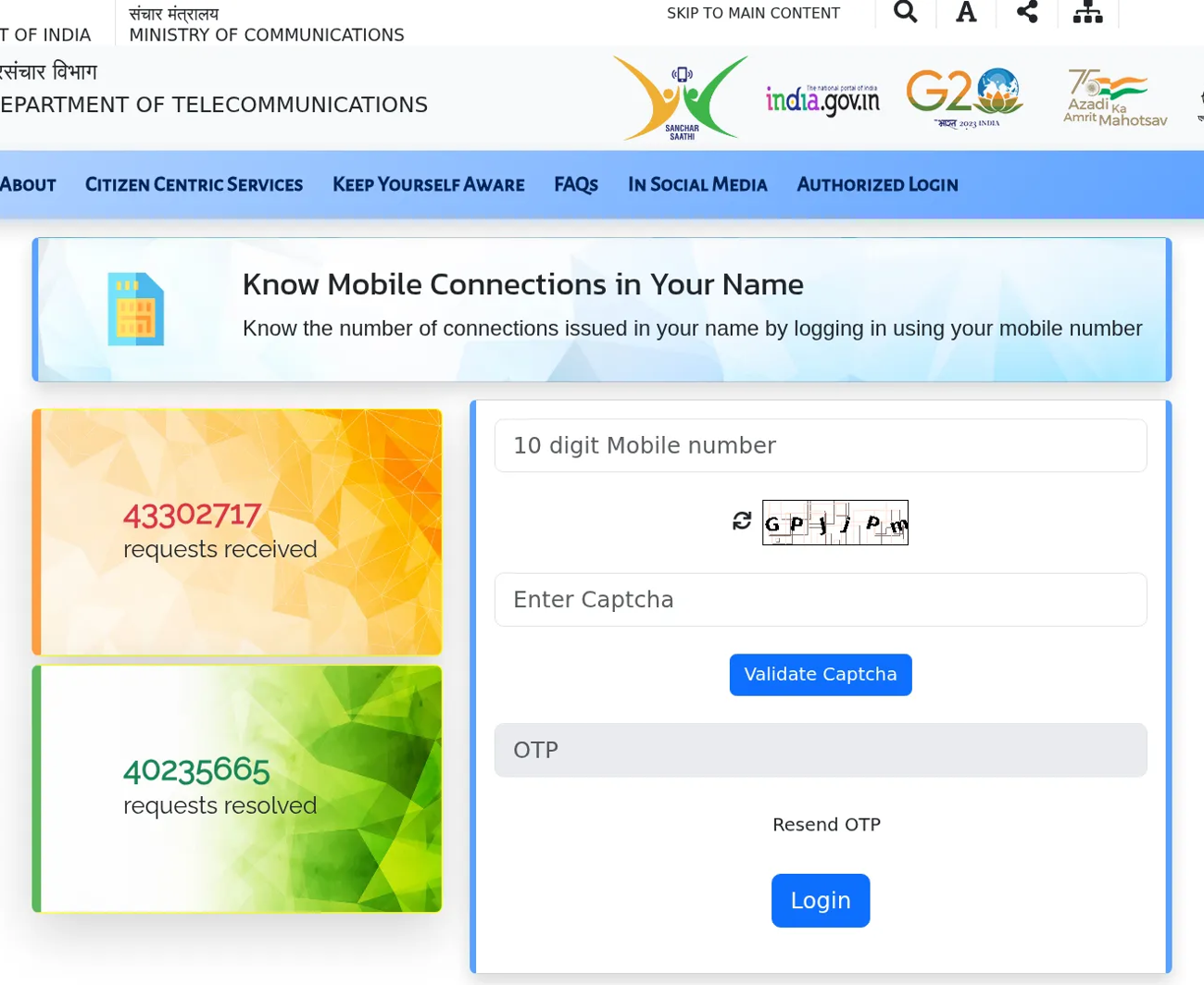
- Open tafcop.sancharsaathi.gov.in in your phone or laptop browser. You can also go to sancharsaathi.gov.in and pick Know Mobile Connections in Your Name from the Citizen Centric Services menu.
- Type your 10-digit mobile number in the first box.
- Read the captcha image and type it in the Enter Captcha box. If you cannot read it, use the small refresh icon next to it for a new one.
- Tap Validate Captcha. The OTP box, which is greyed out at first, becomes active.
- Enter the OTP that arrives by SMS on that number. If it does not arrive, wait a little and use Resend OTP.
- Tap Login. You will see the list of mobile numbers issued under your identity.
Go through the list slowly. Check every number against your own phone, your family’s phones and any old numbers you remember. Most people find one or two old SIMs they forgot about. A few find a number they have never seen.
What the three options on the list mean
Next to each number you can mark a choice. Picking the right one matters, because each leads to a different action.
| Option | When to use it | What happens |
|---|---|---|
| Required | The number is yours and you use it | No action. It stays active. |
| Not required | The number is yours or your family’s, but you no longer need it | You are asking for that connection to be disconnected. |
| This is not my number | You never applied for it and do not know it | You are reporting a connection active in your name without your knowledge. |
The Sanchar Saathi FAQ puts the reporting steps in four lines: log in with the OTP, go through the connections, tick ‘This is not my number’ or ‘Not required’ against the ones to be reported, and click the Report button. The same FAQ also says citizens can use the Sanchar Saathi mobile app from the Google Play Store or Apple App Store.
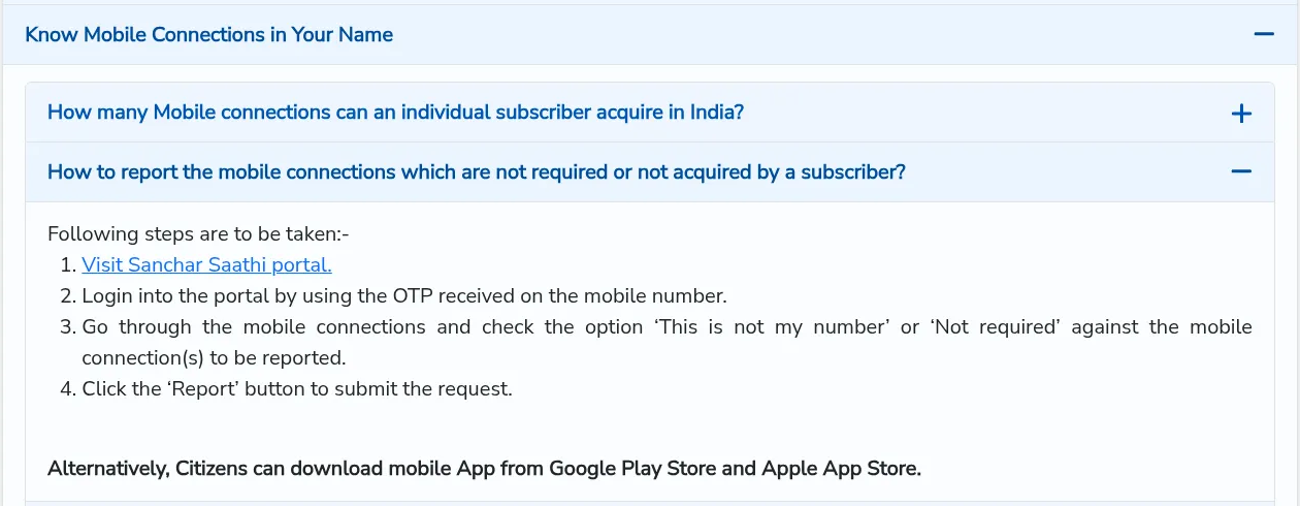
How to report a SIM you did not take
- Log in on TAFCOP as described above.
- Tick the box next to the unknown number.
- Choose This is not my number.
- Click Report to submit the request.
- Note the request or ticket ID shown on screen, and take a screenshot. You will need it to check the status later.
Be careful here. If the number is only an old SIM you stopped using, choose Not required, not This is not my number. Marking your own number as not yours is the wrong report and can waste your time. The FAQ also lists a re-verification process for reported connections, so keep your phone reachable and your ID proof ready in case the operator contacts you.
What to do if you find more SIMs than you expected
Do the check, then act in this order. First, list the numbers you recognise. Second, report the unknown ones as not mine. Third, if the number is linked to money trouble such as a loan app, a bank alert or a UPI problem, tell your bank and read my guide on reporting UPI fraud on 1930, because the unknown SIM may already have been used. Fourth, think about where you gave your Aadhaar copy recently: a mobile shop, a SIM seller, a KYC camp or a random app. Copies handed out without a purpose written on them are a common leak.
If you want to stop future misuse of your documents, a simple habit helps. When you give an ID copy to anyone, write the purpose and the date across it, for example “For SIM KYC only, 12-10-2026”. It looks small but it makes the copy much harder to reuse.
Common mistakes to avoid
- Using a fake or look-alike site. Search results sometimes show copycat pages. Type the official address yourself.
- Sharing the OTP. The OTP is only for the portal page you opened. Do not read it out to anyone on a call.
- Choosing the wrong option. Not required and This is not my number are different. Read the table above before you submit.
- Ignoring old SIMs. A SIM you stopped using years ago is still in your name until it is disconnected.
- Checking once and forgetting. A check takes two minutes, so repeat it every few months.
- Reporting without a screenshot. Save the request ID so you can follow up.
Troubleshooting
The OTP is not coming
Check that the SIM has network and that SMS is not blocked by a do-not-disturb or spam filter app. Wait a minute, then tap Resend OTP. If you have a dual SIM phone, make sure the number you typed is the one that is active.
The captcha keeps failing
Use the refresh icon and type the new characters carefully. Type the characters exactly as shown.
The site does not load
Government portals are sometimes slow in the evening. Try again later or from another browser. The page itself says it works best on recent Chrome or Firefox versions.
TAFCOP vs Chakshu: which one do you need?
Both are on Sanchar Saathi, but they do different jobs. Use this table to pick the right one.
| Tool | Use it for | Example |
|---|---|---|
| TAFCOP (Know Mobile Connections in Your Name) | Checking and reporting SIMs issued in your name | You find a number you never bought |
| Chakshu | Reporting suspected fraud calls, SMS or WhatsApp messages | A fake KYC message asks you to click a link |
Frequently asked questions
Is TAFCOP free?
Yes. The Sanchar Saathi portal is a government service, and the pages I opened showed no fee.
How many SIM cards can I have in my name?
Up to 9 across all operators in India. In Jammu and Kashmir, Assam and the North Eastern states, the limit is 6, as stated in the Sanchar Saathi FAQ.
Do I need Aadhaar to use it?
You log in with your mobile number, captcha and OTP. You do not type your Aadhaar number on the login page.
Which option should I pick for an old SIM I do not use?
Pick Not required. Use This is not my number only for connections you never applied for.
Can I do this from my phone?
Yes. The website works in a phone browser, and the FAQ says there is also a Sanchar Saathi app on the Google Play Store and Apple App Store.
Final thoughts
Checking your SIMs is one of the quickest safety jobs you can do on a phone. Open tafcop.sancharsaathi.gov.in today, look at the list, and report anything you do not recognise. If the list is clean, set a reminder to check again in six months.