
Short answer: you can lock your Aadhaar fingerprint, iris and face data in about a minute, either in the Aadhaar app or on the myAadhaar website, and nobody can use them for biometric authentication until you unlock them. You need the mobile number registered with your Aadhaar. This guide shows each method, the SMS commands, and the mistakes that trip people up.
Aadhaar biometrics are used at SIM shops, bank micro-ATMs, ration shops and many other places. Your fingerprints cannot be changed like a password, so it makes sense to keep them switched off when you are not using them. UIDAI calls this feature Biometric Lock/Unlock, and it is free.
What Biometric Lock Actually Does
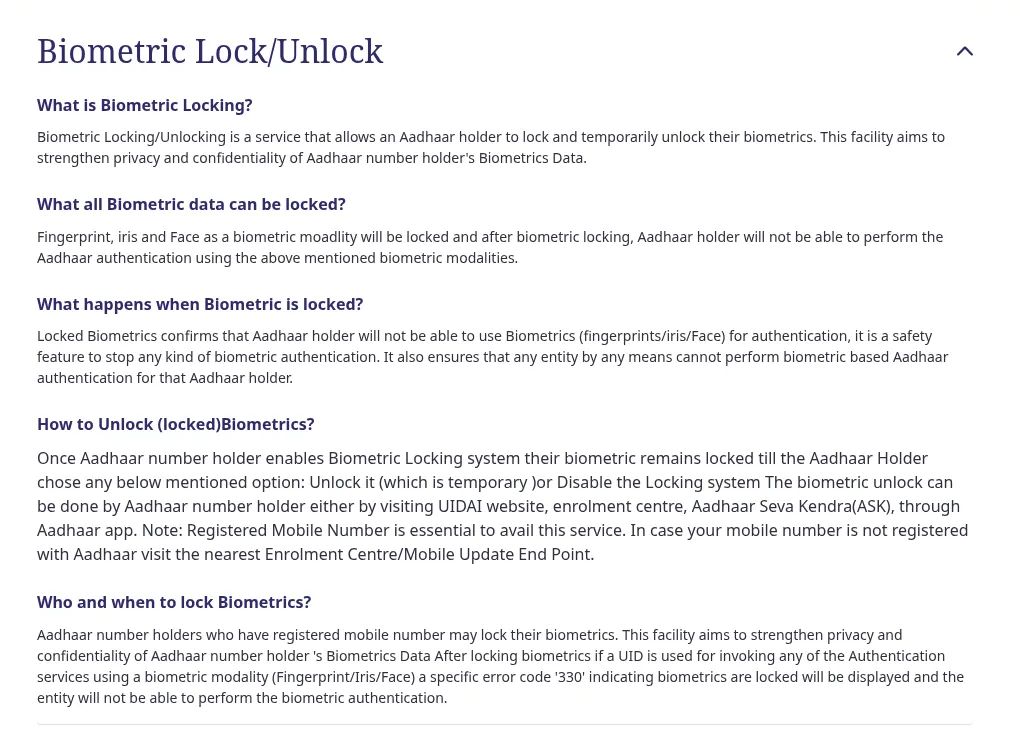
According to UIDAI’s own FAQ, Biometric Locking/Unlocking lets an Aadhaar holder lock and temporarily unlock their biometrics, to protect the privacy and confidentiality of that data. Fingerprint, iris and face are all covered. After locking, you cannot complete Aadhaar authentication with any of those three.
If someone tries biometric authentication with your Aadhaar number while the lock is on, the request fails with error code 330, which means the biometrics are locked. The feature only works if a mobile number is registered with your Aadhaar. If yours is not registered, UIDAI says to visit the nearest Enrolment Centre or Mobile Update End Point first.
Good to know
Locking is not permanent. UIDAI describes the unlock as temporary, and the lock stays on until you either unlock it or disable the locking system. Lock again after you finish your work.
Biometric Lock vs Aadhaar (UID) Lock: Do Not Mix Them Up
UIDAI offers two different locks, and people confuse them. The table shows the difference.
| Feature | Biometric Lock | Aadhaar (UID) Lock |
|---|---|---|
| What it blocks | Fingerprint, iris and face authentication | Authentication using UID, UID Token and VID for biometric, demographic and OTP |
| Needs a VID first? | No | Yes, a 16-digit Virtual ID is a pre-requisite |
| Needs registered mobile? | Yes | Yes (OTP or TOTP is used to confirm) |
| Best for | Everyday protection of your fingerprints and face | Strong lock when you will not use Aadhaar for a while |
| How to undo | Unlock in the app, website, enrolment centre or ASK | Unlock using your latest VID |
For most people, the Biometric Lock is the right choice. The full Aadhaar lock blocks OTP authentication as well, which can stop you from using services that send an OTP to your phone.
Method 1: Lock Biometrics in the Aadhaar App
The Aadhaar app is the quickest route. India Today and Mint both reported on July 20, 2026 that, according to a MeitY press release dated July 18, the app has crossed four crore downloads and its biometric lock and unlock feature has been used more than 1.91 crore times. The steps they describe:
- Open the Aadhaar app and sign in with your 6-digit PIN.
- On the home screen, tap Biometric Lock/Unlock, shown just below your Aadhaar card.
- Confirm that you want to lock your biometrics.
There is a second path. Open the app, tap the Security tab on the home screen, choose Biometric Lock/Unlock and confirm. To unlock later, open the same option and confirm again. Menu names can change between app versions, so if you do not see these labels, update the app and look for the same option under Security.
Method 2: Lock Biometrics on the myAadhaar Website
UIDAI says biometrics can also be locked and unlocked on its website, and the portal is myaadhaar.uidai.gov.in. Published guides describe the flow like this:
- Open the myAadhaar portal and choose Lock/Unlock Biometrics.
- Read the note and tick the consent box saying you understand that biometric authentication stays off until you unlock.
- Enter your 12-digit Aadhaar number and the captcha, then request an OTP.
- Enter the OTP sent to your registered mobile. A success message confirms the lock.
Heads up
When I tried to open the myAadhaar lock page from my own browser on October 13, 2026, the server returned no response. UIDAI portals sometimes go down for maintenance, so if it does not load, try later or use the Aadhaar app instead. Always type the address yourself and check that it ends in uidai.gov.in.
Method 3: Use SMS if You Have No Internet
UIDAI runs an SMS service on 1947 for people without internet access. It works only from the mobile number registered with your Aadhaar. This is mostly useful for the full Aadhaar lock, which needs a Virtual ID. To generate a VID, send GVID followed by the last 4 digits of your Aadhaar. UIDAI’s example: if the number is 1234-5678-9123, send GVID 9123 to 1947.
If you forget your VID later, you can get it back with RVID and the same last 4 digits. Replace 9123 with your own last four digits in both messages.
How to Unlock When You Need a Biometric Check
Sometimes you must use your fingerprint, for example for a new SIM or a bank KYC at a counter. UIDAI says the unlock can be done on its website, at an enrolment centre, at an Aadhaar Seva Kendra, or in the Aadhaar app. The simplest habit:
- Unlock in the Aadhaar app just before you reach the counter.
- Finish the biometric check.
- Open the app again and lock your biometrics straight away.
Do not leave it unlocked overnight just because it is easier. The whole point is that the lock is on in the long gaps between your own use.
Common Mistakes and Troubleshooting
The lock option does not work or no OTP arrives
Almost always the mobile number is not registered with Aadhaar, or you no longer use that SIM. UIDAI says to visit the nearest Enrolment Centre or Mobile Update End Point to register a number.
A shop says “biometrics locked” or shows error 330
That is the lock doing its job. Unlock in the app, ask the shop to try again, then lock once more.
You locked the full Aadhaar instead and OTP stopped working
The Aadhaar (UID) lock blocks OTP authentication too. Unlock it using your latest VID, which you can retrieve with the RVID SMS above.
You think someone already misused your Aadhaar
Locking stops new biometric checks but does not undo old ones. Check which SIM cards are registered in your name using the TAFCOP guide, and report money fraud quickly using our 1930 UPI fraud reporting guide.
Safety Habits That Go With the Lock
- Never share your OTP, PIN or VID with anyone who calls or messages you, even if they say they are from UIDAI.
- Share a masked Aadhaar copy, which shows only the last 4 digits, when a full number is not needed.
- Use only the official apps and the uidai.gov.in domain.
- The Aadhaar helpline is 1947.
Frequently Asked Questions
Is locking Aadhaar biometrics free?
Yes. Neither UIDAI’s FAQ nor the app guides mention any charge for the lock or unlock.
Will the lock affect my Aadhaar card or e-KYC with OTP?
The biometric lock only covers fingerprint, iris and face. UIDAI’s FAQ says these modalities are locked, so OTP-based checks are not described as affected. The full Aadhaar (UID) lock is different and blocks OTP as well.
Can I lock only my fingerprint and keep face on?
No. UIDAI says fingerprint, iris and face are locked together.
What if I lose my phone or SIM?
You need the registered mobile number for the online lock and unlock, so get a duplicate SIM from your operator first. If the number is no longer yours, update it at an Aadhaar centre.
Does the lock expire on its own?
UIDAI says biometrics stay locked until you unlock or disable the locking system. Some guides claim the lock returns automatically after an unlock, but UIDAI’s FAQ does not say this, so lock manually after use.
Sources & Documentation
- UIDAI: Aadhaar Online Services FAQ (Biometric Lock/Unlock, Aadhaar Lock/Unlock, Virtual ID)
- UIDAI: Aadhaar Services on SMS
- India Today: how to lock and unlock using the Aadhaar app (July 20, 2026)
- Mint: Aadhaar app biometric lock steps (July 20, 2026)
Written & Verified by Sampath Anji
Sampath Anji is a technology researcher, systems developer, and digital creator based in Telangana, India. He specializes in on-device AI architectures, autonomous agent workflows, high-throughput inference engines, and digital media production. Every tutorial on ISMARTANJI CREATIONS is grounded in code reproducibility, verified documentation, and transparent test environments. Read our full testing methodology on our About Us page, or submit feedback and code updates via our Contact Desk.