
Short answer: if DigiLocker will not show your marksheet, degree or other certificate, the cause is almost always one of two things: the name on the document does not match the name on your Aadhaar, or your board or university has not uploaded your record yet. You cannot fix the second one yourself, but you can fix the first, and you can raise a proper support ticket for both. This guide explains how, using DigiLocker’s own answers.
Many students hit this wall: they create the account, search for the Class 12 marksheet, and it is simply not there. The good news is that DigiLocker has published clear answers to this exact problem, and most cases follow a pattern.
Why DigiLocker Cannot Find Your Document
DigiLocker only shows data that an issuer has sent to it. In its “Ask our Experts” answers (a live show held on October 18, 2024), DigiLocker says that only the authorised board or university can upload data, and that records appear only if the institution has uploaded them to the National Academic Depository (NAD). Students cannot upload their own marksheets to the issued section.
The second rule is the one that surprises people. DigiLocker says that to protect the rightful owner, the name on the document must match the name on your Aadhaar. If it does not, the document cannot be fetched.
Two causes, two owners
Name mismatch: you can fix it by updating your Aadhaar or asking the issuer to correct the record. Record not uploaded: only your board or university can fix it. Find out which one you have before you start.
Step 1: Sign In the Right Way
DigiLocker sign-up and sign-in run on the accounts.digilocker.gov.in page, shown below. It asks for your Aadhaar or VID number, and there is a QR code option if you use the mobile app. If the Aadhaar route fails, the page offers “Try using Mobile Number” at the bottom.
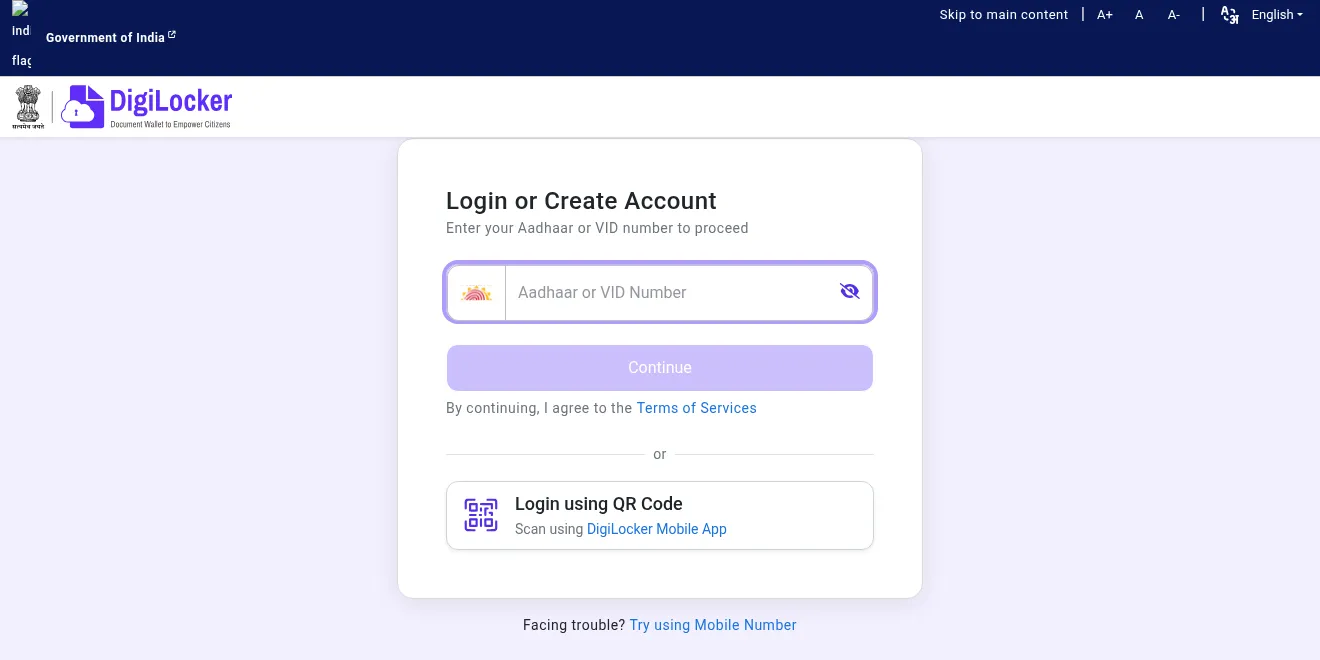
Aadhaar eKYC is mandatory for fetching documents, according to DigiLocker. It also sends an OTP to the mobile number linked with your Aadhaar. If that number is old or belongs to a parent, you must first update the number in your Aadhaar at the nearest Aadhaar enrolment centre, then update it in DigiLocker.
Step 2: Search for the Document in the Right Place
Documents live in the Issued Documents section. DigiLocker’s example for a driving licence is: log in on the website, use Search Document on the left, select Ministry of Road Transport and Highways, click Driving Licence Verification Record and enter your licence number. For marksheets, choose your board or university in the same search and give the details it asks for. The exact labels can change, so treat these as a guide, not a script.
DigiLocker also says the same document can exist in both the Issued and Uploaded sections. Use the one in Issued Documents for official work, because those are digitally signed by the issuer. The Uploaded section is only personal storage for your own scans.
Step 3: Check the Name Match
Open your marksheet or degree and your Aadhaar side by side. Look at spelling, initials, and the order of names. DigiLocker’s own example is a student whose Aadhaar reads Given Name, Father’s Name, Surname while the degree reads Surname, Given Name, Father’s Name. That alone blocked the fetch.
This also hits married women whose Aadhaar name changed after marriage while the marksheet still carries the old name. DigiLocker’s answer is the same: it cannot fetch documents when the names differ.
How to Fix a Name Mismatch
- Decide which record is wrong. If your Aadhaar has a spelling error, update the Aadhaar. If the marksheet is wrong or shows an old name, the issuer must correct it.
- Contact your board or university and ask them to update your name in their records to match your Aadhaar. DigiLocker says that once they update your data, you will be able to access your documents.
- Wait for the issuer to re-upload, then search again in Issued Documents.
DigiLocker is clear that it only displays what departments provide, and documents can be updated only by the issuing authority. So a support ticket to DigiLocker cannot rewrite your marksheet.
What to Do When Your Record Was Never Uploaded
Examples DigiLocker gave: the Bihar School Examination Board had made digital marksheets available only for Class 10 of 2018 and 2019 at that time, and the Rajasthan board had digital records for 2014 to 2021 and 2023. Older years were missing. DigiLocker’s advice is to request your board or university to publish digital records on NAD. There was no fixed deadline for old records.
If you are sure your record should be there, raise a ticket at support.digilocker.gov.in. DigiLocker asks for these details:
- A scanned copy of the marksheet or certificate, or your full name as printed on it
- Education board or university name
- Year of passing, session or month
- Roll number, registration number or seat number
- Serial number on the document and total marks
- Your DigiLocker registered mobile number
- A screenshot of the error
Here is a short ticket you can copy and fill in:
Quick Comparison: Which Problem Do You Have?
| What you see | Likely cause | Who fixes it |
|---|---|---|
| Other documents fetch, but marksheet does not | Record not uploaded to NAD | Board or university |
| Search fails with your correct details | Name differs from Aadhaar | You or the issuer |
| No OTP at sign-in | Aadhaar has an old mobile number | Aadhaar enrolment centre |
| Only recent years appear | Old data not yet uploaded | Board or university |
Is a DigiLocker Document Accepted as Proof?
DigiLocker states that documents in the Issued Documents section are legally at par with originals when used electronically, and cites the IT Act and its rules. It also admits some officials still ask for paper and says it is working on awareness. My advice: carry the issued version in the app and keep a printout for places that insist.
Common Mistakes
- Uploading a scan and assuming it is the same as the issued document. It is not.
- Trying again and again with a wrong roll number or year of passing.
- Using a parent’s mobile number for Aadhaar and then being unable to receive the OTP.
- Raising a DigiLocker ticket about a name error that only the university can correct.
- Sharing your Aadhaar OTP or security PIN with anyone. Never do this.
Protect Your Account
DigiLocker says you can set an MPIN in the mobile app so that a stolen phone is less of a risk: open the app, tap Menu at the bottom, go to Settings, choose Security and set a 4-digit MPIN. Also read how to lock your Aadhaar biometrics for extra safety.
Frequently Asked Questions
Can I add my family member’s documents to my DigiLocker?
No. DigiLocker says accounts are individual, and you can only fetch documents issued in your name. Each person should make their own account.
Can I upload my own marksheet to the issued section?
No. Only academic institutions are authorised to upload there, to keep documents authentic.
How many accounts can one mobile number have?
DigiLocker says up to five Aadhaar-verified accounts, and only one non-verified account, on a single mobile number.
Can I use DigiLocker if I am outside India?
Yes, but DigiLocker says you need an India-based mobile number or a verified email ID.
Is my Passport available in DigiLocker?
DigiLocker said the passport department was not yet integrated at the time of that document, so check the app for the latest status.
Sources & Documentation
- DigiLocker: Answers from the Ask our Experts show (October 18, 2024)
- DigiLocker: Login or Create Account page
- DigiLocker home page
Written & Verified by Sampath Anji
Sampath Anji is a technology researcher, systems developer, and digital creator based in Telangana, India. He specializes in on-device AI architectures, autonomous agent workflows, high-throughput inference engines, and digital media production. Every tutorial on ISMARTANJI CREATIONS is grounded in code reproducibility, verified documentation, and transparent test environments. Read our full testing methodology on our About Us page, or submit feedback and code updates via our Contact Desk.