
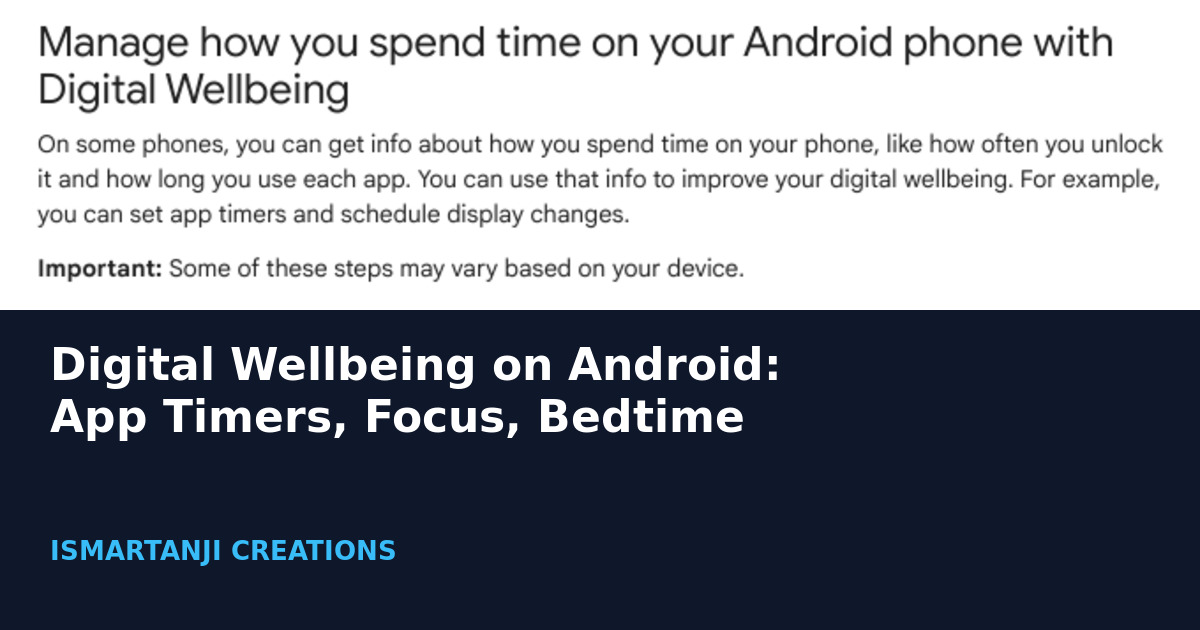
To cut down phone time on Android, open Settings > Digital Wellbeing, tap App timers and set a daily limit for the apps that eat your time. Then use Focus mode to pause distracting apps while you study, and Bedtime mode to quiet the phone at night.
This guide follows three Google Help pages that we opened on October 25, 2026. Google says some of these steps may vary based on your device, so the menu names on your phone can look a little different. If you cannot find an option, use the search bar inside Settings.
What Digital Wellbeing Does
Google describes Digital Wellbeing as a way to get info about how you spend time on your phone, like how long you use each app. You can then use that info to set app timers and schedule display changes. Google also says that on some phones you get this feature, so not every phone has every option.
| Feature | What it does (from Google’s page) | Where to find it |
|---|---|---|
| App timers | Limits how long you can use an app each day | Settings > Digital Wellbeing > App timers |
| Focus mode | Pauses chosen apps and their notifications | Settings > Digital Wellbeing > Focus mode |
| Bedtime mode | Quiets the phone and changes the screen at night | Settings > Digital Wellbeing > Bedtime mode |
| App limits PIN | Stops others from changing your limits | Settings > Digital Wellbeing > App limits > App limits PIN |
| Screen time widget | Shows the top 3 apps you use each day | Home screen > Widgets |
Step 1: Set Up Digital Wellbeing
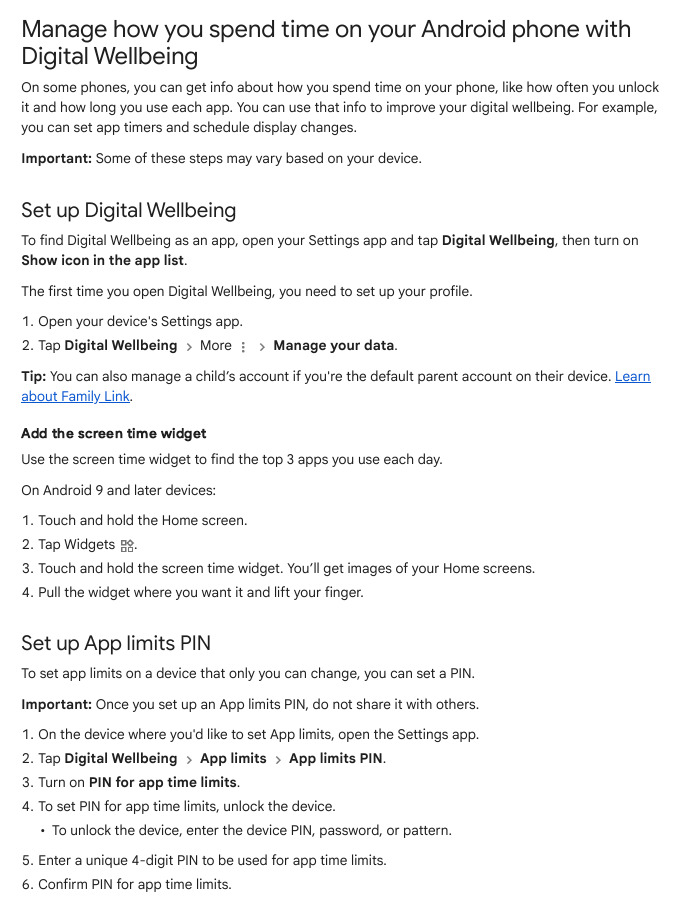
Google says you can find Digital Wellbeing as an app by turning on an icon. The first time you open it, you need to set up your profile.
- Open your phone’s Settings app.
- Tap Digital Wellbeing.
- Turn on Show icon in the app list if you want it as a separate app.
- To manage the data it collects, tap Digital Wellbeing, then More (the three dots), then Manage your data.
Settings > Digital Wellbeing > Show icon in the app listSee how much time you spend in apps
- Open Settings and tap Digital Wellbeing.
- Look at the chart. It shows your device use today.
- Tap the chart for more. You can switch between Screen time, Times opened and Notifications received.
- Tap any app in the list to see more info or change that app’s settings.
Check first, then limit
Look at Screen time for two or three days before you set any timer. You will see which apps really use your time, and your limits will be more realistic.
Add the screen time widget
Google says the screen time widget shows the top 3 apps you use each day. On Android 9 and later:
- Touch and hold the Home screen.
- Tap Widgets.
- Touch and hold the screen time widget.
- Pull the widget where you want it and lift your finger.
Step 2: Set an App Timer
An app timer is a daily limit. When time runs out, the app closes and its icon dims. Google notes that some work and school accounts might not work with app timers.
- Open your device’s Settings app.
- Tap Digital Wellbeing, then App timers.
- Next to the app you want to limit, tap Set timer.
- Choose how much time you can spend in that app.
- Tap OK.
Settings > Digital Wellbeing > App timers > Set timer > OKTwo facts from Google that matter: app timers reset at midnight, and to use the app again before midnight you repeat the steps and delete the timer.
Here is a simple plan. If you spend 3 hours a day on short videos, try a timer of 1 hour 30 minutes first. Cut a little more each week. A sudden big cut is easy to break.
Step 3: Limit Time on a Website in Chrome
Google says you can also see and limit time on websites you open in Chrome.
- Open Settings and tap Digital Wellbeing.
- Tap the chart, then Chrome. If you do not see it, tap Show all apps.
- Tap Show sites and then Show to see the websites you visited and the time on each.
- Next to a website, tap Set site timer, choose a time limit and tap OK.
Settings > Digital Wellbeing > chart > Chrome > Set site timerTo hide past visits to a site, tap the site, then Remove past visits and Remove. Google says the site shows on the list again if you visit it in future.
Step 4: Set an App Limits PIN
If you want a limit that others cannot easily change, set a PIN. Google says to set this on a device that only you can change, and never to share the PIN.
- Open Settings and tap Digital Wellbeing.
- Tap App limits, then App limits PIN.
- Turn on PIN for app time limits.
- Enter your phone PIN, password or pattern when asked.
- Enter a unique 4-digit PIN, confirm it and tap Confirm.
Settings > Digital Wellbeing > App limits > App limits PIN > PIN for app time limitsA trick for shared phones
Google says that to block another user’s access to an app, create an App limits PIN and set that app’s time limit to zero.
Step 5: Use Focus Mode to Pause Apps
Focus mode is for study time. Google says that when it is on, you cannot use the apps you picked and you will not get notifications from them. This is useful before exams.
- Open Settings and tap Digital Wellbeing.
- Tap Focus mode.
- Choose which apps you want to pause.
- Tap Turn on now. To switch it off, tap Turn off now.
- To start it automatically, tap Set a schedule.
- For a short break while Focus mode is on, tap Take a break and choose a time limit.
Settings > Digital Wellbeing > Focus mode > Turn on nowGoogle adds that on some devices you can put Focus mode in Quick Settings, the panel you get by swiping down from the top of the screen.
Step 6: Set Up Bedtime Mode
Google’s Digital Wellbeing page gives two ways to set a bedtime routine. You can use a schedule with start and end times and your chosen days, or you can choose Turn on while charging with an After and Before time.
- Open Settings and tap Digital Wellbeing.
- Tap Bedtime mode, then Bedtime routine.
- Choose when Bedtime mode will turn on.
- Pick Use a schedule or Turn on while charging.
Settings > Digital Wellbeing > Bedtime mode > Bedtime routineScreen options at bedtime
| Option | What Google says it does |
|---|---|
| Grayscale | Changes your screen to black and white |
| Keep the screen dark | Turns off the always-on display at bedtime |
| Dim the wallpaper | Dims your wallpaper and lock screen at bedtime |
| Dark theme | Makes the screen background black, used only when Bedtime mode is on |
You can also turn on Turn off Bedtime at next alarm. Google says this ends Bedtime mode at your next alarm. For a quick switch, use Quick Settings.
Newer Android: the Modes screen
Google’s Do Not Disturb page says some steps only work on Android 14 and up. There, Bedtime lives under Modes.
- Open Settings and tap Modes.
- Tap Bedtime, then Set up Bedtime.
- Under “When to turn on automatically”, turn on Bedtime routine and set a start and end time.
- Tap Done. You will be asked to allow access to your app usage and sensor data. Tap Allow or Don’t allow.
Settings > Modes > Bedtime > Set up Bedtime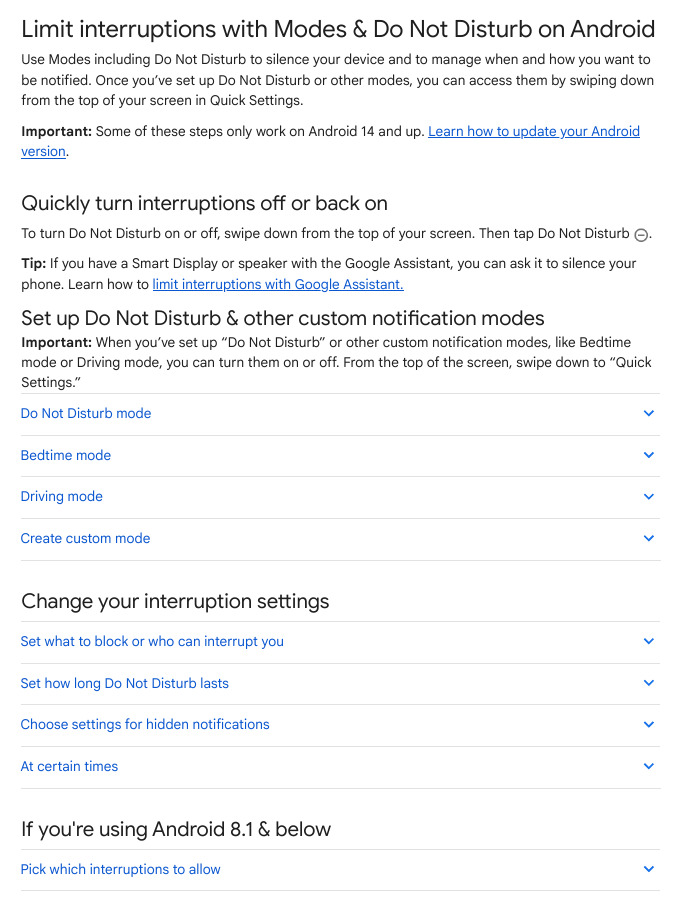
Use the Clock App for Bedtime and Wake-Up
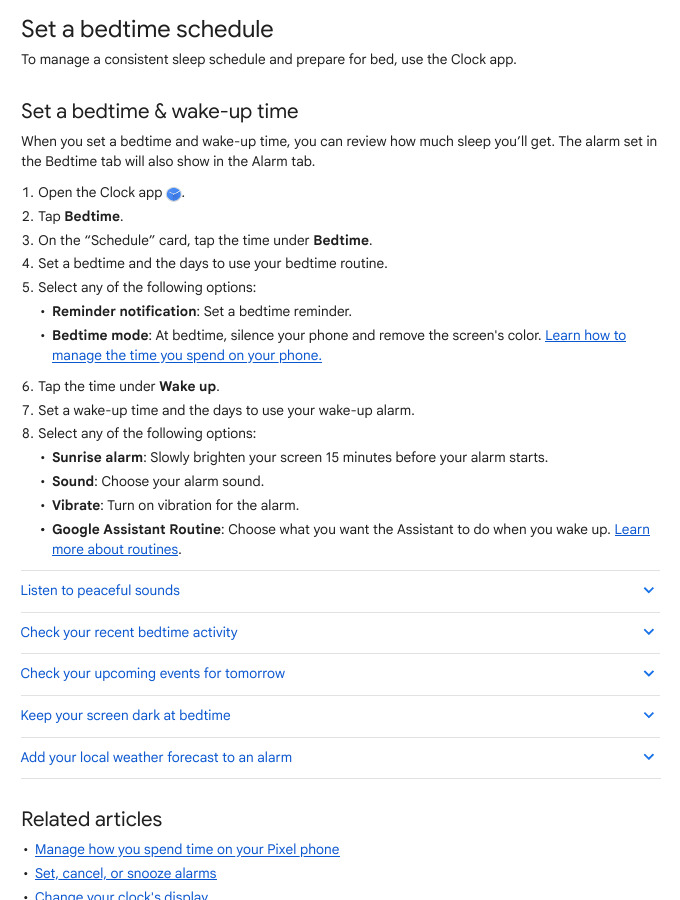
Google’s Clock app page offers another route. You set a bedtime and a wake-up time, and the alarm you set in the Bedtime tab also shows in the Alarm tab.
- Open the Clock app and tap Bedtime.
- On the “Schedule” card, tap the time under Bedtime and set the time and days.
- Choose Reminder notification or Bedtime mode.
- Tap the time under Wake up and set the wake-up time and days.
- Optional: turn on Sunrise alarm, which slowly brightens your screen 15 minutes before the alarm.
Clock > Bedtime > Schedule > Bedtime / Wake upGoogle says the Bedtime activity chart needs the Digital Wellbeing app. It shows which apps you used during your scheduled bedtime. To erase that data, open Clock, tap Bedtime, tap More next to Recent bedtime activity, then tap Manage data.
Do Not Disturb is also under Modes: select a mode and use Notification filters to choose which people and apps can reach you. Google says critical notifications, like system security alerts, always show. For phone safety, read our Google Play Protect guide.
Common Mistakes
- Setting a timer too low on day one. You will switch it off by evening. Cut a little each week.
- Forgetting timers reset at midnight. A late-night session can start fresh at 12:00 AM.
- Sharing the App limits PIN. Google says never to share it.
- Limiting only one app. You may just move to another app. Check the Screen time chart for the next biggest one.
- Adding study apps to Focus mode. Pick only the distracting apps.
- Looking for menus that your phone does not have. Google says steps vary by device; use the Settings search bar.
FAQ
Is Digital Wellbeing free?
It is a Settings feature on supported phones. Google’s help page does not list any charge for it.
Why can’t I find Digital Wellbeing on my phone?
Google says that on some phones you get these features, and steps may vary by device. Open Settings and search for Digital Wellbeing. Newer Android versions may show it as Digital Wellbeing & parental controls.
When does an app timer reset?
At midnight. Delete the timer if you need the app again before then.
Does Focus mode stop notifications?
Yes, for the apps you picked. Google says you cannot use these apps and will not get notifications from them while it is on.
Can I limit a website?
Yes, for sites opened in Chrome. Use Set site timer under Digital Wellbeing, Chrome.
Sources & Documentation
- Android Help: Manage how you spend time on your Android phone with Digital Wellbeing
- Android Help: Limit interruptions with Modes & Do Not Disturb on Android
- Android Help: Set a bedtime schedule
Written & Verified by Sampath Anji
Sampath Anji is a technology researcher, systems developer, and digital creator based in Telangana, India. He specializes in on-device AI architectures, autonomous agent workflows, high-throughput inference engines, and digital media production. Every tutorial on ISMARTANJI CREATIONS is grounded in code reproducibility, verified documentation, and transparent test environments. Read our full testing methodology on our About Us page, or submit feedback and code updates via our Contact Desk.