
Short answer: Gemini does not remember a chat the way a friend does. It re-reads a limited amount of text every time you send a message, and Google’s own table says that amount is only 32k tokens on the free plan. Once your chat, your pasted notes and Gemini’s long replies pass that size, the oldest part stops counting. The cure is a short summary at the start of each new chat.
This is one of the most repeated complaints about Gemini. In this r/GoogleGeminiAI thread and this newer one, many people say Gemini “forgot” the topic, and the replies are mostly “yes, normal” or “use Gems”. Nobody explains the real number behind it, and the Gems tip is about to stop working. I read Google’s Help pages and developer docs on October 29, 2026 and rebuilt the advice around them.
The Number Nobody Mentions: 32k, 128k or 1 Million
Google’s “Gemini Apps limits and feature availability” page lists a context window for each plan. The context window is the amount of text Gemini can look at together when it writes one reply. Your messages, its answers and any pasted text or files all share it.
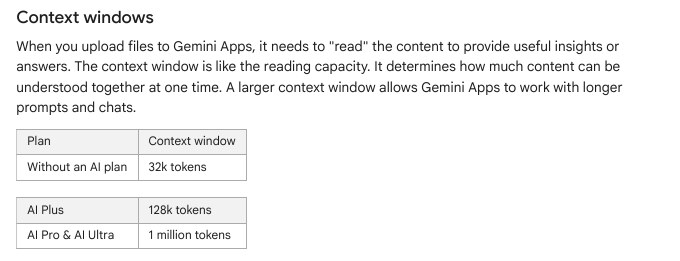
A token is a small piece of text. Google’s developer docs say one token is about 4 characters, and 100 tokens is about 60 to 80 English words. I turned that into everyday sizes. The last column is my own calculation, not a Google figure.
| Plan | Context window | Roughly how much English text |
|---|---|---|
| No Google AI plan (free) | 32k tokens | 19,000 to 25,000 words |
| Google AI Plus | 128k tokens | 77,000 to 102,000 words |
| Google AI Pro and Ultra | 1 million tokens | 600,000 to 800,000 words |
Twenty-five thousand words sounds huge. It is not, once you study with it. Picture a B.Com student who pastes a 15-page Income Tax chapter, asks for notes, then 10 practice questions, then edits to every answer. Gemini’s long answers sit inside the window too. After one evening, the first chapter can be gone.
Four Different Problems That Look the Same
Before fixing anything, find out which kind of forgetting you have. The fix is different for each one.
| What happened | Real cause | Go to |
|---|---|---|
| Forgets something from earlier in the same long chat | The window is full, or the chat is very long | Fix 1 and Fix 2 |
| A new chat knows nothing about yesterday’s chat | Chats are separate. Memory is off or not available to you | Fix 3 |
| You rely on a Gem and it behaves oddly or vanishes | Gems are being replaced by skills | Fix 4 |
| Live voice chat forgets everything | Memory and Gems do not apply to Live chats | Use a text chat |
Fix 1: Start a Fresh Chat With a Handover Summary
This is the habit that works on every plan, free or paid. Do not wait until Gemini is confused. When a chat gets long, ask for a summary, then carry it into a new chat. Google’s own limits page gives a similar tip: start a new chat when you change topic, because Gemini then does not need to re-read a long history.
- In the long chat, paste the prompt below and send it.
- Read the summary yourself and fix any mistake. Gemini may have mixed up something, and you should catch it now.
- Copy the summary. Tap or click New chat.
- Paste the summary as your first message and add your next question under it.
Pause the lesson. Write a handover note I can paste into a new chat.
Include: (1) my goal, (2) facts and numbers I gave you, (3) decisions we made,
(4) what is still pending, (5) the format I want answers in.
Keep it under 300 words and use short bullet points.
The 300-word limit matters: a short note costs a few hundred tokens, so the new chat starts almost empty.
Fix 2: Measure Your Chat Instead of Guessing
If you want proof, copy the whole chat into a text file and run this small script. It uses Google’s 4-characters-per-token rule, so the result is an estimate, but it is close enough to tell you whether you are at 30 percent or 130 percent of the free window. You need Python 3 on a computer.
# chatsize.py - rough size check for a saved Gemini chat
# Google says 1 token is about 4 characters for Gemini models.
import sys

LIMITS = {"free": 32_000, "plus": 128_000, "pro": 1_000_000}

path = sys.argv[1]
text = open(path, encoding="utf-8").read()
tokens = len(text) / 4

print(f"Characters: {len(text):,}")
print(f"Rough tokens: {tokens:,.0f}")
for plan, limit in LIMITS.items():
    used = tokens / limit * 100
print(f"{plan:>5} plan window {limit:>9,}: {used:6.1f}% used")python3 chatsize.py my_gemini_chat.txtI tested it on a 131,666-character file. It printed about 32,916 tokens, which is 102.9 percent of the free window and 25.7 percent of the 128k window. Treat anything over 70 percent of your window as a signal to do Fix 1.
Fix 3: Turn On Memory and Add Standing Instructions
Memory and instructions solve the second problem: a new chat that knows nothing. They are two different tools, and people mix them up.
Memory of past chats
Memory lets Gemini learn from your earlier chats. Google lists three conditions: you must be 18 or older, signed in to a personal Google Account (a college or work account does not count), and Keep Activity must be on. A college email can be the reason Memory never works.
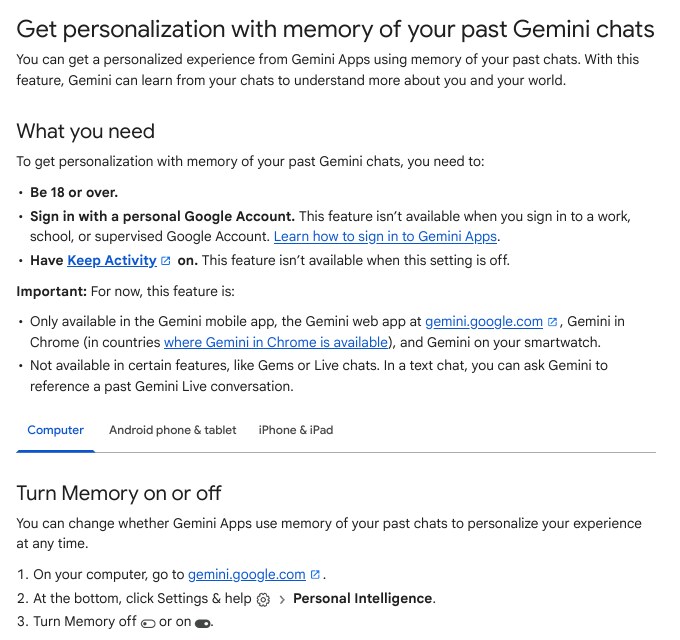
- Open the Gemini app on your phone and tap Menu, then your profile picture, then Personal Intelligence.
- Switch Memory on.
- On the website, the path is Menu, then Settings and help, then Personal Intelligence.
To test it, start a new chat and ask: “Did you use any info from past chats?” Google suggests exactly this question. Gemini’s answer, plus a “Previous chats” label under replies, tells you whether it looked at older chats.
Instructions for Gemini
Instructions are rules you write once, and they apply to every chat. Google says all users can add them. Use them for things that never change: your course, your language level, your answer format.
- Open the Gemini app, tap Menu, then your profile picture, then Personal Intelligence, then Instructions for Gemini.
- Tap Add +, type the instruction, then tap Submit.
- To change it later, find it in the same list and use More, then Edit or Delete.
I am a B.Com second-year student in Telangana.
Explain in simple English with Indian rupee examples.
When I ask about tax or GST, say which section or rule you are using.
Keep answers under 250 words unless I ask for more.
The last line helps on a free plan: shorter answers use less of the 32k window, so the chat lasts longer.
Two Google pages, two different rules
Google’s page about remembering facts says the feature needs a Google AI plan and is limited to the US for now, while the past-chats memory page does not mention a plan. If the Memory switch is missing in your app, that may be why. Fix 1 still works.
Fix 4: If You Use Gems, Move to Skills Before November 17
Many forum replies say “save a Gem”. That advice has an end date. Google’s transition page says Gems become read only on November 17, 2026 for personal accounts, and are removed on December 17, 2026. Google also says it will convert your Gems to skills for you.
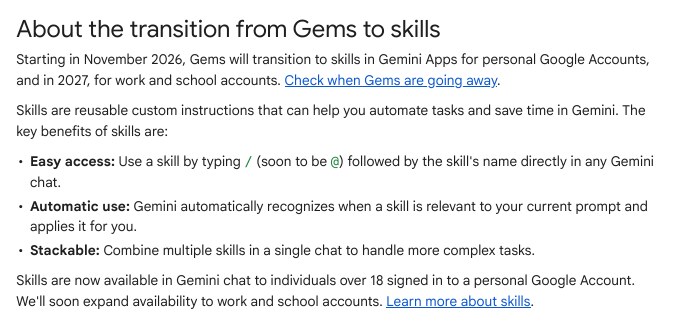
A skill is a saved set of instructions you can call in any chat by typing a slash and its name. Gemini can also apply it on its own when your prompt fits. To make one yourself on the website, open the sidebar, choose Customize, then Skills, then Create, then Create manually.
Two warnings from Google’s FAQ. Some files do not carry over, such as audio, video and old .doc, .xls and .ppt files, and a skill can hold up to 100 MB of files. Also, skills do not yet work with Canvas, Deep Research or video creation. If your Gem has study material, download those files before December 17.
Fix 5: Small Habits That Save Your Window
- Keep one chat for one topic. “GST invoice rules” and “resume help” should never share a chat.
- Put your question at the end after pasted text. Google’s developer docs say this works better when the context is long.
- Ask for “short answers” while revising. Long answers eat the window faster than your questions do.
- On the website, use Branch in a new chat (from the menu under a reply) when you want to try a side idea without cluttering the main chat.
What I Could Not Confirm
I want to be clear about the limits of this guide. I did not run a full 32k test inside the Gemini app, because the app does not show a token count. The 32k, 128k and 1 million figures are Google’s published numbers. Some paid-plan users say Gemini forgets earlier than the numbers suggest, and Google’s Help pages do not explain how the app picks which parts of a long chat to use. So treat a big window as a ceiling, not a promise, and use Fix 1 even if you pay.
Common Mistakes
- Using a college or work Google account and expecting Memory to work.
- Keeping Keep Activity off, then wondering why nothing is remembered.
- Pasting a whole book and then asking about chapter 1 after 30 more questions.
- Relying on a Gem to still be there after December 17, 2026.
Frequently Asked Questions
Is Gemini forgetting because of a bug?
Usually not. Most cases match the window size or a missing Memory setting. Real bugs happen too, but check the cheap causes first.
Does deleting my chats make Gemini forget me?
Yes, in part. Google says to delete the chats from Gemini Apps Activity to remove what Gemini remembered, and that there may be a short delay before it stops using them.
Will paying for a Google AI plan fix this?
It raises the window to 128k or 1 million tokens, so it helps with long study sessions. It does not turn Gemini into a person with perfect memory. Check the price shown in your own app before you decide.
Sources & Documentation
- Gemini Apps Help: Gemini Apps limits and feature availability
- Gemini Apps Help: Get personalization with memory of your past Gemini chats
- Gemini Apps Help: Manage what Gemini remembers about you and customize responses
- Gemini Apps Help: About the transition from Gems to skills
- Gemini Apps Help: Find and manage your recent chats
- Gemini API Docs: Understand and count tokens
- Gemini API Docs: Long context
This guide was checked on October 29, 2026. Plans, limits and menu labels change, so what you see may differ slightly.
Written & Verified by Sampath Anji
Sampath Anji is a technology researcher, systems developer, and digital creator based in Telangana, India. He specializes in on-device AI architectures, autonomous agent workflows, high-throughput inference engines, and digital media production. Every tutorial on ISMARTANJI CREATIONS is grounded in code reproducibility, verified documentation, and transparent test environments. Read our full testing methodology on our About Us page, or submit feedback and code updates via our Contact Desk.