
Short answer: in most cases your phone is not haunted and the app is not broken. Android has a built-in feature called Turn on Wi-Fi automatically. When you walk near a Wi-Fi network you have used before, the phone switches Wi-Fi back on for you. A second common cause is much simpler: tapping the Wi-Fi tile in Quick Settings often does not switch Wi-Fi off at all. Fix both and the problem usually ends today.
Many people ask this on Google’s own Pixel Community, and a similar thread appeared after the Android 17 update (here). The replies are scattered. One says turn off one switch, another says reset the network, a third blames an app. This guide puts the causes in order, from most likely to least likely, so you stop guessing.
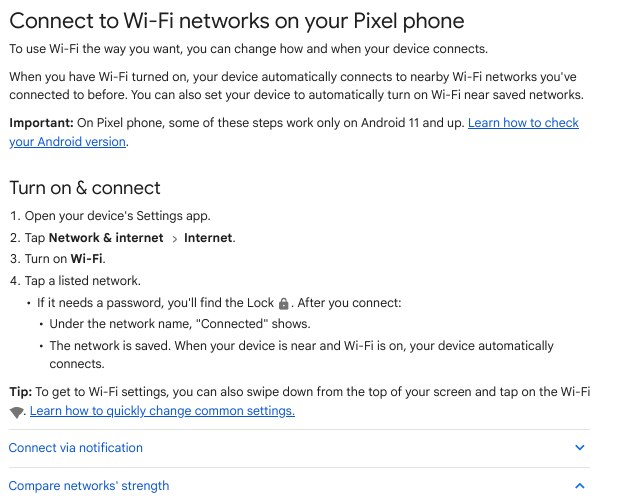
Why does Android turn Wi-Fi on without asking?
Think of a student who switches Wi-Fi off in college to save battery and then forgets to switch it on at home. Android’s designers saw the same habit. The Android Open Source Project page says the feature arrived in Android 9. It watches for a network you saved earlier, and if the signal is strong enough, it turns Wi-Fi back on. That is the whole trick.
Notice what this means in a real Indian home. Your own router is a saved network. So is your friend’s hostel Wi-Fi, the coaching centre network and the cafe you visited once. If you pass any of them with a decent signal, Wi-Fi can wake up. In a flat or a PG with many routers, it can seem to happen all day.
The six causes, from most to least likely
| Cause | How to spot it | Fix in short |
|---|---|---|
| Turn on Wi-Fi automatically is on | Wi-Fi returns when you reach home, college or a saved cafe | Switch that option off |
| Quick Settings tile only disconnects | You tapped the tile, but the Wi-Fi radio stays on | Long-press the tile and turn Wi-Fi off inside |
| Wi-Fi scanning is on | Wi-Fi returns even after the automatic option is off | Turn off Wi-Fi scanning in Location services |
| Notify for public networks is on | You see open-network alerts and Wi-Fi wakes up | Switch the notification option off |
| A third-party app | Problem stops in Safe mode | Remove or restrict the app |
| A software bug after an update | Every switch is off and it still returns | Reset network settings, then wait for an update |
The main fix: turn off the automatic switch-on
Menu names move around between phone brands and Android versions, so use the search box at the top of Settings if you do not see a name. Search for the words in bold below.
- Open Settings and go to Network & internet, then Internet.
- Scroll to the bottom and tap Network preferences. On some phones this is called Wi-Fi preferences or Wi-Fi settings.
- Switch off Turn on Wi-Fi automatically.
- While you are here, also switch off Notify for public networks. Some phones word it as Open network notification.
- Turn Wi-Fi off from Quick Settings using the long-press method in the next section, then lock the phone and walk to another room. Check if Wi-Fi stays off for an hour.
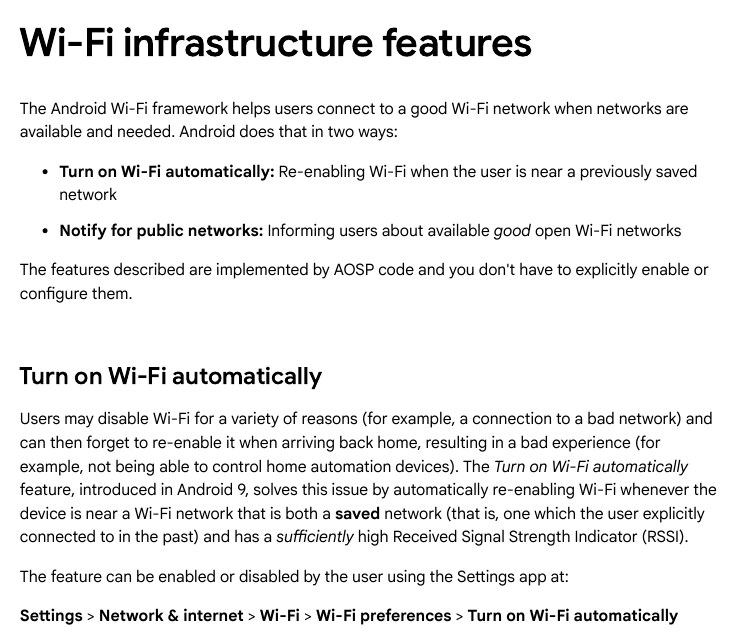
One more fact from Google’s page for Pixel phones: this auto-start does not happen if Location is off, Battery saver is on, Airplane mode is on, Hotspot is on, or background Wi-Fi scanning is off. That list explains why the behaviour feels random. It may work for a week and then stop after you turn on Battery saver.
The sneaky one: the Wi-Fi tile does not always switch Wi-Fi off
This is the answer I rarely see in blog posts. In a reply on the Pixel Community thread, a helper explains that on newer Android versions a quick tap on the Wi-Fi tile only disconnects you from the current network and pauses reconnection. The Wi-Fi radio itself stays on. To really switch it off you need to long-press the tile and turn off the Use Wi-Fi switch. I read this on a community reply and did not test it on every phone, so treat it as a strong tip rather than an official rule. It matches what many people describe: Wi-Fi seems off, then it connects again.
- Swipe down twice to open the full Quick Settings panel.
- Long-press the Internet or Wi-Fi tile. The Internet settings page opens.
- Switch off Use Wi-Fi (on some phones it is a plain Wi-Fi switch at the top).
- Open the panel again. The tile should now show Wi-Fi as off, not just disconnected.
A simple test
After turning Wi-Fi off, check the status bar. If the Wi-Fi icon is gone completely, the radio is off. If you see the icon with a cross or an empty fan shape, it is still on and only disconnected.
Turn off Wi-Fi scanning too
Wi-Fi scanning lets the phone look for networks even when Wi-Fi is off. Apps and the automatic feature use it. Google’s help page lists it in the same group of settings. If you want full control, turn it off. The cost is small: location apps like maps may find you a little slower indoors, because they use Wi-Fi names to guess where you are.
- Open Settings and tap Location.
- Tap Location services.
- Tap Wi-Fi scanning and switch it off. Switch off Bluetooth scanning as well if you want the quietest setup.
- On a phone with a different layout, search Settings for scanning.
If your phone has a Wi-Fi scanning switch but not the automatic option, do the scanning step first. It is the same family of features.
If Wi-Fi still comes back: check for an app
A third-party app can switch Wi-Fi on. Typical culprits are a smart-home app, a Wi-Fi manager, a battery or booster app, and a device-control app from your office or college. How do you check? Use Safe mode. A helper on the Pixel Community suggests this too. In Safe mode only the built-in apps run. If Wi-Fi stays off there, one of your downloaded apps is the cause.
- Long-press the power button, then long-press Restart or Power off until the Safe mode prompt appears. Tap OK. The steps differ by brand, so if this does not work, search your phone model plus Safe mode.
- Use the phone for a few hours and watch Wi-Fi.
- If Wi-Fi stays off, restart normally to leave Safe mode. Then remove recently installed apps one by one, newest first, and test each for a day.
- For an app you must keep, open Settings, then Apps, tap the app, and look at its permissions. Remove nearby devices or location permission if it does not really need them.
Notes to keep while testing
Day 1: automatic option off, scanning off -> Wi-Fi came back? yes / no
Day 2: Safe mode -> Wi-Fi came back? yes / no
Day 3: removed app: ______ -> Wi-Fi came back? yes / no
If every switch is off and it still happens
Then you may have a bug. Some people on the Pixel Community said it began right after a big update. A reply in the Android 17 thread advises turning the automatic option off, checking Wi-Fi scanning, and then resetting network settings if the problem stays. That is sensible, but remember what a reset does.
- Open Settings, then System, then Reset options. On other phones the path may be General management or Additional settings, then Reset.
- Tap Reset Wi-Fi, mobile & Bluetooth (the wording can be slightly different) and confirm.
- Reconnect to your home Wi-Fi and enter the password again.
Before you reset
This clears all saved Wi-Fi passwords, paired Bluetooth devices and mobile network settings. Keep your router password handy. Do this at home, not in the middle of a trip where you need a hotel Wi-Fi code.
After the reset, repeat the main fix. A reset can put some settings back to default. If the behaviour continues after that, install any pending system update, because a bug fix is the only real answer left. Report it through your phone maker’s feedback app with a short note on what you tried.
Is leaving this feature on actually bad?
Not really. The feature has a purpose. If you keep forgetting to switch Wi-Fi back on, your mobile data pack disappears faster. With 1.5 GB a day plans, that matters. So choose by habit.
| Your habit | Best setting | Why |
|---|---|---|
| You always switch Wi-Fi off outside | Turn the automatic option off | Wi-Fi will not wake up at every saved network |
| You forget to turn Wi-Fi on at home | Keep the automatic option on | It saves mobile data |
| You travel and use hotspots often | Turn off public network notification | Fewer prompts, lower risk on open networks |
| You want the best battery life | Turn off scanning too | Fewer background scans |
One caution for public Wi-Fi: an open network at a railway station or mall has no password and anyone nearby can try to snoop. Turning off the public network notification means you decide when to join. That is a real safety gain, not just a convenience.
Common mistakes
- Only tapping the tile. It can leave the Wi-Fi radio on.
- Turning off one switch and ignoring scanning. The two work as a pair.
- Blaming the router. The phone decides when to turn Wi-Fi on, not the router.
- Resetting network settings first. Do it last, since it wipes saved passwords.
- Installing a Wi-Fi manager app to fix it. The app can become a new cause.
- Forgetting Battery saver and Airplane mode. They change when the feature works, so test with them off.
FAQ
Why does Wi-Fi turn on when I reach home?
Your home router is a saved network. If Turn on Wi-Fi automatically is on, the phone switches Wi-Fi on when it sees a strong signal from it.
Does this feature use mobile data?
No. It only turns the Wi-Fi radio on. It can actually reduce mobile data use, because the phone moves to Wi-Fi once you are near a saved network.
Is it safe for the phone to join networks by itself?
It only joins networks you saved before. Open public networks are the risk, so turn off public network notifications if you do not want prompts.
Will turning off Wi-Fi scanning break my maps?
Maps will still work with GPS. Indoor location can become a little less exact, because Wi-Fi names help the phone find where you are.
Why does the setting have a different name on my phone?
Brands rename menus and move them between Android versions. Use the search box in Settings and look for the words Wi-Fi automatically, scanning or Wi-Fi preferences.
Sources & Documentation
- Pixel Phone Help: Connect to Wi-Fi networks on your Pixel phone
- Android Open Source Project: Wi-Fi infrastructure features
- Android Help: Manage advanced network settings on your Android phone
- Pixel Community: Wi-fi won’t stop turning on (user question)
Written & Verified by Sampath Anji
Sampath Anji is a technology researcher, systems developer, and digital creator based in Telangana, India. He specializes in on-device AI architectures, autonomous agent workflows, high-throughput inference engines, and digital media production. Every tutorial on ISMARTANJI CREATIONS is grounded in code reproducibility, verified documentation, and transparent test environments. Read our full testing methodology on our About Us page, or submit feedback and code updates via our Contact Desk.