
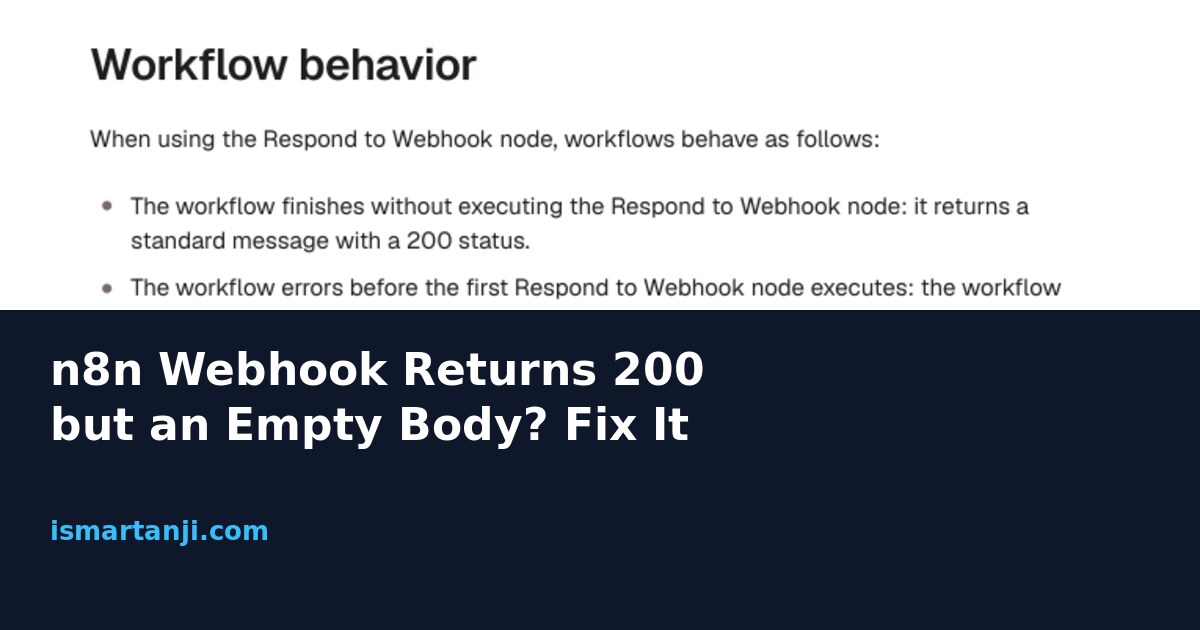
Short answer: your workflow ran, but the Webhook node answered the caller before your data was ready, or your Respond to Webhook node never ran, or it ran and sent an empty value. Open the Webhook node, set Respond to Using ‘Respond to Webhook’ Node, then check what the response node really sent. The execution log can look perfect while the caller gets nothing.
This confuses a lot of n8n beginners. In one community thread a user saw a green execution, correct JSON in the last node, and still an empty body at the other end (thread). In another the first replies guessed at test mode. Below is a way to find your exact cause in about ten minutes.
Why the log and the response do not match
Think of a restaurant. The waiter (the Webhook node) can tell you “order received” the moment you sit down. Or he can wait and bring the food. The kitchen (your workflow) works the same in both cases. What you hear at the table is a different thing from what the kitchen did.
n8n gives the Webhook node three main ways to answer. The option sits under Respond in the node:
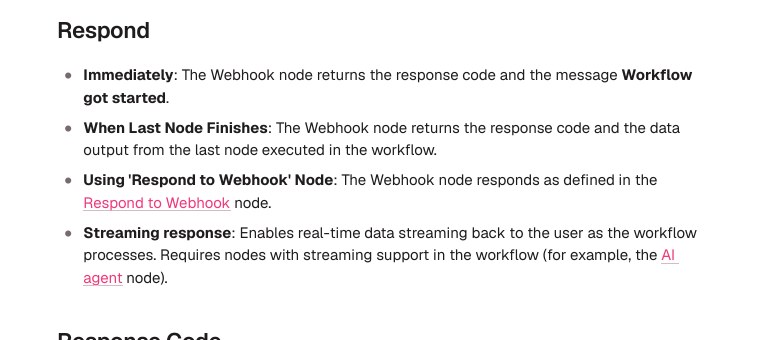
| Respond setting | What the caller gets | Typical surprise |
|---|---|---|
| Immediately | A quick reply with the text “Workflow got started” | Your final data never reaches the caller |
| When Last Node Finishes | Data from the last node that ran | Empty if the last node outputs nothing, or if you chose No Response Body |
| Using ‘Respond to Webhook’ Node | Whatever that node is set to send | Standard message if the node never runs |
So “200 with empty or useless body” is not one bug. It is four or five different causes that look alike. Work through them in the order below, because the cheap checks come first.
Step 1: Check which URL you are calling
The test URL and the production URL behave differently. The test URL only works while the editor is listening, and the production one works only after you publish the workflow. If you call the wrong one, you may see a very different reply from what you built. I covered this in detail in my guide on test vs production webhooks, so here is only the quick rule: before debugging anything else, confirm the URL has /webhook/ and not /webhook-test/ for live use.
Step 2: Test the webhook without your app in the way
Your frontend, Lovable, Make, Zapier or Postman may hide what really comes back. Call the URL from a terminal and print the status and body. Replace the URL with your own.
curl -i -X POST "https://YOUR-N8N-HOST/webhook/my-path" \
  -H "Content-Type: application/json" \
  -d '{"name":"Ravi","amount":250}'
The -i flag prints the headers too. Look at three things: the status line, the Content-Type header, and whether anything appears after the blank line. If the body shows Workflow got started, jump to Step 3. If it is truly empty, go to Step 4.
Step 3: Fix the Respond setting
- Open your workflow and double-click the Webhook node.
- In the Parameters tab, find Respond.
- Change it to Using ‘Respond to Webhook’ Node if you want full control. Choose When Last Node Finishes if you only need the last node’s data.
- Add a Respond to Webhook node after the node that makes your result. Do not place it before that node.
- Save, then publish the workflow again and repeat the curl test.
Why publish again? The production URL runs the saved and published version. An old version can keep answering with the old Respond setting. One forum answer on a similar problem also stressed the same point: set it in the main parameters of the Webhook node, not in the Options list.
Which option should you pick?
For a small API, use the Respond to Webhook node. You can set the status code and headers, and you choose exactly what goes out. “When Last Node Finishes” is simpler but follows whatever the last node outputs, and that is where empty bodies come from when the last node is a send-email or database step.
Step 4: See what the Respond node really sent
This is the check most guides skip. When you open a Respond to Webhook node after a run, the panel shows its input. That is the data coming in, not necessarily what went out. A response built from an expression can resolve to nothing even when the input looks fine.
- Open the Respond to Webhook node.
- Go to its Settings tab.
- Turn on Enable Response Output Branch.
- Run the workflow again and open the new Response output. That is the real body.
If the Response output is empty, the problem is your expression or field name, not the Webhook node. A common case is writing the field as {{ $json.result }} when the previous node calls it output or text. A safer pattern is to build the reply in one clear JSON body:
{
  "ok": true,
  "message": "{{ $json.output }}",
  "received": "{{ $('Webhook').first().json.body.name }}"
}
Set Respond With to JSON and paste that in Response Body. Change output to the field your previous node really produces. If the AI Agent node feeds this step, that field is often called output, but check your own run before trusting that.
Step 5: Look for rules that make n8n skip or ignore your node
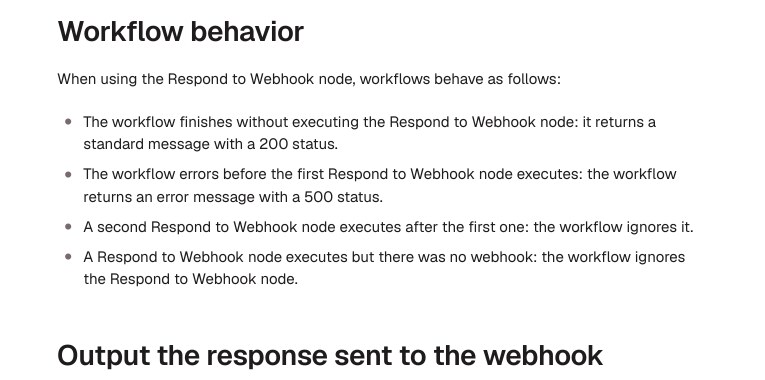
The n8n docs list four behaviours for the Respond to Webhook node. Three of them explain many empty or odd replies:
| Situation | What the caller sees |
|---|---|
| The workflow ends without reaching the Respond node (for example an If branch with no connection) | A standard message with status 200 |
| Something fails before the first Respond node runs | An error message with status 500 |
| Two Respond nodes run one after another | Only the first counts. The second is ignored |
| The node runs but there was no webhook trigger | The node is ignored |
Real example: a form-to-sheet flow for your college club. An If node checks the phone number. The true branch ends in Respond to Webhook, the false branch just stops. A bad number gives a plain 200 and your page shows a blank box. Add a second Respond node on the false branch with status 400 and a short message such as “Invalid number”.
Also search your canvas for a second Respond to Webhook node placed earlier in the flow. The first one to run wins, so a forgotten test node can silently decide the answer.
Step 6: Slow workflows and timeouts
A workflow that calls an AI model, waits on an API and writes to a sheet can take 20 or 30 seconds. Many callers give up well before that. Lovable-style builders, browsers and some no-code tools use a short wait. In the thread above, the user’s app timed out because it waited for the final result, while the workflow was designed to call back later.
The fix is a two-step design. Answer fast with a 202 (accepted), then finish the work and send the result to a callback URL or save it where the app can poll. Put the Respond node right after the trigger:
Webhook -> Respond to Webhook (JSON, Response Code 202) -> AI step -> Save result / HTTP Request to callbackSet the response code under Add Option in the Respond node. A forum answer in that thread confirms the workflow carries on past the response node, so your later nodes still execute. For the callback address, that answer used an expression of this form:
{{ $('Webhook').first().json.body.callback_url }}Be honest with your caller
Your app must also be written to expect an acknowledgement first. If its code treats the first reply as the final answer, no n8n setting can fix that. Ask the app builder, or change the prompt, so it waits for the callback.
Step 7: Wait nodes and v2 changes
A bug report from December 2025 described a Respond to Webhook node returning only a success message after an upgrade to n8n 2.0 when a Wait node set to resume “On webhook call” was in the same workflow. A workaround was posted in that thread. I could not confirm a fix in every build, so if your flow has a Wait node, test with and without it.
Step 8: Check CORS if the browser still shows nothing
If curl shows a good body but your web page shows an error or nothing, the browser may be blocking the reply. The Webhook node has an option called Allowed Origins (CORS), and the docs say * is the default. If you set a list of domains, write your site’s exact address, including https, with no trailing slash mismatch.
Quick check list
| Symptom in curl | Most likely cause | Go to |
|---|---|---|
| Body says Workflow got started | Respond set to Immediately | Step 3 |
| Empty body, status 200 | Expression resolved to nothing, or No Response Body is on | Step 4 |
| Default message after a branch | Respond node never reached | Step 5 |
| Works in curl, times out in app | Slow workflow, short app timeout | Step 6 |
| Works in curl, fails in browser | CORS | Step 8 |
Common mistakes
- Trusting the green tick. A successful execution only means the nodes ran, not that the caller got your data.
- Reading the input panel as the output. Use the response output branch.
- Editing the workflow and not publishing. The production URL keeps the old version.
- Adding Respond nodes in several places. Only the first to run counts.
- Turning on No Response Body and forgetting it is on.
- Testing only from the editor. Test the production URL with curl too.
My view
n8n’s behaviour is logical once you know the rules, but nothing on the canvas tells you the caller got an empty reply. My habit is simple: for every webhook I build, I run one curl test with -i before I connect any app to it, and I switch on the response output branch while I am testing. It saves hours of blaming the wrong tool.
FAQ
Why does my webhook return 200 when the workflow failed?
If the Webhook node is set to answer Immediately, it replies before your nodes run. Switch to the Respond to Webhook node so errors before it return a 500, as the docs describe.
Can I return more than one item?
The Respond to Webhook node has an All Incoming Items option for this. You can also merge items into one list first with the Aggregate node.
Does a Respond to Webhook node stop the workflow?
No. Per the forum answer above, the workflow continues after the response goes out, which is why the 202 pattern works.
Should I use the test URL for my app?
No. Use the production URL after publishing. The test URL is only for building in the editor.
Why does my page show an error when curl works?
Check the CORS option on the Webhook node and the exact site address you allowed.
Sources & Documentation
- n8n Docs: Respond to Webhook node
- n8n Docs: Webhook node
- n8n Docs: Webhook common issues
- n8n Community: Production webhook returns HTTP 200 with empty response body
- n8n Community: Not getting any response from Webhook
Written & Verified by Sampath Anji
Sampath Anji is a technology researcher, systems developer, and digital creator based in Telangana, India. He specializes in on-device AI architectures, autonomous agent workflows, high-throughput inference engines, and digital media production. Every tutorial on ISMARTANJI CREATIONS is grounded in code reproducibility, verified documentation, and transparent test environments. Read our full testing methodology on our About Us page, or submit feedback and code updates via our Contact Desk.