
Short answer: your n8n webhook has two different addresses, and they behave like two different doors. The test address (/webhook-test/…) only works while the editor is waiting for you. The production address (/webhook/…) only works after the workflow is published. If your form, app or payment tool still holds the test address, it will work on your laptop and then go silent. Swap in the production address, publish the workflow, and look in the Executions tab instead of the canvas.
This is one of the most repeated questions on the n8n community forum. A September 2026 thread asks exactly this for a website form, and an October 2026 post calls it a trap. Many people still end up stuck, because the reason is not always the URL. Below is the full checklist, in the order I would try it.
Why the same webhook works in one place and not the other
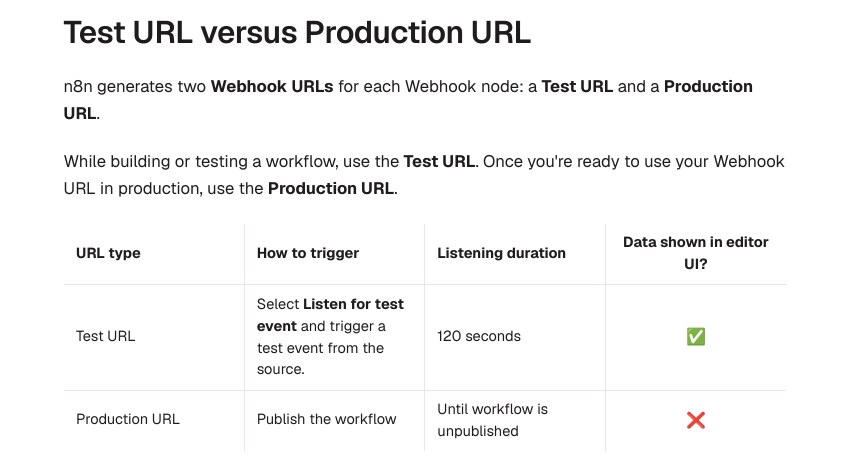
Picture a shop. The test URL is a side window the shopkeeper opens only when you knock on the editor and say "Listen for test event". It shuts again after about two minutes, and it shows you every customer on the canvas. The production URL is the front door. It opens when you publish, stays open as long as the workflow stays published, and nobody shows you the customers on the canvas. You have to look at the visitor book, which is the Executions tab.
Most "it does not work" cases come from this difference. Imagine a student in Hyderabad who builds a Google Form to n8n to WhatsApp flow, tests it with the test URL pasted into a form add-on, and sees data arrive. She closes the editor and sleeps, and next morning 40 form replies have gone nowhere. Nothing was broken. The add-on was knocking on a window that had closed.
Fix 1: Use the production URL and publish the workflow
- Open your workflow and double-click the Webhook node.
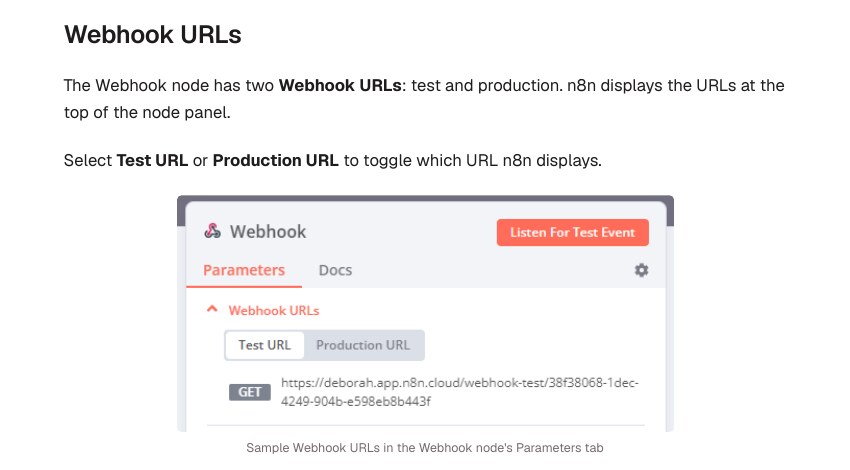
- At the top of the node panel, click the Production URL tab, not Test URL.
- Copy that address. It should contain /webhook/ and not /webhook-test/.
- Paste it into your website code, form tool or app, and remove the old test address everywhere.
- Publish the workflow from the top right of the editor. Older versions called this the Active switch.
- Trigger the real event once, then open the workflow’s Executions tab.
Tip: do not wait for the canvas
When a production run works, the canvas stays empty and the nodes do not light up. n8n’s docs say production data is shown only in the Executions tab. Many people think the workflow failed when it ran fine.
Fix 2: Match the HTTP method
A webhook node listens for one method by default, such as POST. If your form sends GET, or you open the address in a browser while the node expects POST, n8n answers with an error that says the webhook is not registered for that method. One forum user saw exactly this: the test run worked with one method, and the live one used another.
Check the HTTP Method field in the node, then check what your sender uses. If you need both, open the node Settings and turn on Allow Multiple HTTP Methods. You can test the node directly from a terminal with these two commands. Replace the address with your own production URL.
# POST with a small body
curl --request POST 'https://your-n8n.example.com/webhook/my-path' --data 'name=Ravi'

# GET, to see the 'not registered for GET' message if your node is POST-only
curl --request GET 'https://your-n8n.example.com/webhook/my-path'
If the POST creates a new row in Executions, n8n is fine and the problem is in the sender. If it does not, keep reading.
Fix 3: Check for a path conflict
n8n allows only one webhook for each combination of path and method. If you copied a workflow, the copy may fight the original for the same path. The docs say to unpublish the workflow that holds the path, or change the path or method on one of them. Copied workflows are a very common cause when you move from a practice workflow to the real one.
Fix 4: Look at the URL itself, mainly for self-hosted n8n
This is the one that catches students who run n8n on a cheap VPS or in Docker. If the production URL in the node starts with localhost or an internal port such as :5678, no outside service can reach it. n8n builds that address from its host, protocol and port settings, which breaks behind a reverse proxy like Nginx or Caddy.
The n8n docs say to set the public address yourself with the N8N_WEBHOOK_URL environment variable, set N8N_PROXY_HOPS to 1 when one proxy sits in front, and restart n8n. The older name WEBHOOK_URL is deprecated from n8n 2.35.0 but is still the name many tutorials show. In a Docker Compose file it looks like this:
services:
  n8n:
    image: docker.n8n.io/n8nio/n8n
    environment:
      - N8N_WEBHOOK_URL=https://n8n.yourdomain.in/
      - N8N_PROXY_HOPS=1
After the restart, open the Webhook node again. The address shown should start with your own https domain. If it still shows localhost, the variable did not reach the container.
Tip: test from outside
Run the curl command from your mobile data, not from the same Wi-Fi as the server. A request that works from inside your home network can still fail from outside because of a firewall or DNS record.
Fix 5: If the request comes from a web page, check CORS
When a browser page calls your webhook with fetch or axios, the browser can block the request before n8n answers, and you only see a red error in the console. Open DevTools with F12, go to the Network tab, send the request once and read the status. A CORS message or a failed OPTIONS request means the browser stopped it.
In the Webhook node, click Add Option and pick Allowed Origins (CORS). The docs say the default is * (all origins) and you can give a comma-separated list of allowed URLs. Put your website’s address there. This option helps with simple cross-origin calls. A forum thread on a GET request that was blocked from localhost shows that CORS problems can still hide other causes, so always read the real error in the Network tab before changing things.
A calmer route for a website form is to send the form to your own backend first, and let the backend call n8n. The browser then never talks to n8n directly, and your webhook address stays out of the page source.
Quick table: what you see and what it means
| What you see | Likely cause | What to do |
|---|---|---|
| Works only while the editor is open | Test URL in use | Switch to the Production URL and publish |
| No data on the canvas, but a row in Executions | Normal production behaviour | Read the run in the Executions tab |
| Message about the webhook not registered for GET or POST | Wrong HTTP method | Match the method, or allow multiple methods |
| Error about path and method already in use | Two workflows share a path | Unpublish one, or change the path |
| Address shows localhost or :5678 | Public URL not set | Set N8N_WEBHOOK_URL, restart n8n |
| Red CORS error in browser console | Browser blocked the call | Set Allowed Origins (CORS) or call through your backend |
| 403 error | IP allowlist or auth rule | Check IP(s) Allowlist and Authentication in the node |
If nothing above helps
- Point your sender at a temporary request-catching page for a minute, so you can see whether it sends anything at all, and with which method and body.
- Check the webhook credentials. If you set Basic, Header or JWT auth in the node, the sender must send the matching header. Without it the call is refused.
- Check the IP(s) Allowlist option. The docs say addresses outside the list get a 403 error.
- On n8n Cloud, remember that a webhook that takes longer than 100 seconds to answer fails with a 524 status. For slow jobs, answer fast and send the result later with a second webhook.
- Use the Only Run If option with care. Requests that do not match its rule get a 200 reply but start no run, which looks like a silent failure.
Common mistakes
- Leaving the test address in a live form, app or payment tool.
- Saving the workflow and forgetting to publish it.
- Expecting production runs to show on the canvas.
- Opening a POST-only webhook address in the browser and thinking it is broken.
- Copying a workflow and keeping the same webhook path.
- Leaving localhost in the URL on a VPS.
- Changing five settings at once, so you never learn which one fixed it.
Frequently Asked Questions
Why does my n8n webhook only work when I click Listen for test event?
Because you are using the test address. It listens only during a test session, and the docs list 120 seconds for it. Use the production address and publish the workflow for permanent use.
Where can I see data from a production webhook run?
In the workflow’s Executions tab. The editor canvas does not show production data.
Do I need a paid n8n plan for production webhooks?
I did not find a rule like that in the Webhook docs. The key steps are the production URL and a published workflow, on both Cloud and self-hosted n8n.
Can I change the webhook path to something short?
Yes. The Path field takes a custom value. Each path and method pair can be used by only one webhook, so pick a name that no other workflow uses.
Sources & Documentation
- n8n Docs: Webhook node common issues (test vs production URL, path and method, timeouts)
- n8n Docs: Webhook node (URLs, methods, CORS and security options)
- n8n Docs: Configure webhook URLs with reverse proxy
- n8n Docs: Endpoints environment variables
Checked on 3 November 2026. n8n menus change between versions, so confirm on the n8n docs for your version.
Written & Verified by Sampath Anji
Sampath Anji is a technology researcher, systems developer, and digital creator based in Telangana, India. He specializes in on-device AI architectures, autonomous agent workflows, high-throughput inference engines, and digital media production. Every tutorial on ISMARTANJI CREATIONS is grounded in code reproducibility, verified documentation, and transparent test environments. Read our full testing methodology on our About Us page, or submit feedback and code updates via our Contact Desk.