

Short answer: the message "Chat memory full" does not mean your saved Memory is full. OpenAI’s own help page says it is about the size of the current conversation, and that you do not need to delete memories or other chats to fix it. The chat itself is stuffed. Open a new chat, give it a short hand-over note, and carry on. If a brand new chat shows the same notice after one or two messages, check the status page and try a private window, because that pattern looks like a service problem.
A lot of people are confused by this. An October 2026 thread on the OpenAI community forum has users on Free and Go plans saying chats lock after 10 to 20 messages, and that a new chat fills up again. Many replies are only "same here". Below I explain what the notice really means, and how I would handle it so you lose as little work as possible.
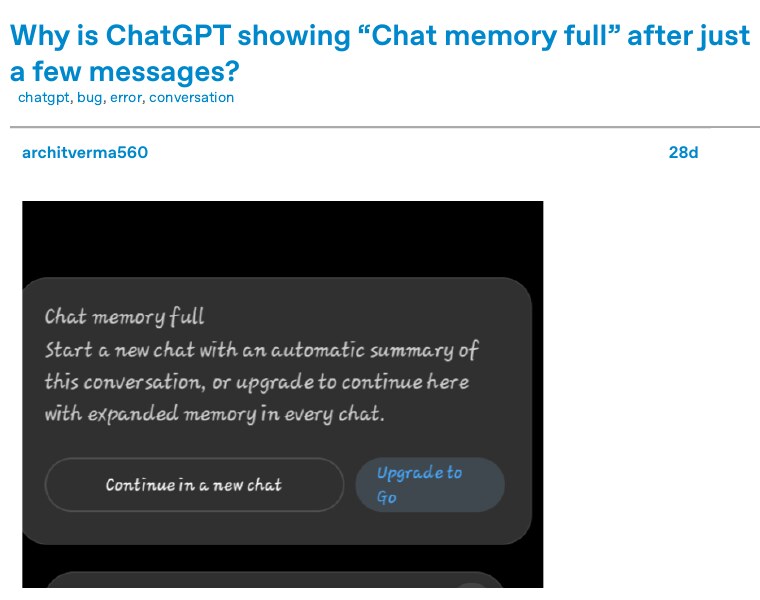
What the notice actually means
There are two very different things with the word memory in them, and the app uses the same word for both.
| Saved Memory | Chat memory (this notice) | |
|---|---|---|
| What it is | Facts ChatGPT keeps about you across chats | How much of ONE conversation the model can hold |
| Where you see it | Settings, Personalization, Memory | A banner inside the chat, send button greyed out |
| What fills it | Things you told it to remember | Your messages, its replies, pasted text |
| Does deleting saved memories fix it? | Only for saved-memory warnings | No, per OpenAI’s help page |
Think of a single chat as one long WhatsApp group chat that the model has to re-read before every reply. Pasting a 10-page PDF, a long code file or a big essay uses far more room than fifty short messages. This is why people see the notice after 10 messages in one chat and after 300 in another. OpenAI says there is no fixed number of messages per chat.
Why it feels worse now
I cannot see inside OpenAI, so I will not guess a cause. What I can say from the public thread: reports start around the end of September 2026, they come from Free and Go users on Android, iOS and the web, and a few people say it fired on short chats. One user thought it was a push to paid plans, another thought it was a bug. OpenAI had not given a root cause in the replies I read. So treat both ideas as opinions, and use the fixes below, which work either way.
The fix: move to a new chat without losing your work
- Do not delete the old chat. You can still read it, and copy from it, even when you cannot send a message. OpenAI’s help page says so.
- Tap Continue in a new chat if the banner shows it. It starts a new chat with an automatic summary.
- Before you type your next question, ask the new chat to repeat in 3 lines what it thinks you are doing. This checks that the summary is right.
- If a detail is missing, paste it yourself from the old chat. Instructions and exact wording are the things most often lost.
- If you are editing a document, paste only the paragraph you are working on, not the whole file.
The summary is a shortcut, and OpenAI’s page admits it may drop an earlier instruction or exact wording. So I prefer my own hand-over note. It takes one minute and you control what is kept. Ask the chat before it fills up, when you feel it is getting long:
Write a hand-over note for a new chat. Keep it under 200 words.
Include: my goal, decisions we already made, rules I gave you
(language, tone, format), what is finished, what is left,
and the very next step. Do not add anything new.
Paste that note as the first message of the new chat, then add your next task. For students in India working on a project report or a coding assignment, this saves a lot of repeated explaining.
Tip: save the note outside ChatGPT
Paste the hand-over note into Google Keep or a notes app. If the chat ever fails to load, your note is still safe and you can start again in a minute.
If the new chat also fills up after a few messages
OpenAI has a short answer for this exact case, and it is useful. If you continued with a summary and hit the limit again, do not keep chaining summaries. Start a separate chat from the sidebar and send only the one question or passage you need. Add older instructions bit by bit, only when needed. A summary that is itself long can eat a big part of the new chat before you even start.
If you get the notice after a single short message in a fresh chat, that is not normal chat length. Try these in order:
- Open the OpenAI status page and look for an incident on ChatGPT conversations. OpenAI says to try again after it is resolved.
- Open a private or incognito window, sign in with the same account, and send the same short message in a new chat.
- Refresh the page or restart the app, then open the chat again from your history. If it does not show in the sidebar, use chat search for a word you remember.
- Turn off a VPN if you use one, and try another network, such as mobile data instead of Wi-Fi.
If the private window works and your normal browser does not, clear cache and cookies for chatgpt.com. If nothing works anywhere, contact OpenAI support from the help centre and say the exact notice and the time it happened.
What about the upgrade button?
On Free, the help page says you can start a new chat right away. If the notice offers an upgrade, OpenAI says choosing it lets you continue in the same chat. You do not have to pay to keep using ChatGPT. Pay only if keeping that one thread alive is worth it to you. For most study and work chats, a good hand-over note does the same job for free.
Do I need to clean my saved memories?
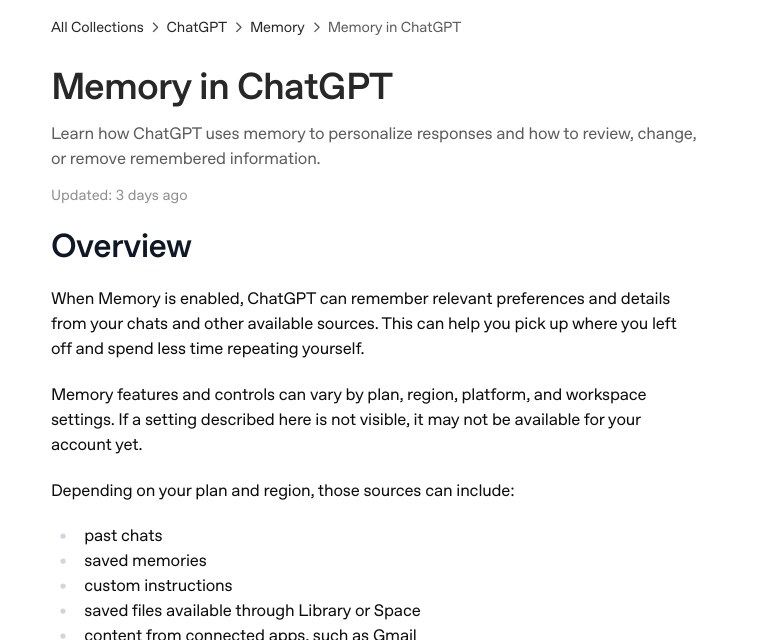
Not for this notice. But saved memories do have their own cleanup, and it is a good habit. Go to Settings, then Personalization, then Memory. OpenAI says the controls you see depend on your plan, region and app version, so your screen may differ from a friend’s. One thing to know: deleting a chat does not delete a saved memory made from it. You delete the memory itself.
Habits that keep chats from filling up
- Use one chat for one job. A chat for your resume, another for your exam notes.
- Paste only what is needed. Do not paste a full document to ask about one line.
- Ask for short answers when you do not need long ones. The replies also take up room.
- When a chat passes about 30 to 40 turns on a heavy task, write the hand-over note early.
- Keep important results (code, final drafts) in a file or notes app, not only in the chat.
Common mistakes
- Deleting all saved memories to fix a chat-full notice. It does not help.
- Deleting the old chat before copying what you need from it.
- Trusting the automatic summary without checking it.
- Chaining summary after summary, so each new chat starts half full.
- Reinstalling the app again and again. Users in the thread tried this, and it did not change anything.
- Treating a notice after one short message as normal, when it may be a service issue.
Frequently Asked Questions
Is ChatGPT chat memory full a bug?
The official help page explains it as a conversation-size limit. Some users in the forum think many of the cases are bugs, because it fired on short chats. OpenAI had not confirmed a bug in the replies I read.
Will I lose my old chat?
No. OpenAI says you can still read earlier messages, even when you cannot send new ones. Copy what you need before you close it.
Does deleting memories or chats free up room?
Not for this notice. OpenAI says the limit applies to the current conversation, and you do not need to turn off Memory, delete saved memories or clear other chats.
How many messages can I send in one chat?
There is no fixed number. Long messages and long replies use up room faster than short ones.
Sources & Documentation
- OpenAI Help Center: ChatGPT Free Tier FAQ (why a chat is full, new chat, summary, what to try)
- OpenAI Help Center: Memory in ChatGPT (saved memories, where the settings are)
- OpenAI Help Center: searching your chat history
- OpenAI Status page
Checked on 4 November 2026. ChatGPT menus and limits change often, so confirm on the OpenAI Help Center for your plan.
Written & Verified by Sampath Anji
Sampath Anji is a technology researcher, systems developer, and digital creator based in Telangana, India. He specializes in on-device AI architectures, autonomous agent workflows, high-throughput inference engines, and digital media production. Every tutorial on ISMARTANJI CREATIONS is grounded in code reproducibility, verified documentation, and transparent test environments. Read our full testing methodology on our About Us page, or submit feedback and code updates via our Contact Desk.