
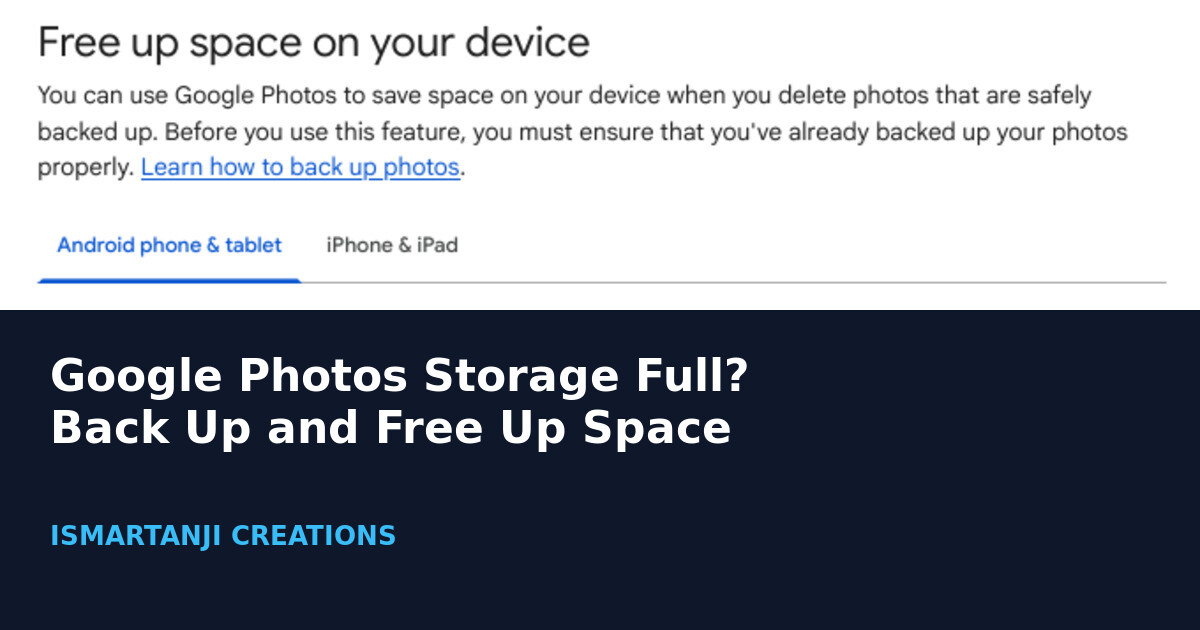
To free up space on your Android phone with Google Photos, first check that Backup says complete. Then open the app, tap your profile picture, tap Free up space on this device, and tap Free up. Only items that are safely backed up get removed from the phone.
There are really two kinds of storage here: the space on your phone, and the 15 GB Google Account space that Gmail, Drive and Photos share. This guide covers both. Every step comes from the Google Photos Help pages we opened on October 23, 2026.
Phone Storage vs Google Account Storage
If your phone says “storage full”, clear the phone. If Photos cannot back up, your Google Account is full. The fix is different for each.
| Problem you see | What is full | What to do |
|---|---|---|
| Phone says storage almost full | Phone memory | Back up, then use Free up space on this device |
| Photos will not back up | Google Account storage (up to 15 GB, shared) | Open Manage storage and delete items, or buy more |
| Gmail stops receiving mail | Google Account storage | Clean up Photos, Drive, Gmail or Trash |
| Backup stuck at “Backup paused” | Wi-Fi, data or battery rules | Check mobile data and battery settings |
Why this order matters
Google’s help page says Free up space deletes photos from your device. So always finish a backup first, and only then free up space. Do it the other way round and you can lose photos.
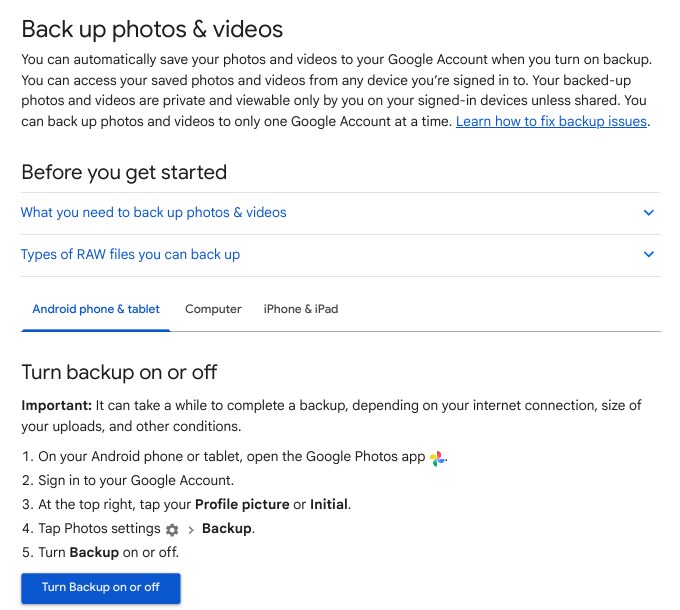
Step 1: Turn On Backup
- On your Android phone, open the Google Photos app and sign in to your Google Account.
- At the top right, tap your Profile picture or Initial.
- Tap Photos settings, then Backup.
- Turn Backup on.
Google Photos > Profile picture > Photos settings > Backup > Backup ONGoogle warns that a backup can take a while. It depends on your internet speed and the size of your uploads. You can back up to only one Google Account at a time.
What can be backed up
The help page lists these limits: photos up to 200 MB or 200 MP, videos up to 10 GB, and items must be larger than 256 x 256. Common file types such as .jpg, .heic, .png, .webp, .mp4 and .mkv are supported. If a file type is not on Google’s list, it may not back up.
Step 2: Check That Backup Is Complete
- Open the Google Photos app.
- At the top right, tap your Profile picture or Initial.
- Read the status. When everything is uploaded, it says Backup complete. If it is off, it says Backup is off.
You can also see the status at the top of your library: “Preparing backup” means it is starting, “Backing up photos” means it is working, and “Backup paused” means it stopped for now. Tap the status to learn more.
To back up a single item by hand, open it and tap Back up now. For many items, touch and hold them and tap Back up.
Step 3: Choose Backup Quality
Quality decides how much of your 15 GB each photo uses. Google lists three options. Express may not show in your settings, because Google says it is not available in every country or region.
| Option | What Google says | Counts toward storage? |
|---|---|---|
| Original quality | Same resolution as you took it. Recommended for photos above 16 MP and videos above 1080p | Yes | Storage saver | Photos above 16 MP are resized to 16 MP. Videos above 1080p are resized to 1080p | Yes (but items backed up before June 1, 2021 do not) |
| Express | Photos above 3 MP are resized to 3 MP. Videos above 480p are resized to 480p | Yes (but items backed up before June 1, 2021 do not) |
- Open Google Photos and tap your Profile picture or Initial.
- Tap Google Photos settings, then Backup, then Photos & videos quality.
- Select a backup quality.
Google Photos > Profile picture > Google Photos settings > Backup > Photos & videos quality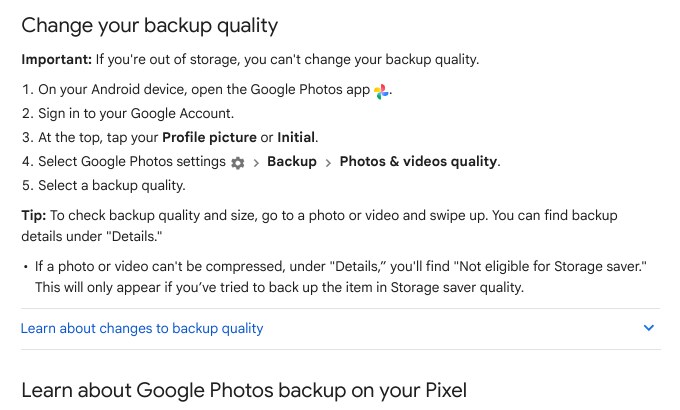
Read this before you switch
Google says that if you are out of storage, you cannot change your backup quality. It also says that changing from Express to Storage saver or Original quality makes Photos upload your existing items again.
Step 4: Free Up Space on Your Phone
Do this only after Step 2 says Backup complete.
- Open the Google Photos app and sign in.
- Tap your account profile photo or initial.
- Tap Free up space on this device.
- Check how much space will be freed. To delete the items from your phone, tap Free up [x] from device.
Google Photos > Profile photo > Free up space on this device > Free up [x] from device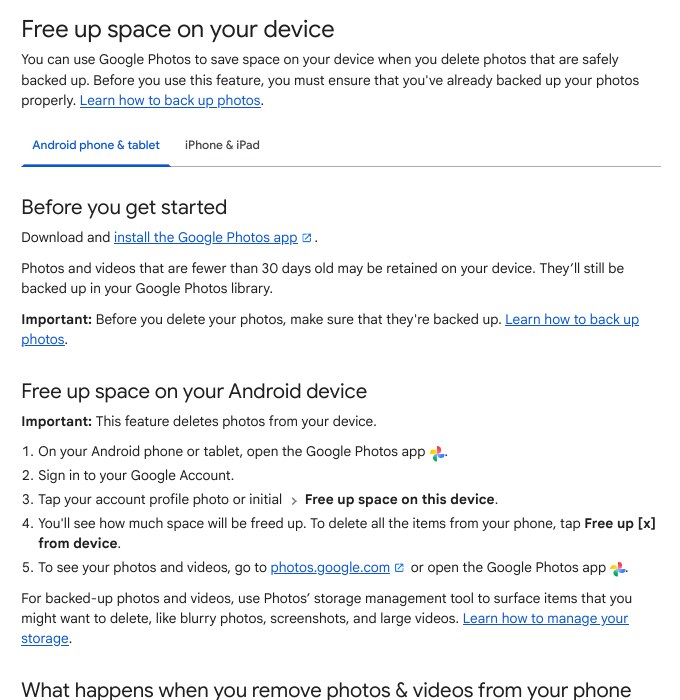
What happens after you free up space
The photos are gone from your phone, but still in your Google Photos library. Google says you can still see, edit, share and manage them in the Google Photos app and on photos.google.com.
You will not see the removed items if you use your phone’s built-in gallery, if you are offline, or if you are not signed in to Google Photos. Also, items fewer than 30 days old may be kept on your device. They are still backed up.
Gallery app users
If you open pictures from your phone’s own Gallery app, the removed photos will not appear there. Open the Google Photos app when you want to see them.
Step 5: Check and Clean Up Your Google Account Storage
- Open Google Photos and tap your Profile picture or Initial.
- Tap Photos settings, then Backup, then Manage storage.
- Read the summary at the top. Under it, Google shows recommended categories to clean up, such as large photos and videos.
- Tap Select, choose the items you want to delete, and tap Move to trash.
Google Photos > Profile picture > Photos settings > Backup > Manage storage > Select > Move to trash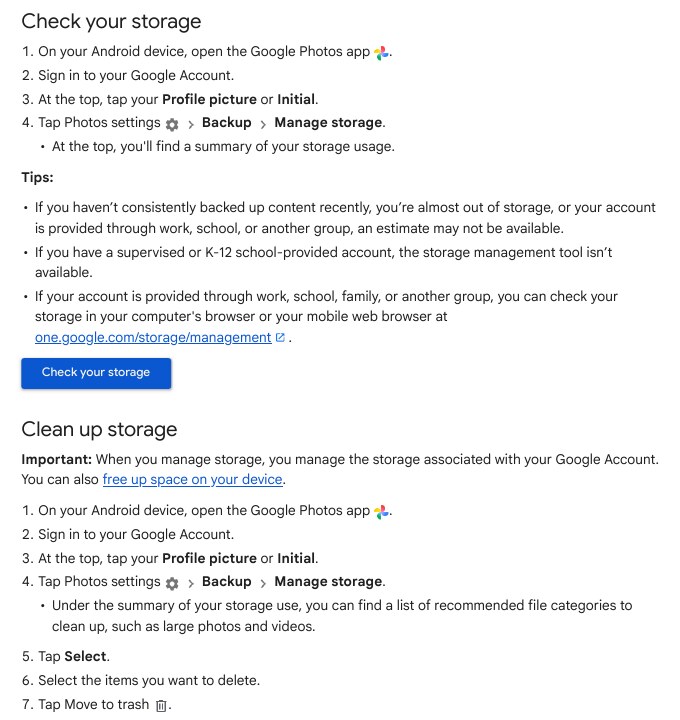
Google says photos moved to the trash are permanently deleted after 30 days. For Google Drive and Gmail, deleted items are permanently deleted and cannot be recovered. So be careful when you clean up those two.
If the storage tool shows no estimate, your account may come from work, school or family. Then check storage in a browser at one.google.com/storage/management.
Step 6: Fix Backups That Keep Stopping
Limit or allow mobile data
- Open Google Photos and tap your Profile picture or Initial.
- Tap Photos settings, then Backup, then Mobile data usage.
- Choose a daily limit, or turn off Back up videos over data or Back up while roaming.
Choose which folders back up
- Go to Photos settings, then Backup.
- Under Settings, tap Back up device folders.
- Turn each folder on or off. If Back up all device folders is on, photos in new folders back up automatically.
This matters for apps like WhatsApp, Instagram and screenshots, which save to their own folders. If those folders are on, they use your 15 GB too.
Turn off battery optimization
Google says backup may not work well if battery optimization is on for the Photos app. Steps differ by phone, so Google gives two ways:
- Open the phone Settings app and use Search at the top. Search for
battery optimization, tap it, then tap All apps, Photos, Don’t optimize, and Done. - Or touch and hold the Photos app on the home screen, tap Info, and under “Manage battery usage” select Unrestricted.
Do Not Let Photos Sit Unused for 2 Years
Google’s activity page says that if you do not use Google Photos for 2 years or more, your photos and videos might be deleted. If you stay over your storage limit for 2 years or more, they might also be deleted. Google says it will email you at least 3 months before this happens.
To stay active, just open Google Photos while signed in and online. The page also says a Google One membership in good standing keeps your photos from being deleted.
Common Mistakes
- Freeing up space before the backup is complete. Check for “Backup complete” first.
- Confusing phone storage with account storage. Free up space cleans the phone. Manage storage cleans the Google Account.
- Deleting from the trash in Drive or Gmail. Google says those deletions are permanent. Photos stay in trash for 30 days.
- Expecting the phone gallery to show removed photos. Use the Google Photos app instead.
- Trying to change quality when the account is full. Google says you cannot. Clean up first.
- Ignoring battery optimization. It can stop backup from running in the background.
FAQ
Will Free up space delete my photos from Google Photos?
No. Google says the photos stay in your Google Photos library after they are removed from the phone. Deleting a backed-up photo inside the app is a different action, so read the screen before you confirm.
How much free storage does a Google Account have?
The Help pages say each Google Account comes with up to 15 GB, shared across Gmail, Google Drive and Google Photos. You can buy more with a Google One plan where it is available.
Can I get back a photo I deleted by mistake?
Check the trash first. Google says a trashed photo can be restored for 30 days. After that, or after you empty the trash, it cannot be restored.
Why is my backup paused?
Common causes are no Wi-Fi, a mobile data limit, battery optimization, or a full Google Account. Tap the status at the top of the app for details, then check the settings in Step 6.
Is this the same as the Android phone backup?
No. Google Photos backup saves photos and videos. The separate phone backup in Settings covers device data. This guide is only about Google Photos. If you also want to edit saved clips, see our guide on editing videos in Google Photos on Android.
Sources & Documentation
- Google Photos Help: Back up photos & videos
- Google Photos Help: Free up space on your device
- Google Photos Help: Manage your storage
- Google Photos Help: Choose the backup quality of your photos & videos
- Google Photos Help: About your Google Photos activity & storage
Written & Verified by Sampath Anji
Sampath Anji is a technology researcher, systems developer, and digital creator based in Telangana, India. He specializes in on-device AI architectures, autonomous agent workflows, high-throughput inference engines, and digital media production. Every tutorial on ISMARTANJI CREATIONS is grounded in code reproducibility, verified documentation, and transparent test environments. Read our full testing methodology on our About Us page, or submit feedback and code updates via our Contact Desk.