
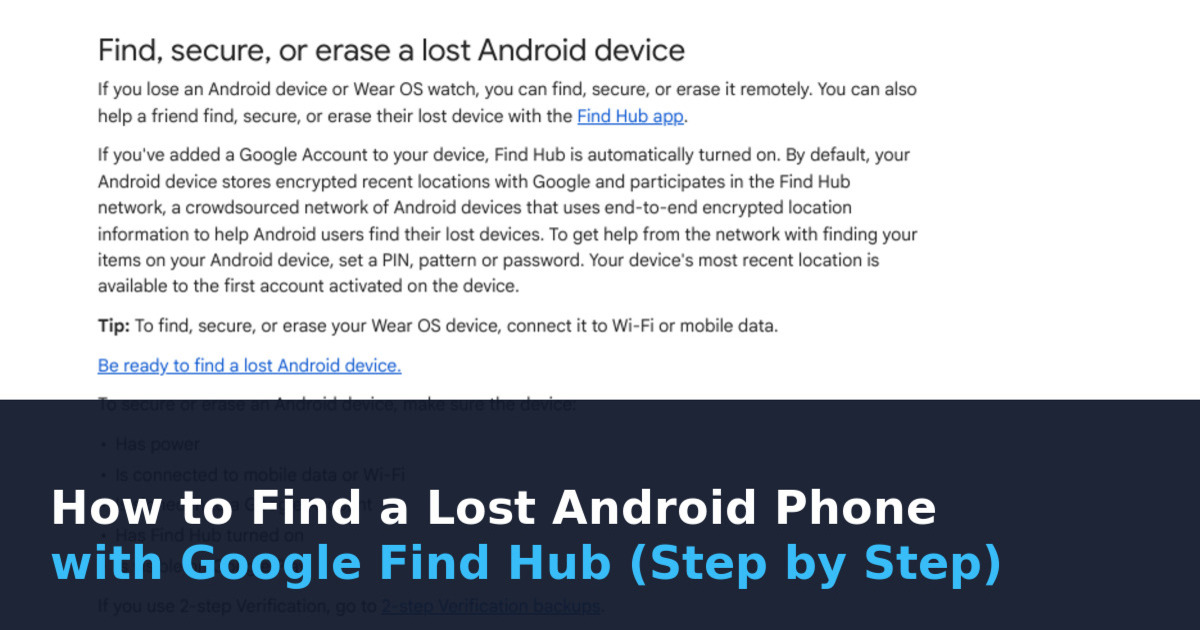
To find a lost Android phone, open android.com/find on any browser, or the Find Hub app on a friend’s phone, and sign in with the Google Account that is on your lost phone. Pick your phone from the list. You can then see its location on a map, make it ring for 5 minutes even on silent, lock it with Mark as lost, or erase it. This only works if Find Hub, Location and a Google Account were already set up on the phone, so the setup in this guide is best done today, before you ever lose it.
Everything below comes from Google’s own Android Help pages, linked at the end. We checked them on October 16, 2026. Menu names can change a little between phone brands (for example OnePlus, Samsung or Pixel), so the exact words on your screen may differ slightly.
What Find Hub Is and What It Can Do
Find Hub is Google’s tool for lost Android devices. Google says it works for a phone, tablet, Wear OS watch, Android XR device, headphones or something that has a tracker tag attached. If you added a Google Account to your phone, Find Hub is turned on automatically.
By default, your phone also stores encrypted recent locations with Google and joins the Find Hub network. This is a crowdsourced network of Android devices that uses end-to-end encrypted location information to help people find lost devices, even when the lost phone is offline.
| Action | What it does | When to use it |
|---|---|---|
| Play sound | Rings the phone at full volume for 5 minutes, even if it is on silent or vibrate | You think the phone is nearby |
| Get directions / Find nearby | Shows a route to the phone; within 10 metres a shape fills in as you get closer | The map shows a location |
| Mark as lost | Locks the phone with your PIN, pattern or password and shows your message on the lock screen | The phone is not with you |
| Factory reset | Permanently deletes all data on the phone | You are sure you cannot get it back |
Before You Lose It: 7 Checks to Do Today
Google has a page called “Be ready to find a lost Android device”. It lists the steps below. Some of these steps only work on Android 14 and up, says Google. Do them on your own phone now. It takes about five minutes.
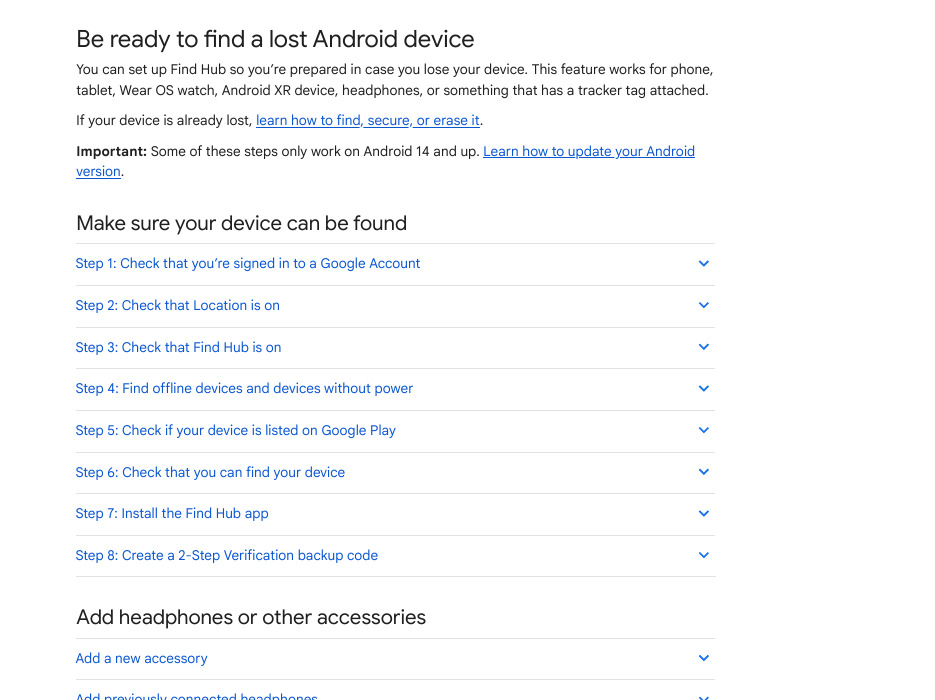
Step 1: Check your Google Account
- Open Settings.
- Tap Passwords, passkeys and accounts.
- Check that your account name and email address are listed.
Step 2: Turn on Location
- Open Settings.
- Tap Location. If you cannot find it, check your phone maker’s support site, as Google suggests.
- Turn on Use location.
Step 3: Turn on Find Hub
- Open Settings.
- Tap Security, then Find Hub.
- Check that Allow device to be located is on.
Settings > Security > Find Hub > Allow device to be locatedStep 4: Choose how offline finding works
- Open Settings.
- Tap Google, then All services (if you see tabs), then Find Hub.
- Tap Find your offline devices.
- If you have no screen lock, set a PIN, pattern or password. Google says this is needed for the offline network to help.
You get four choices. Google describes them like this:
| Setting | What it means |
|---|---|
| Off | Encrypted recent locations are not stored, and your phone does not join the network. |
| Without network | Your phone does not join the network. You can still see the encrypted recent location saved while it was online. |
| With network in busy places only | The network can help find your phone in places like airports or busy footpaths (needs a screen lock). |
| With network everywhere | The network can help in busy and remote areas (needs a screen lock). |
Battery dead or phone switched off
Google says that on supported devices, such as the Pixel 8 series, the network can still locate a phone for several hours after it is off or out of battery. For that, choose With network in busy places only or With network everywhere, and keep Bluetooth and Location on when the phone shuts down. Not every phone is supported, so do not count on this for every device.
Step 5: Check the device is visible on Google Play
- Open play.google.com/library/devices in a browser.
- At the top left, make sure Show In Menus is ticked for your phone.
Google warns that if you hide a device on Google Play, you will not find it in Find Hub.
https://play.google.com/library/devicesStep 6: Test that you can find your phone
- Open android.com/find.
- Sign in to your Google Account. If the phone has more than one user profile, use an account on the main profile.
- If you have more than one device, select your phone at the top of the screen.
https://android.com/findStep 7: Make a 2-Step Verification backup code
This one is easy to miss. If you use your phone to get Google sign-in codes and then lose it, you may be locked out of the account you need to find it. Google says that if you have no backup codes or physical security key, you may need to contact your mobile service provider to order a new SIM.
- Go to your Google Account at myaccount.google.com.
- Tap Security & sign-in.
- Under “How you sign in to Google”, tap 2-Step Verification.
- Tap Backup codes.
Save the codes somewhere safe that is not on the phone, for example a notebook at home.
When the Phone Is Lost: What to Do, in Order
Google’s “Find, secure, or erase a lost Android device” page gives these steps. Stay calm and go in this order.
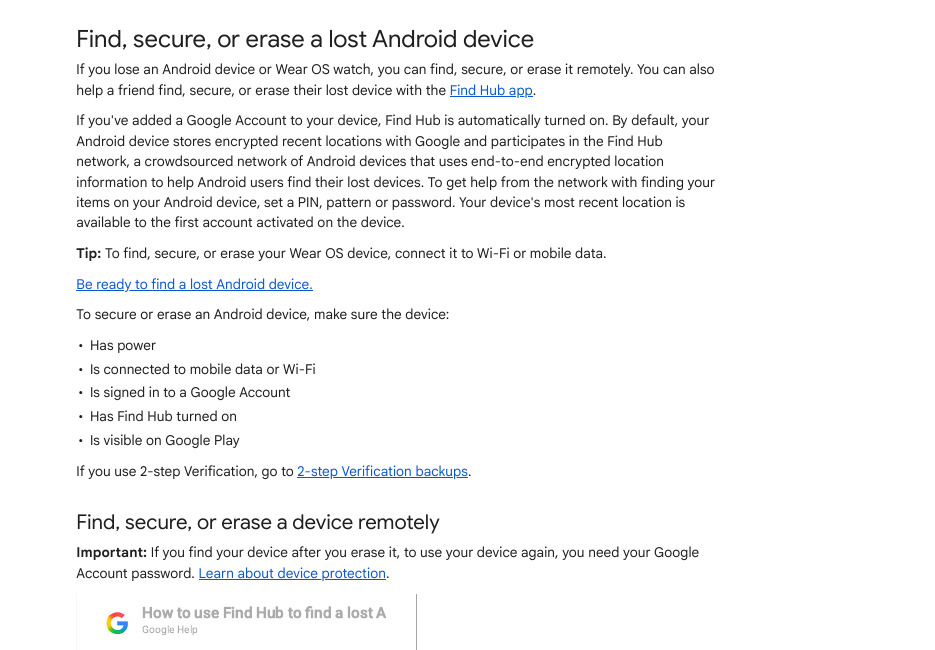
- On another Android phone or tablet, open the Find Hub app. If you do not have the app, get it on Google Play. If you have no Android device at all, open the Find Hub website on a browser.
- Sign in. If it is your own lost device, tap Continue as [your name]. If you are helping a friend, tap Sign in as guest and let your friend sign in.
- Select your phone from the list. The lost phone gets a notification.
- You may be asked for the lock screen PIN of the phone you want to find (Android 9 or higher). If it has no PIN, or runs Android 8 or lower, you may be asked for your Google password.
- Look at the map. Tap Get directions to go there. If the phone is within 10 metres, tap Find nearby.
- If the phone is close, tap Play sound. It rings at full volume for 5 minutes, even on silent.
- If it is not close, tap Mark as lost, then Next, add contact info and a message for the lock screen, and tap Mark as lost again.
A message that someone can act on is better than a blank lock screen. Keep it short and give a number that is not the lost phone:
This phone is lost. Please call 98XXXXXXXX (my family) to return it. Reward offered.Mark as lost, or erase?
Erase (Factory reset) deletes everything permanently and may not delete SD cards. After a reset the phone no longer shows up in Find Hub. Google also says that if you find the phone after erasing it, you will need your Google Account password to use it again. So erase only when you have given up on getting the phone back.
What If Find Hub Cannot Find the Phone?
Google lists these reasons on its “Fix issues with Find Hub” page. The phone may be switched off or out of power, have no mobile or Wi-Fi signal, have its SIM card removed, be damaged, or be in Airplane mode or have Wi-Fi turned off.
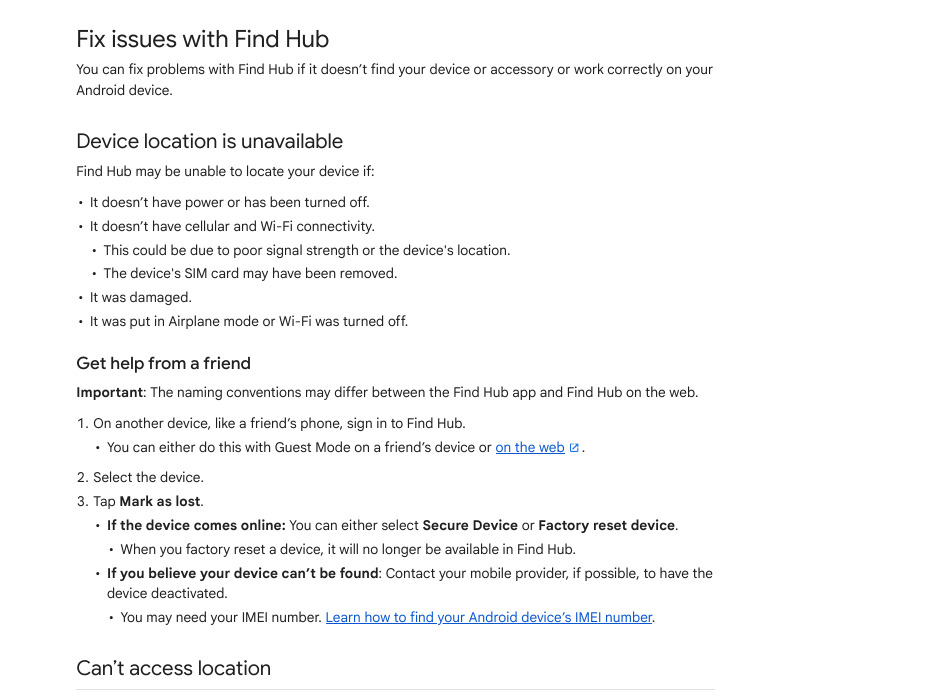
Get help from a friend
- On a friend’s phone, sign in to Find Hub using Guest Mode, or sign in on the web.
- Select your device.
- Tap Mark as lost.
- If the phone comes online, you can pick Secure Device or Factory reset device.
- If you believe it cannot be found, contact your mobile provider to have the phone deactivated. You may need the IMEI number.
Find your IMEI number
Your mobile provider can use the IMEI to disable the phone. Google says you can find it in your phone’s settings or with Find Hub. In the Find Hub app, open the app, select your device, then tap Settings. On a browser, go to android.com/find and select Settings next to the device. Write it down now.
If Find Hub says “Sync recent location”
This means the encrypted location is out of sync. Google’s fix:
- Open the Find Hub app and select the device.
- Tap Sync recent location.
- If asked, enter the screen lock of one of your Android devices, or sign in to your Google Account.
Common Mistakes
- Setting it up after the phone is lost. Location, Find Hub and a screen lock must be on before the phone goes missing.
- No screen lock on the phone. Google says you need a PIN, pattern or password for the network to help find it offline.
- Hiding the phone on Google Play. A hidden device does not show up in Find Hub.
- Having no 2-Step Verification backup. If your only code comes to the lost phone, you may not be able to sign in to find it.
- Erasing too early. After Factory reset the phone is gone from Find Hub, so you cannot track it any more.
- Not writing down the IMEI. Your provider may ask for it to block the phone.
- Going alone to a stranger’s address. Ask family or the police to come with you.
FAQ
Can I find my phone if it is switched off?
Sometimes. Google says supported phones, such as the Pixel 8 series, can still be located for several hours after they are off, if offline finding is set to use the network and Bluetooth and Location were on. Otherwise you only see the last location stored while the phone was online.
Do I need the Find Hub app, or is the website enough?
The website at android.com/find works from any browser. Google says that for the best results through the network, you should use the Find Hub mobile app.
Can I help a friend find their phone?
Yes. Open the Find Hub app, tap Sign in as guest and let your friend sign in with their Google Account.
Sources & Documentation
- Android Help: Find, secure, or erase a lost Android device
- Android Help: Be ready to find a lost Android device
- Android Help: Fix issues with Find Hub
- Google Help: How Find Hub protects your data
- Google: Find Hub on the web
Written & Verified by Sampath Anji
Sampath Anji is a technology researcher, systems developer, and digital creator based in Telangana, India. He specializes in on-device AI architectures, autonomous agent workflows, high-throughput inference engines, and digital media production. Every tutorial on ISMARTANJI CREATIONS is grounded in code reproducibility, verified documentation, and transparent test environments. Read our full testing methodology on our About Us page, or submit feedback and code updates via our Contact Desk.