
To check Google Play Protect on your Android phone, open the Google Play Store, tap your profile icon at the top right, tap Play Protect, then tap Settings (the gear icon). Make sure Scan apps with Play Protect is turned on. Google says it is on by default and recommends that you always keep it on.
This guide shows each Play Protect setting with its exact menu path, what the warnings mean, what to do when an app is flagged, and how it differs from the “Device is not certified” error. Every step comes from Google Help pages that we opened on October 19, 2026.
What Google Play Protect Does
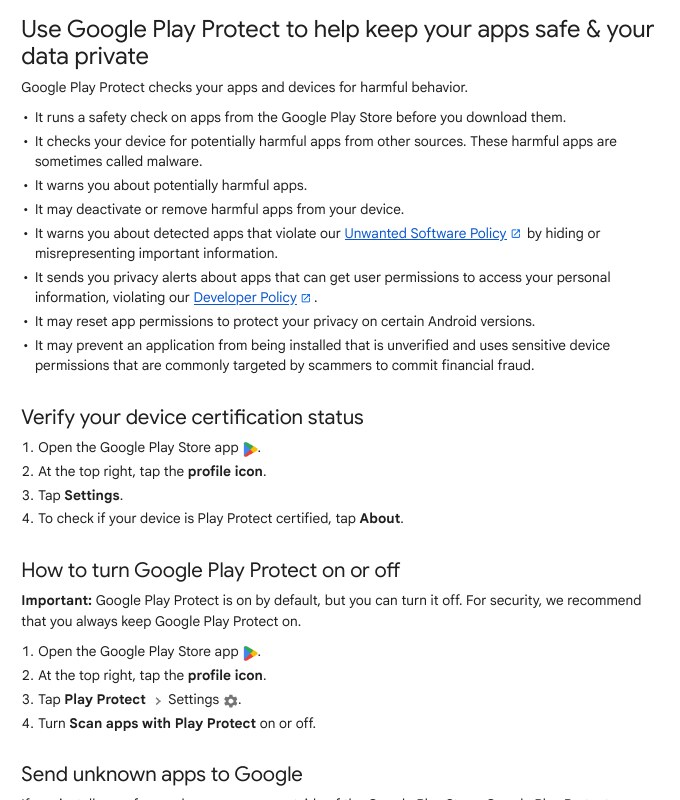
Play Protect is a safety check built into Google Play. It does not only watch the Play Store. Google’s page says it also checks the apps already on your phone, including apps that came from other sources.
| What Play Protect does | What it means for you |
|---|---|
| Safety check before download | Apps from the Play Store are checked before you download them |
| Checks your device | Looks for potentially harmful apps from other sources (malware) |
| Warns you | Shows a warning about a potentially harmful app |
| Deactivates or removes | May turn off or remove a harmful app from your phone |
| Privacy alerts | Alerts you about apps that get permissions to reach your personal information against Google’s Developer Policy |
| Blocks risky installs | May stop an unverified app from installing if it uses sensitive permissions that scammers often target for financial fraud |
That last row matters in India. Fake bank apps, fake electricity bill apps and fake “KYC update” APK files are common ways to steal money. Play Protect is one layer of defence against them, but it is not the only one. Your own habits matter more, and we cover those below.
How to Check That Play Protect Is Turned On
- Open the Google Play Store app.
- At the top right, tap your profile icon.
- Tap Play Protect.
- Tap Settings (the gear icon).
- Check that Scan apps with Play Protect is on.
Play Store > Profile icon (top right) > Play Protect > Settings (gear) > Scan apps with Play ProtectThe same path turns the scan off, but we do not suggest it. Google also says that even if you disable some protections in your device settings, Google may still receive information about apps installed through Google Play.
Keep it on
If a download is blocked, stop and ask why. Do not switch the safety check off.
Turn On “Improve Harmful App Detection”
If you install apps from outside the Play Store, Play Protect may ask to send unknown apps to Google. When you turn on Improve harmful app detection, you allow Play Protect to send unknown apps to Google automatically. Google then does a code-level check of the app.
- Open the Google Play Store app.
- At the top right, tap the profile icon.
- Tap Play Protect, then Settings.
- Turn Improve harmful app detection on.
Play Store > Profile icon > Play Protect > Settings (gear) > Improve harmful app detectionGoogle says the scan result comes “a short time later”. It tells you whether the app looks safe to install or whether it is potentially harmful.
What to Do When Play Protect Flags an App
Play Protect checks apps when you install them and scans your device from time to time. If it finds a potentially harmful app, Google says it might do one of three things.
- Send you a notification. To remove the app, tap the notification, then tap Uninstall.
- Disable the app until you uninstall it.
- Remove the app automatically. In most cases you will get a notification saying the app was removed.
So the safe reply is simple: tap Uninstall. Do not look for a way to keep the app. If the app asked for your bank details, UPI PIN or OTP before it was flagged, change your PIN and call your bank. Our guide to resetting your UPI PIN on Google Pay has the steps.
Permissions for Unused Apps
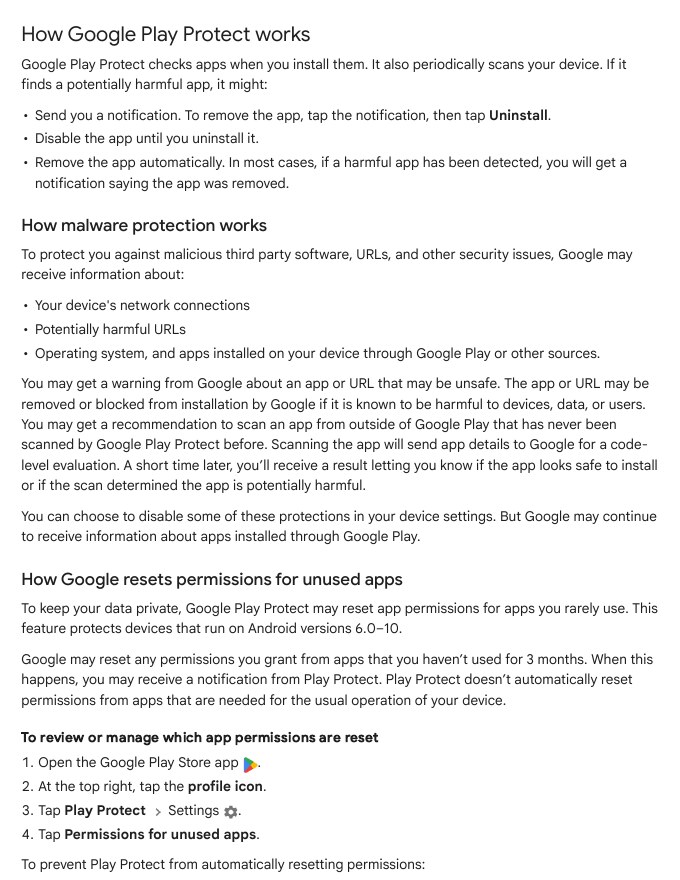
Play Protect may reset the permissions you gave to apps you have not used for 3 months, and you may get a notification when this happens. Apps needed for the normal working of your phone are not reset.
There is a limit. Google’s page says this feature protects devices on Android versions 6.0 to 10. A new phone like the OnePlus 12R ships with a much newer Android version, so this specific feature may not apply to you. For newer versions, check your phone’s own Settings app.
To review which app permissions are reset
- Open the Google Play Store app.
- At the top right, tap the profile icon.
- Tap Play Protect, then Settings.
- Tap Permissions for unused apps.
Play Store > Profile icon > Play Protect > Settings (gear) > Permissions for unused appsFrom the list you can select an app and turn off options such as Remove permissions if app isn’t used or Pause app activity if unused. For apps that were reset, Google says you need to grant the permissions again.
“Device Is Not Certified” Is a Different Problem
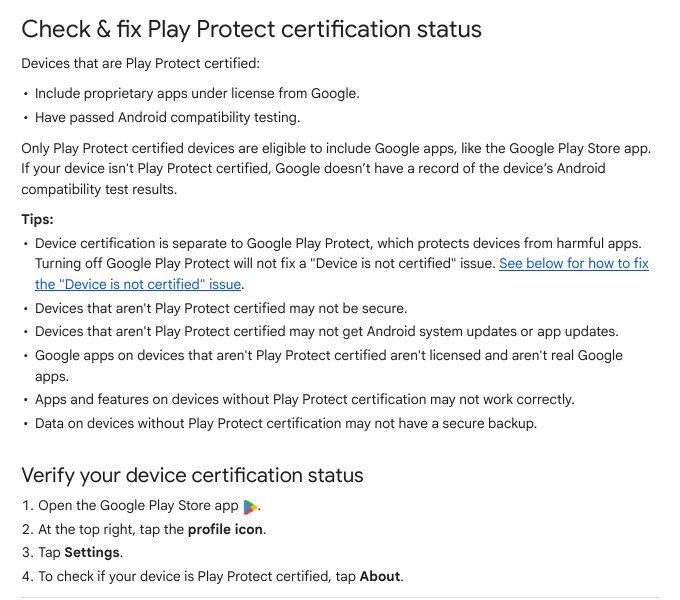
Many people see this error and switch off Play Protect hoping it goes away. It will not. Google’s Android Help page says device certification is separate from Play Protect, and turning Play Protect off will not fix a “Device is not certified” issue.
Check your device certification
- Open the Google Play Store app.
- At the top right, tap the profile icon.
- Tap Settings.
- Tap About to see if your device is Play Protect certified.
Play Store > Profile icon > Settings > About > Play Protect certificationGoogle also says that a device which is not certified may not be secure, may not get Android system or app updates, may run Google apps that are not licensed and not real, and may not have a secure backup. Check this before you buy a second-hand phone.
If the error says “Device is not certified”
Google first asks you to check its list of certified devices. If your phone is not listed, it is not certified. If it is listed, tap Fix device issue. If that does not fully fix it, the page gives these messages.
| Message you see | What Google says to try |
|---|---|
| Your device has no network connection | Check that you have a stable internet connection |
| Google Play services is out of date | Update Google Play services |
| Google Play services can’t be found | Turn on Google Play services for your device |
| Lock bootloader to fix issue | Lock the bootloader using the maker’s instructions |
| Reset device to fix issue | Unroot, update Android, factory reset, or restore the original maker-signed build |
| Something went wrong. Try again later. | Wait at least 10 minutes, then try again |
Google lists three common reasons for a failed check: a bootloader that is not locked, a rooted phone, or a modified Android build.
Advanced Protection: A Stricter Option
You can add Google’s Advanced Protection to your Google Account. On Android, Google says that when you are enrolled, Play Protect scans your devices automatically and harmful software sources are blocked. You cannot download new app installations from most sources outside the Play Store.
You can still install apps from Google Play, Android Debug Bridge (adb) and preinstalled app stores. Apps you already installed from outside the Play Store are not removed and still get updates.
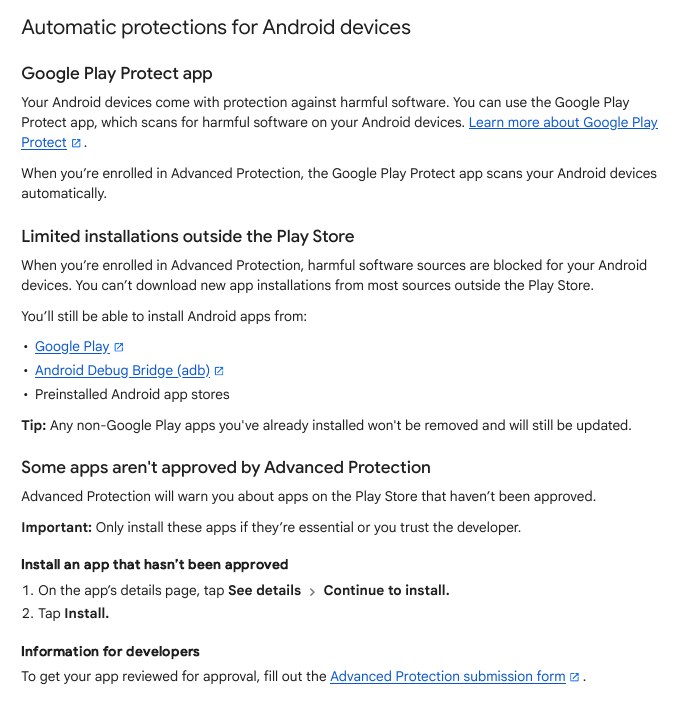
Install an app that Advanced Protection has not approved
- On the app’s details page in the Play Store, tap See details.
- Tap Continue to install.
- Tap Install.
App details page > See details > Continue to install > InstallGoogle’s warning here is clear: only install such an app if it is essential or you trust the developer.
To turn it off, open your Google Account, tap Security & sign-in, and under Advanced Protection Program select Unenroll. Google says the protections can take up to 24 hours to stop.
Which one should you use?
Most readers only need Play Protect with Scan apps with Play Protect on. Advanced Protection is for people who want the strictest rules and are fine with fewer places to install apps from.
Safe App Habits for Indian Users
- Install bank, UPI and government apps only from the Play Store, and check the developer name.
- Do not install an APK file that arrives on WhatsApp, SMS or Telegram, even if it comes from a friend.
- Never share your screen, UPI PIN or OTP on a call.
- If you lose money, act fast. Our guide on reporting UPI fraud on 1930 and cybercrime.gov.in shows the steps.
- If your phone is lost, use Google Find Hub to locate or lock it.
Common Mistakes
- Turning Play Protect off to install an app. A block or warning is the system doing its job. Stop and check the app.
- Switching it off to fix “Device is not certified”. Google says this does not fix that error.
- Ignoring the Uninstall notification. If Play Protect flags an app, uninstall it.
- Expecting the unused-app permission reset on a new phone. Google’s page lists Android 6.0 to 10 for that feature.
- Buying a phone without checking certification. Open Play Store, then Settings, then About.
FAQ
Is Google Play Protect on by default?
Yes. Google says it is on by default, but you can turn it off. Google recommends that you always keep it on.
Does Play Protect scan apps from outside the Play Store?
Yes. Google says it checks your device for potentially harmful apps from other sources. For an app that has never been scanned, you may get a recommendation to scan it, and scanning sends app details to Google for a code-level check.
Why does my phone say Device is not certified?
It means Google has no record of the phone’s Android compatibility test results, or the phone failed a check such as a rooted phone or a modified Android build. Tap Fix device issue first, and read the table above for the message you see.
Sources & Documentation
- Google Play Help: Use Google Play Protect to help keep your apps safe and your data private
- Android Help: Check and fix Play Protect certification status
- Google Account Help: Use Advanced Protection with Android devices
Written & Verified by Sampath Anji
Sampath Anji is a technology researcher, systems developer, and digital creator based in Telangana, India. He specializes in on-device AI architectures, autonomous agent workflows, high-throughput inference engines, and digital media production. Every tutorial on ISMARTANJI CREATIONS is grounded in code reproducibility, verified documentation, and transparent test environments. Read our full testing methodology on our About Us page, or submit feedback and code updates via our Contact Desk.