
To start with Gemini Notebook, open notebook.google.com, select Create new notebook, choose Upload a source, and add your notes, PDFs or links. Then ask questions in the Chat panel. The answers come from your own sources, not from the whole internet.
Many Indian students know this tool as NotebookLM. Google’s help pages at the old NotebookLM address now show the name Gemini Notebook, so this guide uses the new name. Every step below comes from the Google Help pages we opened on October 21, 2026.
What Gemini Notebook Does
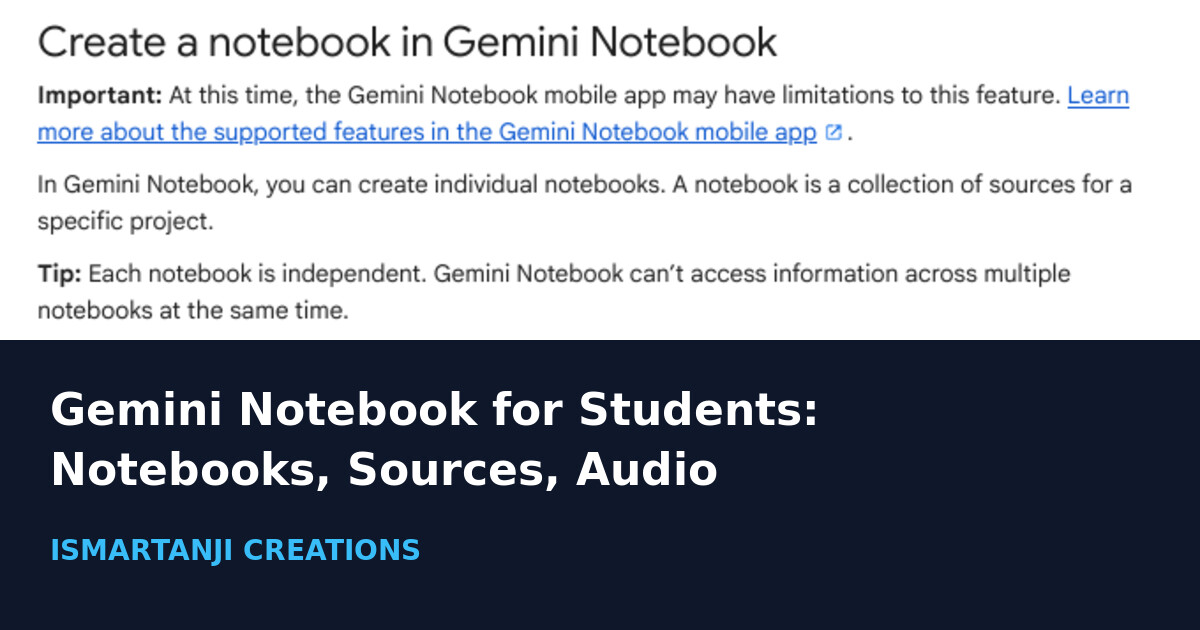
Google says a notebook is a collection of sources for one specific project. The model uses the sources you add to answer your questions. A source can be a PDF, a Google Doc, a web link, a YouTube link or pasted text. For a B.Com student, that could be one notebook per subject.
Google also gives one rule that decides how you organise your work: each notebook is independent. Gemini Notebook cannot read information across several notebooks at the same time. So keep one subject in one notebook.
Create Your First Notebook (Step by Step)
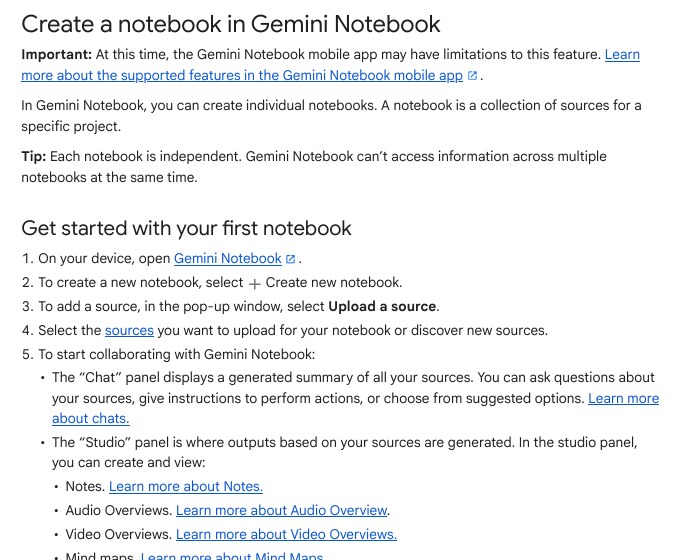
- On your computer, open Gemini Notebook at notebook.google.com and sign in with your Google Account.
- Select Create new notebook.
- In the pop-up window, select Upload a source.
- Pick the files you want to upload, or choose to discover new sources.
- Wait for the Chat panel to show a generated summary of all your sources.
notebook.google.comGoogle’s page says the screen has two main panels. The Chat panel is where you ask questions about your sources, give instructions, or pick the suggested options. The Studio panel is where outputs are created from your sources.
Mobile app note
Google warns on several pages that the Gemini Notebook mobile app may have limits on some features. Do the first setup on a computer, then check the mobile app page on Google Help before you rely on a feature on your phone.
What You Can Add as a Source
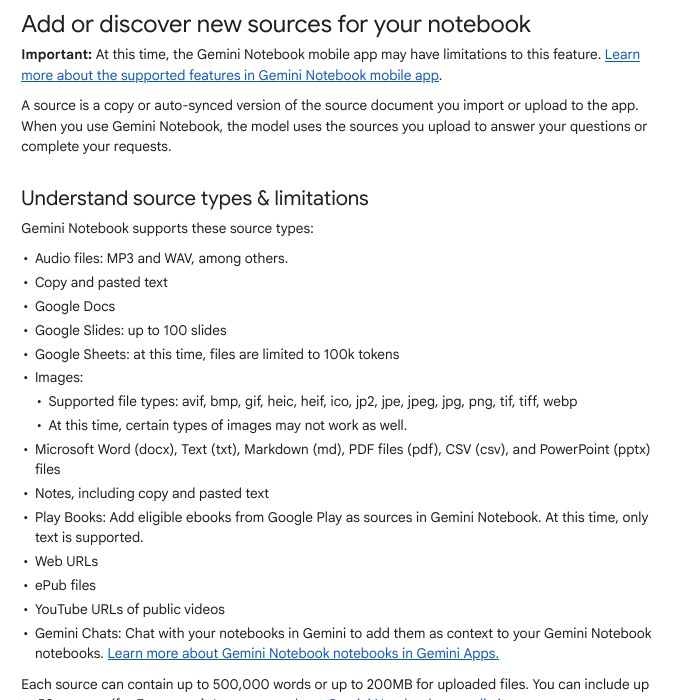
Google lists many source types. Here are the ones students use most, with the limits written on the page.
| Source type | What Google says |
|---|---|
| PDF, Word (docx), text, Markdown, CSV, PowerPoint | Supported file types |
| Google Docs | Supported |
| Google Slides | Up to 100 slides |
| Google Sheets | Limited to 100k tokens at this time |
| Web URLs | Only the text of the page is imported. Paywalled pages are not supported |
| YouTube URLs | Public videos with captions only. Only the transcript is imported |
| Audio files | MP3, WAV and more. The audio is transcribed when you import it |
| Pasted text | You can add or edit the title when you create it |
The size limits matter. Google says each source can have up to 500,000 words or up to 200MB for uploaded files, and a Free user can include up to 50 sources in one notebook.
How to Add More Sources
Add files or links
- Open your notebook.
- On the left, select Add sources.
- Upload your file, or paste your link or text.
- To add many web links at once, separate them with a space or a new line.
Search for sources with Fast Research
If you have no files yet, you can let the tool find sources. In the sources panel, type a query in the search box, choose Web or Drive, review the results, and select the ones to import.
Google also offers Deep Research inside Gemini Notebook. It can browse up to hundreds of websites and may take a couple of minutes. It is only for users over 18.
Import from Google Drive
Files imported from Google Drive sync every few minutes, so edits to your original document update the source. If you lose access or the file is deleted, the source becomes inaccessible but still counts toward your source limit.
Use only what you have the right to use
Google’s tip is to avoid uploading documents you do not have rights to. Do not upload a paid course PDF or a leaked question bank. Use your own class notes, free government documents and public material.
Chat With Your Sources
Chat is the fastest way to study. Google says that when several sources are selected, naming the source in your question helps the tool narrow its search. Its own example is to ask about key findings in a named document instead of typing “Summarize this source”.
You can also choose which sources the chat should use. In the Sources panel, select the sources one by one. Try these prompts, with your own file names.
What are the key points about depreciation methods in the 'Accounting Unit 3' document?Make a list of the definitions in 'Business Law Notes' that I should learn for the exam. Give each one in one line.There is also an automatic summary. In the left source viewer you can open a source and read its Source Guide, which Google describes as an auto-generated summary of the whole source.
Check the answer yourself
Google says answers and outputs are generated by AI from your sources and instructions, and it says not to rely on it for medical, legal, financial or other professional advice. Treat it as a study helper and check important points in your book.
Make an Audio Overview
An Audio Overview is a spoken discussion about your sources. Google says it is meant to be an objective reflection of your source content, not the opinions of the AI hosts. It helps when you want to listen instead of read.
- Open a notebook and add sources. You need edit access to the notebook.
- In the Studio panel, select Audio Overview.
- Choose a format, a language and a length.
- Optionally type a prompt to focus on certain topics or change the expertise level.
- Wait a couple of minutes. The audio is generated in the background, so you can keep working.
| Format | What Google says |
|---|---|
| Deep Dive (default) | Two hosts unpack and connect topics in a lively conversation |
| The Brief | One speaker gives key takeaways in under two minutes |
| The Critique | Two hosts give a constructive review of material like an essay |
| The Debate | Two hosts debate the topic from different sides |
Google says you can generate Audio Overviews in 80+ languages. Hindi, Telugu, Tamil, Kannada, Malayalam, Marathi, Bengali and Urdu are on the supported list. The Longer length option and interactive voice mode are English only.
Google warns that Audio Overviews are AI-generated and may contain inaccuracies or audio glitches. To keep one, select Download in the audio player.
Focus on the exam points. Explain in simple words, as if for a first-year B.Com student.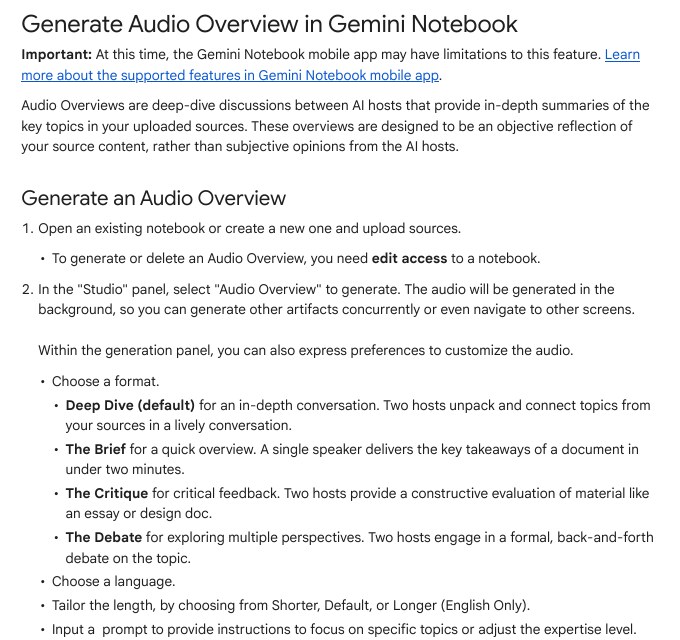
Other Outputs in the Studio Panel
Besides audio, Google lists these outputs: notes, video overviews, mind maps, reports, data tables, flashcards or quizzes, slide decks and infographics. To move a report into Google Docs, open the three dots menu next to it and choose Export to Docs. A data table can go to Google Sheets with Export to Sheets.
Usage Limits and Free Use
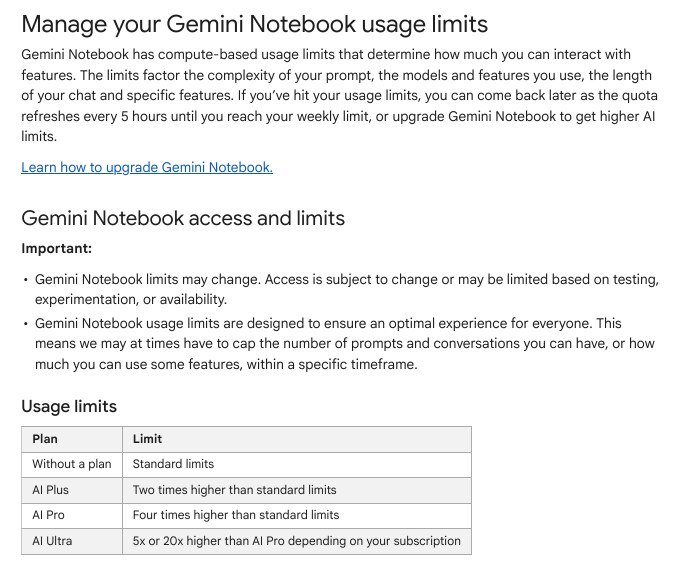
Gemini Notebook has compute-based limits. Google says the limits depend on how complex your prompt is, which models and features you use, and how long your chat is. If you hit the limit, the quota refreshes every 5 hours until you reach your weekly limit.
| Plan | Limit |
|---|---|
| Without a plan | Standard limits |
| AI Plus | Two times higher than standard |
| AI Pro | Four times higher than standard |
| AI Ultra | 5x or 20x higher than AI Pro, depending on subscription |
To see your usage, open Gemini Notebook and, at the top right, select Settings, then Usage.
Settings > UsageWhen the limit is reached, chat shows a message with the time your limit resets. On the web, you can also pick Generate later at the bottom of an artifact. Google says this may take a couple of hours, and you get a notification if notifications are on.
Sharing a Notebook Safely
Select Share in an open notebook. You can give a person Viewer or Editor access by email. Google says a viewer has read-only access to the sources and notes you shared, and an editor can add or remove sources and notes and share the notebook further.
You can also copy a link. Google gives a warning here: Chat View hides sources and artifacts for a focused view, but it does not completely revoke a viewer’s access to the notebook contents. So never share a notebook that holds private documents such as marksheets or bank statements. Protect the Google account too, with a passkey. We covered it in our Google passkeys guide.
Common Mistakes
- Putting all subjects in one notebook. Each notebook is separate, so keep one subject per notebook for cleaner answers.
- Asking vague questions. “Summarize this” gives a weak result. Name the source and the topic.
- Using a paywalled link. Google says paywalled web pages are not supported as sources.
- Expecting a YouTube link without captions to work. Only public videos with captions are supported, and new videos under 72 hours old may not import.
- Uploading private files and then sharing the notebook. Viewers may still reach the sources.
- Trusting every line. Check key facts and numbers in your textbook.
FAQ
Is Gemini Notebook the same as NotebookLM?
Google’s help pages at the NotebookLM address now carry the name Gemini Notebook, and the pages describe the same notebooks, sources, Chat and Studio panels. Use notebook.google.com to open it.
Is it free?
Google’s usage page shows standard limits for users without a plan, and higher limits on AI Plus, AI Pro and AI Ultra. Google also says limits may change, so check Settings > Usage.
Can I use my own language?
For Audio Overviews, yes. Google lists 80+ languages including Hindi and Telugu, and it uses the preferred language in your Google Account settings as the default output language.
Why is my YouTube link not importing?
Google names common causes: an invalid link, a video that has no captions file, an unsupported language, or a video that is potentially unsafe. Also, only public videos work.
Sources & Documentation
- Google Gemini Notebook Help: Create a notebook in Gemini Notebook
- Google Gemini Notebook Help: Add or discover new sources for your notebook
- Google Gemini Notebook Help: Manage your Gemini Notebook usage limits
- Google Gemini Notebook Help: Generate Audio Overview in Gemini Notebook
Written & Verified by Sampath Anji
Sampath Anji is a technology researcher, systems developer, and digital creator based in Telangana, India. He specializes in on-device AI architectures, autonomous agent workflows, high-throughput inference engines, and digital media production. Every tutorial on ISMARTANJI CREATIONS is grounded in code reproducibility, verified documentation, and transparent test environments. Read our full testing methodology on our About Us page, or submit feedback and code updates via our Contact Desk.