
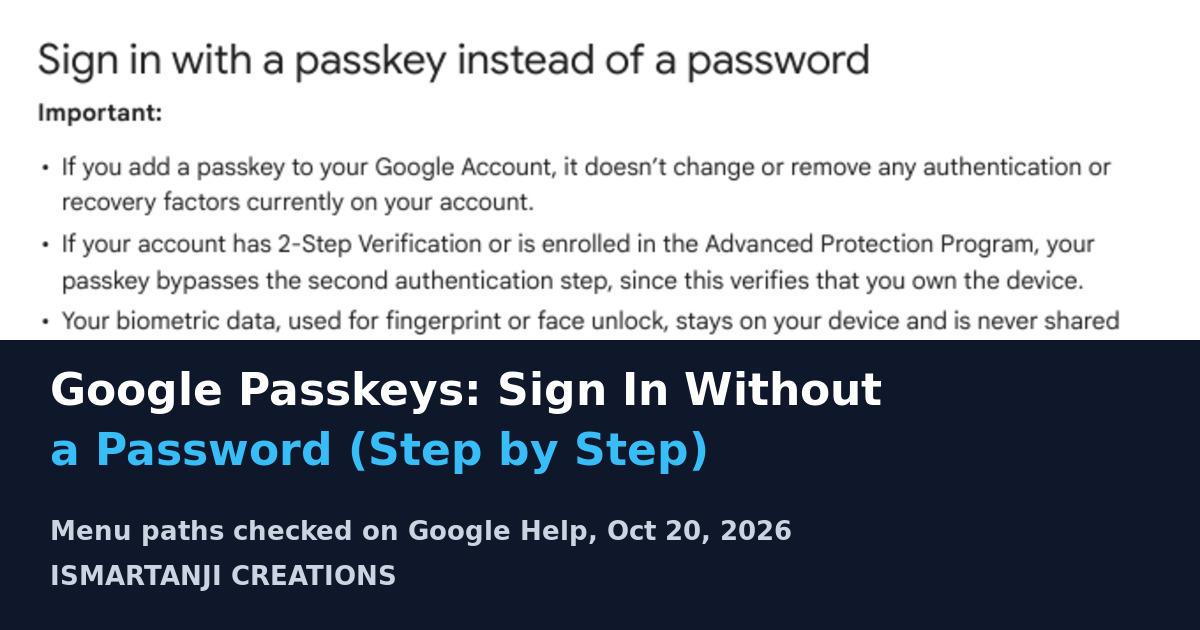
To sign in to your Google Account with a passkey, open myaccount.google.com/signinoptions/passkeys on your phone, tap Create a passkey, tap Create a passkey again, and confirm with your fingerprint, face or screen lock. From then on you can sign in without typing a password.
This guide shows each step with the exact menu path, what a passkey can and cannot do, how it works with 2-Step Verification, and what to do if you lose your phone. Every step comes from the Google Account Help pages we opened on October 20, 2026.
What a Passkey Is, in Simple Words
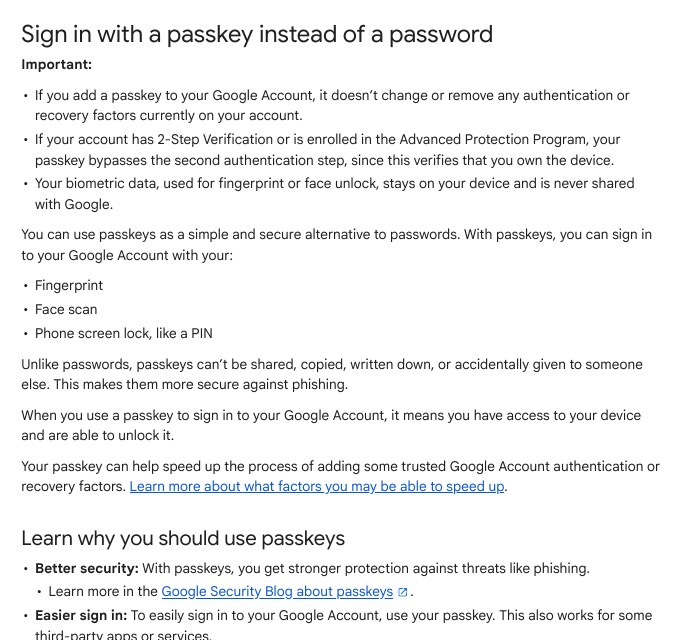
A passkey is a sign-in method that replaces your password. Google says you can use your fingerprint, a face scan or your phone screen lock, like a PIN. Google also says passkeys can’t be shared, copied, written down or accidentally given to someone else. That is why they are stronger against phishing.
Phishing is the common trap in India: a fake page that looks like Google and asks for your password. A password can be typed into a fake page. A passkey cannot, because there is nothing to type.
| Point | What Google says |
|---|---|
| What you use | Fingerprint, face scan or phone screen lock |
| Your biometric data | Stays on your device and is never shared with Google |
| Your old sign-in methods | Adding a passkey does not change or remove them |
| 2-Step Verification | A passkey skips the second step, because it proves you own the device |
| Phone needed | Android 9 or iOS 16, or newer |
| Computer needed | Windows 10, macOS Ventura or ChromeOS 109, or newer |
Check These Things First
Google lists some requirements. On a computer you need Chrome 109, Edge 109, Safari 16 or Firefox 122, or newer. Before you create a passkey, do these.
- Turn on your phone’s screen lock. A passkey will not work on a phone without it.
- If you want to use your phone’s passkey to sign in on a computer, turn on Bluetooth.
- Update your phone and your browser. Google says this helps your passkeys work.
- Do not use Incognito mode. On some systems you may not be able to create or use passkeys there.
Use only your own device
Google warns that once you create a passkey, anyone who can open that device can get into your Google Account, even if you sign out. Do not create a passkey on a shared or family device, or on a phone whose PIN others know.
How to Create a Passkey on Your Android Phone
- Open Chrome on your phone and sign in to your Google Account if asked.
- Go to the passkey page: myaccount.google.com/signinoptions/passkeys.
- Verify your identity if Google asks.
- Tap Create a passkey, then tap Create a passkey again.
- Confirm with your fingerprint, face or screen lock when asked.
myaccount.google.com/signinoptions/passkeysTo create passkeys on more than one device, repeat the same steps on each device. Google also says that after your first passkey, your next sign-in on a device that supports passkeys may ask you to create one for that device.
You can reach the same area from inside your account too.
Google Account > Security & sign-in > How you sign in to Google > Passkeys and security keys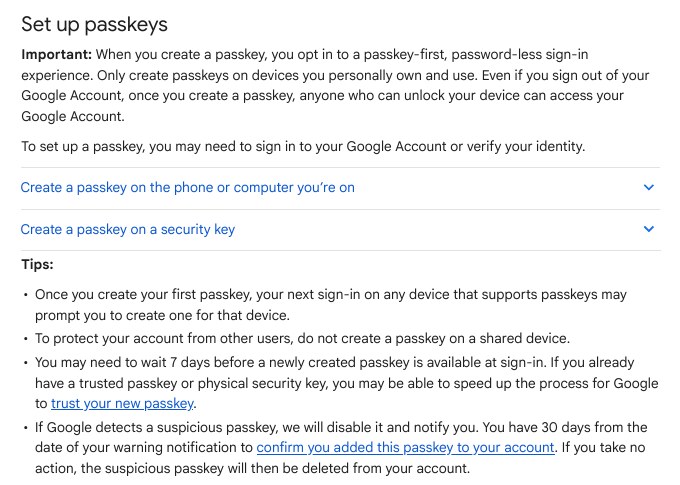
The 7-day wait
Google says you may need to wait 7 days before a new passkey is available at sign-in. If you already have a trusted passkey or a physical security key, you may be able to speed this up. So do not panic if the new passkey does not appear at once.
How to Sign In With a Passkey
- Open the Google sign-in page.
- Enter your username.
- If you see a list of passkeys when you tap the username field, tap the passkey you want.
- Follow the prompts to verify your identity. Your fingerprint, face or screen lock is the proof.
Sign in on a computer with your phone
Google says this works if your passkey is on an Android phone, an iPhone or iPad, or a hardware security key.
- On the computer’s Google sign-in page, enter your username.
- Click Try another way, then Use your passkey. A QR code appears.
- Scan the QR code with your phone camera. Check that Bluetooth is on.
- On your phone, tap Use passkey to sign in.
- Verify with your fingerprint, face scan or PIN.
The next time you use the same computer and phone together, you will get a phone notification to verify your identity automatically.
What happens when you sign out on Android
Google gives a rule that surprises many people. After you sign out of an Android device, you can sign in again with your passkey on that device for up to 6 hours. After 6 hours you must use another method. When you sign in again, the phone makes a new passkey and the old one expires. On a non-Android device you can sign in again with the passkey at any time.
Passkey and 2-Step Verification Work Together
A passkey is not a reason to skip 2-Step Verification. Google says that if you add a passkey, your other sign-in and recovery methods stay as they are. And if you sign in with a password, 2-Step Verification still asks for a second step. So turn it on as well.
- Open your Google Account.
- Tap Security & sign-in.
- Under How you sign in to Google, select Turn on 2-Step Verification.
- Follow the on-screen steps.
Google Account > Security & sign-in > How you sign in to Google > Turn on 2-Step Verification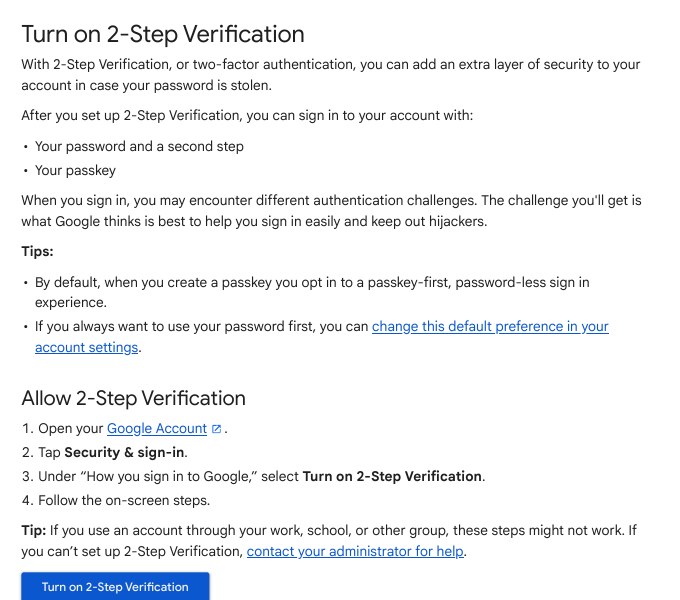
Which second step is best? Google’s page says this about the options.
| Second step | What Google says |
|---|---|
| Passkey or security key | Increases protection against phishing |
| Google prompts | Easier than typing a code. Can help protect against SIM swap and phone number hacks |
| Google Authenticator app | Works with no internet or mobile service |
| SMS or call code | Adds security, but can be weak against phone number-based hacks |
| Backup codes | 8-digit codes to print or download. Use them if you lose your phone |
Never share a code
Google says never to share verification codes with anyone, because scammers try to take over accounts this way. It also says you will not get a call from Google to verify a code. Treat any such call as a scam.
This matters for UPI too. A hacked Google account can reach Google Pay and your saved cards. If you use Google Pay, read our guide to resetting your UPI PIN on Google Pay as well.
Check, Remove or Turn Off a Passkey
See your passkeys
myaccount.google.com/signinoptions/passkeysRemove a passkey
- Open your Google Account.
- Tap Security & sign-in.
- Under How you sign in to Google, tap Passkeys and security keys.
- Select the passkey you want to remove.
- Tap Remove.
If a passkey was made automatically by your Android device, the route is different. Go to Security & sign-in, then under Your devices tap Manage all devices, tap that device, and then tap Sign out.
Use your password first again
- Sign in to your Google Account.
- Tap Security & sign-in.
- Under How you sign in to Google, turn off Skip password when possible.
Google says you still have the option to use your password after creating a passkey. If you are in 2-Step Verification, you can use any of your passkeys as the second step.
If You Lose Your Phone
Move fast. On a device you can still use, sign in to your Google Account and remove the passkey of the lost or stolen device, using the steps above. Then check which devices use your account.
Google Account > Security & sign-in > Your devices > Manage all devicesGoogle’s page for hacked accounts gives a clear order: if you cannot sign in, use the account recovery page. If you can sign in, review recent security events and your devices. If you see something you don’t recognise, choose No, it wasn’t me or Don’t recognize a device? and follow the steps on screen.
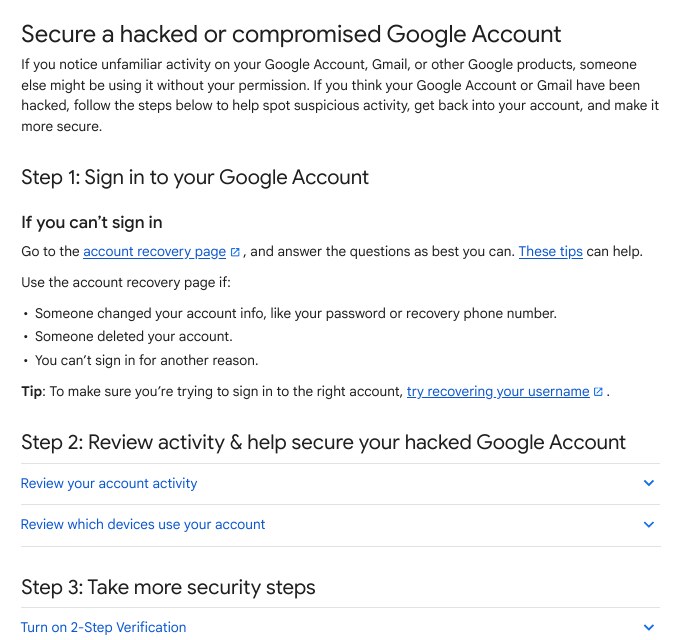
Google Account > Security & sign-in > Recent security events > Review security eventsIf your phone had your bank or UPI apps, also read how to find or lock a lost Android phone with Google Find Hub and what to do in a UPI fraud case on 1930.
Common Mistakes
- Creating a passkey on a shared phone. Anyone who can open the device can reach your account.
- Skipping the screen lock. Google lists the phone screen lock as a requirement.
- Expecting the passkey to work at once. Google says a new one may need up to 7 days before it is available at sign-in.
- Forgetting the 6-hour rule on Android. After you sign out, the passkey sign-in works for up to 6 hours only. Keep your password or another method ready.
- Leaving the old passkey after losing a phone. Remove it from your account from another device.
- Sharing a verification code. No real Google call or message will ask for it.
FAQ
Is a passkey safer than a password?
Google says passkeys give stronger protection against phishing, because they can’t be shared, copied or written down. Still, keep your phone screen lock strong, since the lock is what protects the passkey.
Does a passkey replace 2-Step Verification?
No. Google says adding a passkey doesn’t change or remove your other methods. When you sign in with a passkey, the second step is skipped because the passkey already proves you own the device. 2-Step Verification still protects password sign-ins.
Is my fingerprint sent to Google?
No. Google’s page says fingerprint and face data used for sign-in stays on your device and is never shared with Google.
My passkey is not showing at sign-in. What do I do?
Google suggests three checks: the device has screen lock turned on, the Skip password when possible setting is checked at myaccount.google.com/security, and you may need to wait 7 days for a new passkey. You can also tap Try another way to sign in without it.
Sources & Documentation
- Google Account Help: Sign in with a passkey instead of a password
- Google Account Help: Turn on 2-Step Verification
- Google Account Help: Secure a hacked or compromised Google Account
Written & Verified by Sampath Anji
Sampath Anji is a technology researcher, systems developer, and digital creator based in Telangana, India. He specializes in on-device AI architectures, autonomous agent workflows, high-throughput inference engines, and digital media production. Every tutorial on ISMARTANJI CREATIONS is grounded in code reproducibility, verified documentation, and transparent test environments. Read our full testing methodology on our About Us page, or submit feedback and code updates via our Contact Desk.