
To edit a video in Google Photos on Android, open the Google Photos app, open the video, and use the editor tools. Tap Auto then Stabilize for shaky clips, drag the trim handles to cut the video, and tap Save at the top to keep a copy with your edits.
You do not need a separate video app for simple jobs like cutting, speed change, text or background music. This guide follows the Google Help pages we opened on October 22, 2026, and it points out which tools need a newer phone or a Pixel.
What You Can Do in the Google Photos Video Editor
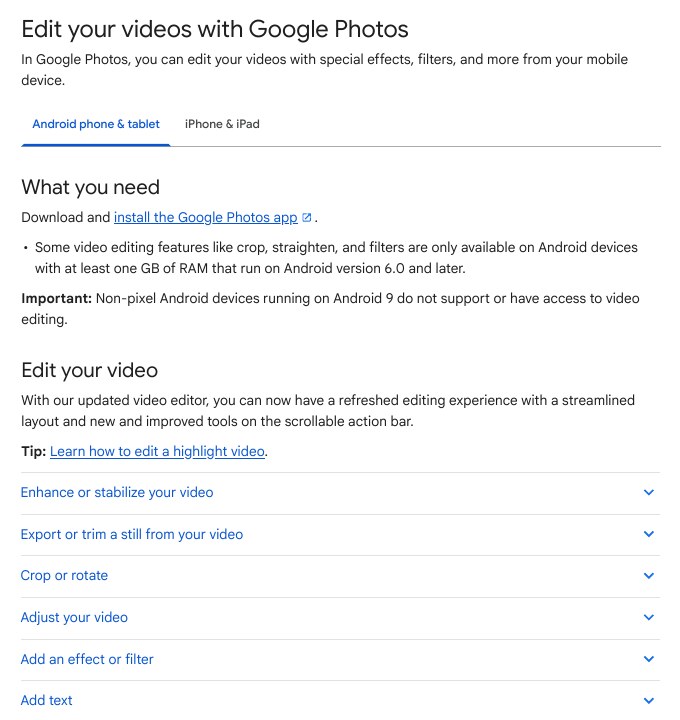
Google says you can edit videos with special effects, filters and more from your mobile device. The help page lists these tools: enhance and stabilize, trim, export a still frame, crop or rotate, adjust, effects and filters, text, audio, mute, speed and music.
| Tool | Where to tap | Phone requirement on the help page |
|---|---|---|
| Enhance, Stabilize | Auto | No special note |
| Trim, Export frame | Trim handles on the timeline | No special note |
| Crop, Rotate, Mirror | Crop | 1 GB RAM, Android 6.0 or later for crop, straighten and filters |
| Adjust (brightness, contrast and more) | Adjust | At least 3 GB RAM and Android 8.0 and up |
| Filters and Effects | Filters | At least 3 GB RAM and Android 8.0 and up |
| Text | Text | No special note |
| Speed | Speed | No special note |
| Music | Audio, then Add Music | Allow music and audio access for the app to add downloaded music |
| Audio Eraser | Audio | Pixel 8 and newer only |
Check your phone first
Google says non-Pixel Android devices running Android 9 do not support or have access to video editing. If the editor looks empty on an old phone, the Android version is the first thing to check.
Step 1: Stabilize or Enhance a Shaky Video
- On your Android phone, open the Google Photos app.
- Open the video you want to edit.
- Tap Auto.
- To improve colour and light, tap Enhance. To reduce shake, tap Stabilize.
- At the top, tap Save to keep a copy of the video with your edits.
Google Photos > open the video > Auto > Enhance or Stabilize > SaveThe help page says Save makes a copy of the video with your edits. Google’s other Android help page for the Gallery app says the same thing in different words: an edited video is saved as a separate video and the original stays in your gallery. So you can try things safely.
Step 2: Trim a Video
- Open the video in Google Photos.
- Touch and hold a trim handle, then drag it to mark the part you want to keep.
- At the top, tap Save to save a copy.
- To grab one frame as a photo, tap Export frame instead.
Google Photos > open the video > drag the trim handles > SaveTrim first, before you add music or speed changes.
Step 3: Crop, Rotate or Straighten
- Open the video and tap Crop.
- To change the shape, such as a square, tap Aspect ratio.
- To turn the video by 90 degrees, tap Rotate. Use the dial above Rotate for small straightening changes.
- To straighten the video automatically, tap Auto. Google notes that auto straighten depends on the video.
- To mirror the video, tap Mirror. Then tap Save.
Step 4: Change the Speed
- Open the video and tap Speed.
- Touch and hold, then drag the trim handles to pick the part whose speed you want to change.
- To speed up, tap 2x or 4x. To slow down, tap 1/4x or 1/2x.
- Tap Save at the top.
Only watching, not editing?
Google gives a shortcut for playback speed without editing the file: at the top right tap More, then Playback speed, and choose a speed. The video file itself does not change.
Step 5: Adjust Colours, Add a Filter or Text
Adjust
Tap Adjust, pick an option, and move the dial. When you finish, tap Done. To undo an adjustment, deselect the option or tap Cancel. Google lists these options: Brightness, Contrast, White point, Highlights, Shadows, Black point, Saturation, Warmth, Tint, Skin tone, Blue tone, Vignette and HDR effect. Remember the page says your phone needs at least 3 GB RAM and Android 8.0 or newer for this.
Filters and effects
- Tap Filters.
- To add a filter, tap Filter, pick one, and move the dial to change its strength.
- To add an effect, tap Effect and pick one. A live preview shows on your video.
- To undo either one, tap None. Then tap Save.
The effects Google lists are B&W Film, Light leak, Lomo, Dust mix, Chromatic, Paper Tear, Framed, Layouts and Poster.
Text
Tap Text, then Edit text to type. Use Fonts to change the font and Color to change the text colour. Tap Done when finished. To remove a text box, delete everything inside it, or tap Delete.
Step 6: Add Music or Mute the Video
Add music
- Open the video. Tap Audio, then Add Music. If you do not see it, scroll and tap Music.
- To use a song from your phone, tap On device.
- Touch and hold, then drag the segment to choose the part of the song to use.
- Tap Done.
- To change volume, open Music, tap Volume, and set “Video audio” and “Soundtrack”.
Google adds one important permission step: to use downloaded music, allow music and audio access for the Google Photos app in Settings.
Mute, or remove the sound
On non-Pixel phones, open the video and tap Mute. The Audio tool with Mute and Audio Eraser is only for Pixel 8 and newer, according to the same page.
| Phone type | Audio option on the help page |
|---|---|
| Non-Pixel (for example OnePlus, Samsung, Redmi) | Tap Mute |
| Pixel 8 and newer | Tap Audio, then Mute or Audio Eraser |
Make a Quick Highlight Video From Many Clips
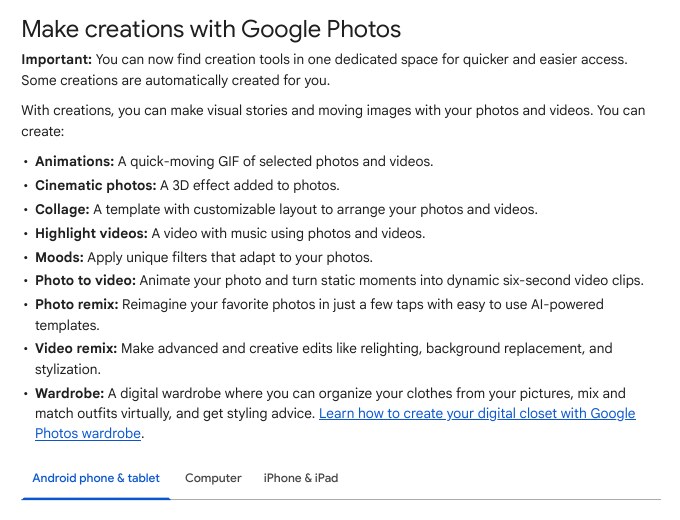
If you have many clips, the editor above works on one video at a time. For a combined video with music, Google Photos has Highlight video in the Create tab. Google says templates are pre-packaged videos with music, text and beat-matching.
- Open Google Photos and, at the bottom, tap Create.
- Tap Highlight video and browse templates.
- Tap Use template, then select your photos or videos. You can tap Help me select to let the app pick, or type a word like “Birthday” in Search.
- At the top right, tap Next, review the video, change clips, music or text if you want.
- Tap Save.
Google Photos > Create > Highlight video > Use template > Next > SaveGoogle also warns that older devices may not be able to create highlight videos. And its music note says the music is for personal, non-commercial use only. If you plan to earn money from a video, for example on YouTube, do not use this music.
AI Video Remix: What the Help Page Says
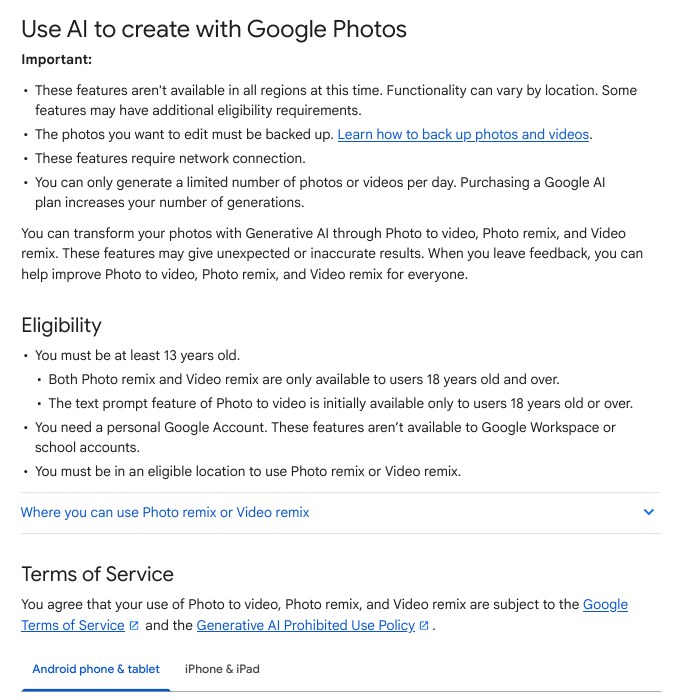
Google Photos also has Video remix, where AI changes the look of a clip. Treat it as a fun extra, not a main editor. The rules are strict, so read them before you try.
| Rule | What Google says |
|---|---|
| Age | Video remix is only for users 18 years old and over |
| Account | A personal Google Account. Not for Google Workspace or school accounts |
| Place | You must be in an eligible location. India is on Google’s list |
| Video length | Choose a video under 60 seconds, then pick a segment of 1 to 10 seconds |
| Backup | The video must be backed up |
| Limit | A limited number of generations per day |
To open it, tap Create, then Video remix, choose a template (Reimagine, Filters or Art styles), select the video, and tap Generate. Then tap Save or Share. Google says these features may give unexpected or inaccurate results.
When to Use Another App
Google Photos suits short, simple edits. For many video tracks or exact frame work, use a full editor. If your phone has the Gallery app by Google, its help page shows a simple way to trim: open Gallery, tap the video, tap Edit, move the slider, then tap Save copy.
Gallery > tap the video > Edit > move the slider > Save copyCommon Mistakes
- Forgetting to tap Save. Edits are not kept until you tap Save at the top. Google says it saves a copy.
- Looking for Audio Eraser on a non-Pixel phone. It is for Pixel 8 and newer. Use Mute instead.
- Adding music without permission. Allow music and audio access for Google Photos in Settings first.
- Using Photos music for a monetised video. Google says it is for personal, non-commercial use only.
- Trying Video remix with a school account. It needs a personal Google Account and an age of 18 or more.
- Expecting every tool on an old phone. Adjust and Filters need at least 3 GB RAM and Android 8.0 or newer.
FAQ
Does Google Photos keep my original video?
Google’s pages say Save keeps a copy of the video with your edits. The Gallery help page also says the original stays in your gallery. Check your library after saving to confirm both are there.
Why can’t I see Adjust or Filters?
Google says those tools need at least 3 GB RAM and Android 8.0 or newer. Non-Pixel phones on Android 9 do not have video editing at all, per the same page.
Can I make a video slow motion?
Yes. Open the video, tap Speed, drag the trim handles over the part you want, and tap 1/4x or 1/2x. Then tap Save.
Is Video remix free?
The help page says you can only generate a limited number of videos per day and that a Google AI plan increases your number of generations. It does not give a fixed number for free users, so check the app.
Sources & Documentation
- Google Photos Help: Edit your videos with Google Photos
- Google Photos Help: Make creations with Google Photos
- Google Photos Help: Use AI to create with Google Photos
- Android Help: Manage your photos with Gallery
Written & Verified by Sampath Anji
Sampath Anji is a technology researcher, systems developer, and digital creator based in Telangana, India. He specializes in on-device AI architectures, autonomous agent workflows, high-throughput inference engines, and digital media production. Every tutorial on ISMARTANJI CREATIONS is grounded in code reproducibility, verified documentation, and transparent test environments. Read our full testing methodology on our About Us page, or submit feedback and code updates via our Contact Desk.