
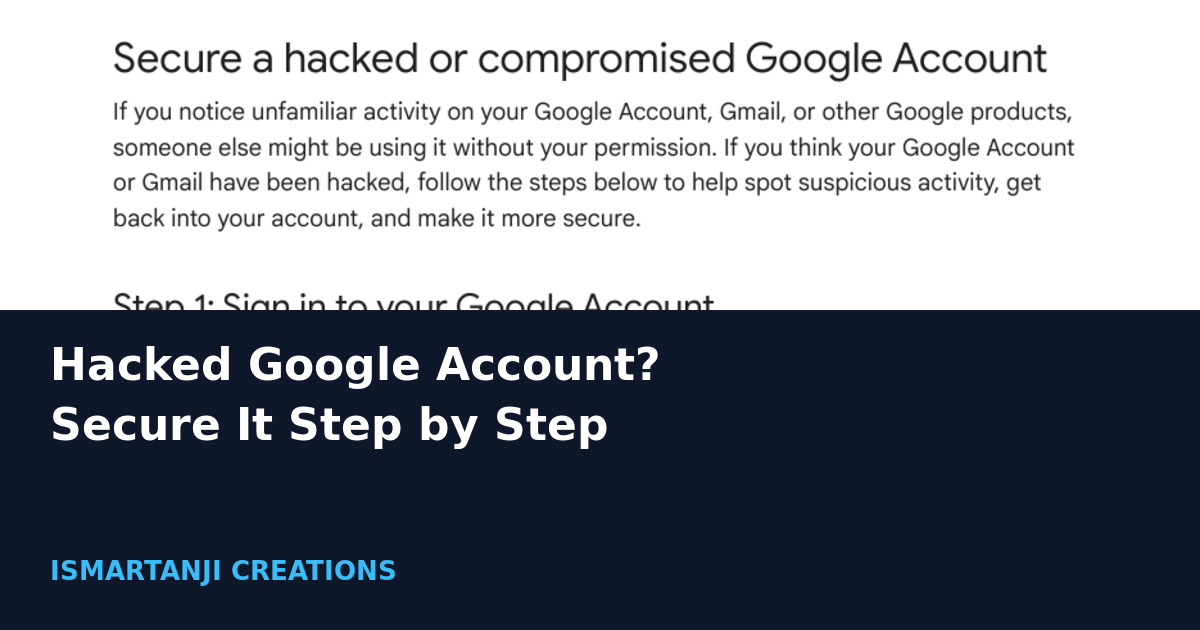
If you think your Google Account is hacked, do three things in this order: try to sign in (or use the account recovery page if you cannot), open Security & sign-in and review your security events and devices, then turn on 2-Step Verification and change any unsafe passwords. Google lists each of these in its Help pages.
This guide follows those pages, which we opened on October 24, 2026. It is written for Gmail and Google Account users in India, but the steps are the same everywhere.
Signs That Someone Else Is Using Your Google Account
Google says that if you see any of these signs, someone else may be using your account. Check the ones that match your case.
| Where | Warning sign (from Google’s page) |
|---|---|
| Account | Unfamiliar changes to your recovery phone, recovery email, name or 2-Step Verification |
| Gmail | You stop getting emails, friends get spam from you, or you see Sent emails you did not write |
| Gmail settings | Filters, forwarding rules, labels or auto-reply you did not set up |
| Google Drive | Activity you do not know, or files deleted without your knowledge |
| Google Photos | Albums shared without your permission, or a partner account you did not add |
| YouTube | Videos, comments or channel changes you did not make |
| Blogger | Posts you did not publish, or your blog disappeared or was blocked |
| Payments | Purchases, cards or bank accounts you do not recognise |
Act fast on one thing
Google says that if someone else is signed in, change your password immediately. Also change it on any app or site where you reuse that password.
Step 1: Sign In or Recover Your Account
If you can still sign in, go to Step 2. If someone changed your password or recovery phone number, deleted your account, or you cannot sign in for another reason, use Google’s account recovery page.
- Open accounts.google.com/signin/recovery in a browser.
- Answer the questions as best you can. It helps to use a phone or browser you have used to sign in before.
- If you are not sure which account is yours, try recovering your username first.
https://accounts.google.com/signin/recoveryGoogle also says you can try the recovery process more than once. Do not give up after the first attempt.
Step 2: Review Your Activity and Devices
Review security events
- Go to your Google Account (myaccount.google.com).
- Tap Security & sign-in.
- On the “Recent security events” panel, select Review security events.
- If you see activity that is not yours, select No, it wasn’t me and follow the steps on the screen. If it was you, select Yes.
Google Account > Security & sign-in > Recent security events > Review security events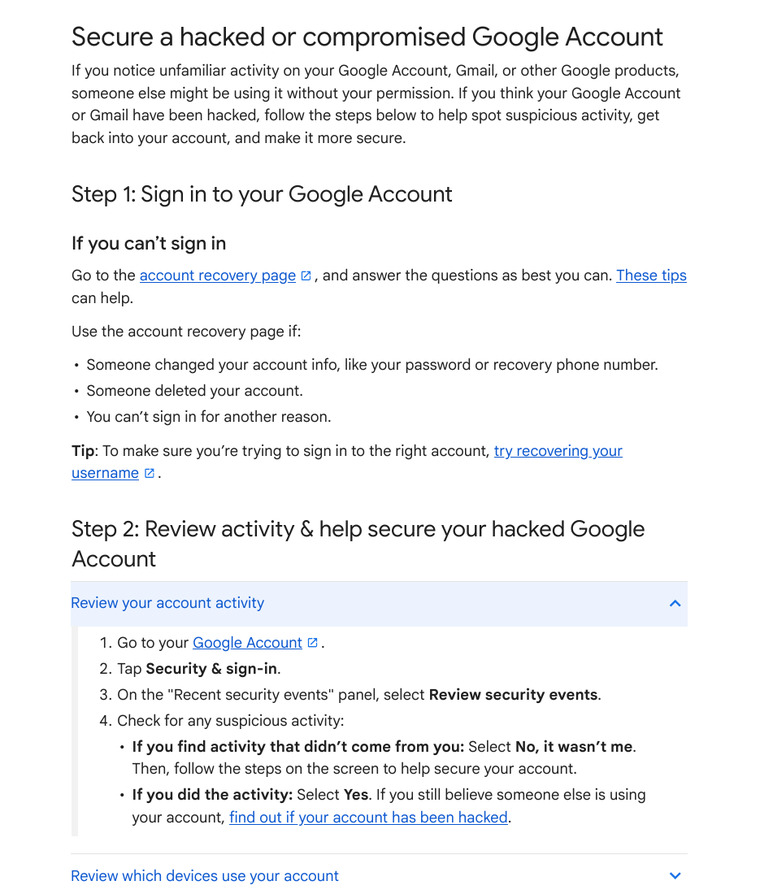
Review which devices use your account
- Go to your Google Account.
- Tap Your devices.
- Tap Manage devices and look for any device you do not recognise.
- If you find one, select Don’t recognize a device? and follow the steps.
Google Account > Your devices > Manage devices > Don't recognize a device?Step 3: Turn On 2-Step Verification
Google explains that with 2-Step Verification you sign in with something you know (your password) and something you have (your phone, a security key or a printed code). So a stolen password alone is not enough.
- Open your Google Account.
- Tap Security & sign-in.
- Under “How you sign in to Google”, select Turn on 2-Step Verification.
- Follow the on-screen steps.
Google Account > Security & sign-in > How you sign in to Google > Turn on 2-Step VerificationGoogle recommends Google prompts as the second step if you do not use a passkey. It says prompts are easier than typing a code and can help protect against SIM swap and other phone number hacks. Prompts need an Android phone with updated Google Play services.
Never share a code
Google warns: never share verification codes with anyone, because scammers may try to take over your account. Google will not call you to ask for a code.
Two details from the 2-Step page are worth knowing. If you add a phone number, it may take up to 7 days for Google to trust it. And if Google finds something suspicious about a new 2-Step phone number, it disables it and you have 30 days to confirm it. If you want a password-free option, read our guide on Google passkeys.
If your account is from work or school, these steps might not work. Google says to contact your administrator.
Step 4: Check and Change Unsafe Passwords
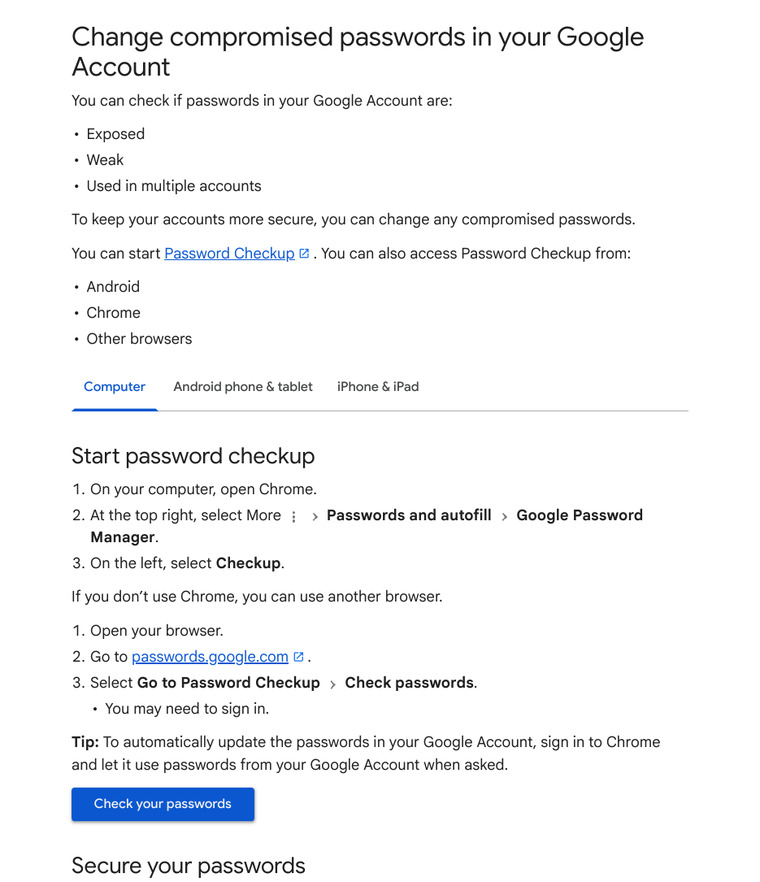
Google’s Password Checkup tells you if saved passwords are exposed, weak or used on more than one account. On an Android phone, open it like this:
- Open Chrome on your Android phone.
- Tap More, then Settings.
- Tap Autofill and passwords, then Google Password Manager.
- Tap Checkup.
Chrome > More > Settings > Autofill and passwords > Google Password Manager > CheckupOn a computer, you can also go to passwords.google.com and select Go to Password Checkup, then Check passwords. You may need to sign in.
What the three results mean
| Result | What Google says |
|---|---|
| Compromised | The password and username were published online. Change it as soon as you can |
| Reused | Using one password on many accounts raises your risk. Use a unique password for each account |
| Weak | Obvious phrases, simple keyboard patterns and single words are easy to guess |
You can also let Chrome create and save a strong password. Google Password Manager stores your passwords and passkeys behind Google’s built-in security with encryption, and it notifies you if saved passwords are compromised.
Password alerts
- Go to passwords.google.com.
- At the top right, select Settings.
- Turn Password alerts on or off.
Google says it keeps checking your passwords even when alerts are off. If you switch them off, you might still get alerts for up to 48 hours.
Real alert or fake?
If you get a message about an unsafe password, Google says to go directly to Password Checkup to make sure the notice is real. Do not tap links inside a message you did not expect.
Step 5: Clean Up Your Google Products
Hackers often leave things behind. Google suggests these checks after a hack.
- Gmail: remove any labels, filters or forwarding rules you did not set up.
- Chrome: remove extensions you do not recognise, and update Chrome.
- Google Drive: look at activity and file versions for anything unusual.
- Google Photos: stop sharing any album you do not recognise.
- Location: turn off Location Sharing that looks unusual.
- Apps with access: review apps that can reach your account at myaccount.google.com/permissions.
- Less secure apps: if access for less secure apps is on, Google strongly suggests turning it off.
Google also says to use your phone’s screen lock, and to run trusted anti-virus software if you think harmful software is on your device. To learn how to scan your phone, see our Google Play Protect guide.
Step 6: Protect Your Money and Identity
Account hacks can reach your money. Google says to check these:
- In Google Pay, report unauthorised charges, and remove cards or bank accounts you do not recognise.
- In Google Play, report purchases you did not make.
- In Chrome, delete payment info you do not recognise.
- If you use Google AdSense, check that payments go to the correct bank account.
- Contact your bank or the authorities if your account held bank, tax or passport details, or if you think someone is using your identity.
If money has left your bank account, follow our guide on reporting UPI fraud on 1930.
How Google Warns You About Suspicious Activity
Google says it uses your recovery phone number and email to contact you. Warnings can arrive as a notification about an unusual sign-in or a new device, a message that a security setting may have been changed by someone else, or a red bar saying “We’ve detected suspicious activity in your account.” You can also see them on your Recent security activity page. So add recovery info now, before anything goes wrong.
Common Mistakes
- Only changing the password. Also check devices, recovery info, Gmail filters and forwarding rules.
- Sharing a verification code. Google never asks for it on a call.
- Reusing the same password. One leak then opens many accounts.
- Skipping recovery info. Without a recovery phone or email, Google cannot warn you.
- Clicking links in alert messages. Open Password Checkup yourself.
- Forgetting other products. Check YouTube, Drive, Photos, Blogger and payments too.
FAQ
What should I do first if my Gmail is hacked?
Try to sign in. If you cannot, use the account recovery page. If you can, review security events and devices, then change your password and turn on 2-Step Verification.
Does 2-Step Verification stop all hacks?
No tool does. Google says it helps keep hackers out even if your password is stolen. Passkeys and hardware security keys add protection against phishing.
Where do I see which devices are signed in?
Open your Google Account, tap Your devices, then Manage devices.
Can I check if my passwords were leaked?
Yes. Use Password Checkup in Chrome or at passwords.google.com. It shows exposed, weak and reused passwords.
Will Google call me to verify a code?
No. Google says you will not receive a call from Google to verify a code. Treat such calls as a scam.
Sources & Documentation
- Google Account Help: Secure a hacked or compromised Google Account
- Google Account Help: Change compromised passwords in your Google Account
- Google Account Help: Turn on 2-Step Verification
- Google Account Help: Get started with Google Password Manager
Written & Verified by Sampath Anji
Sampath Anji is a technology researcher, systems developer, and digital creator based in Telangana, India. He specializes in on-device AI architectures, autonomous agent workflows, high-throughput inference engines, and digital media production. Every tutorial on ISMARTANJI CREATIONS is grounded in code reproducibility, verified documentation, and transparent test environments. Read our full testing methodology on our About Us page, or submit feedback and code updates via our Contact Desk.