
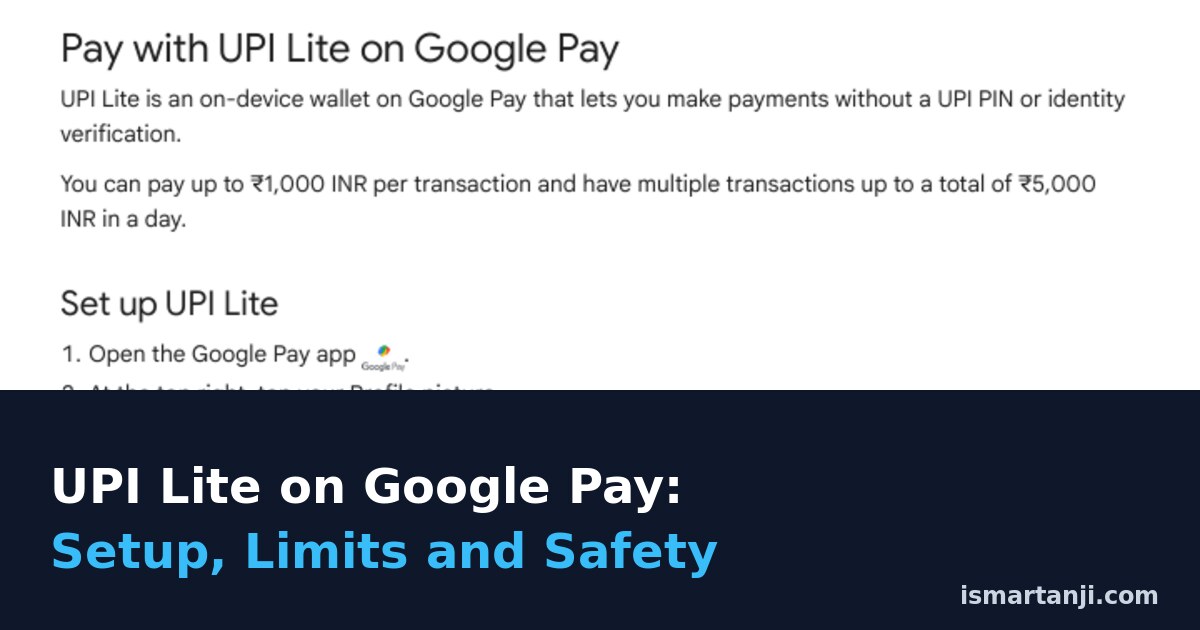
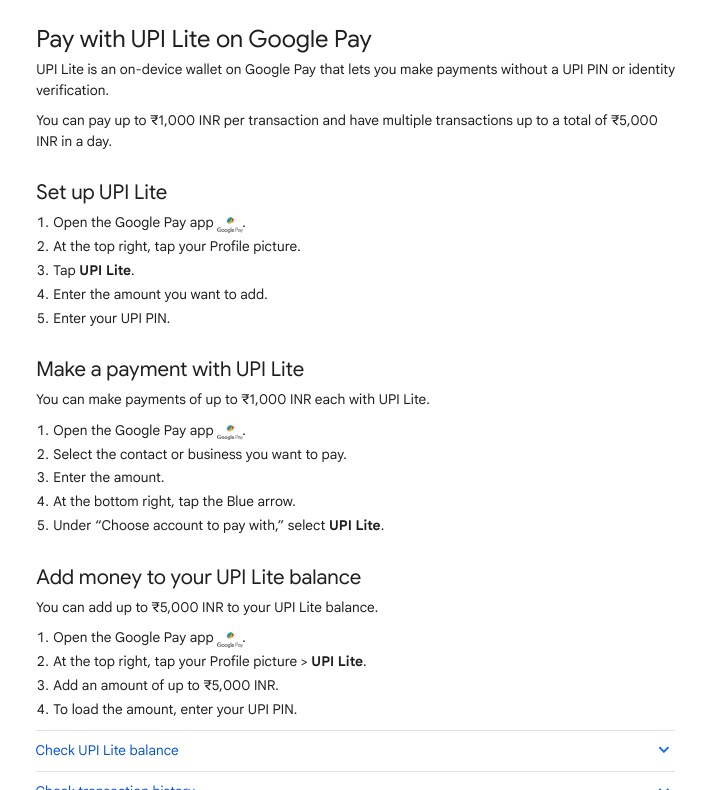
UPI Lite is a small wallet inside your Google Pay app. You load money into it once with your UPI PIN, and after that you can pay up to ₹1,000 per payment without typing the PIN. To set it up, open Google Pay, tap your profile picture at the top right, tap UPI Lite, enter an amount and confirm with your UPI PIN. Google says you can add up to ₹5,000 and spend up to ₹5,000 in total in a day.
This guide shows the exact taps, the limits on Google’s and NPCI’s own pages, and the one thing most people miss: UPI Lite money stays on your phone, so you must handle it carefully when you lose or change the phone. We checked every page on October 17, 2026.
What UPI Lite Is (in Simple Words)
Normal UPI asks for your 4 or 6 digit PIN on every payment. UPI Lite skips the PIN for small payments. NPCI, the body that runs UPI, describes it as a payment solution for low value transactions below ₹1,000 that are faster and PIN-less. Google describes it as an on-device wallet.
On-device wallet means the money sits inside the app on your phone, not in your bank account, until you spend it or take it back. NPCI lists three benefits: a better success rate for UPI payments, less load on the bank’s core systems, and an uncluttered passbook. That last one is why your bank statement will not show every small tea-stall payment.
| Point | Normal UPI | UPI Lite on Google Pay |
|---|---|---|
| UPI PIN for each payment | Yes | No, only when you add money |
| Per payment limit | Set by bank and NPCI (see limits page) | Up to ₹1,000 |
| Where the money sits | In your bank account | In a wallet on your phone |
| Bank statement | Every payment shows | Only the top-ups show |
| Add money from | Not needed | Your linked bank account (not cards) |
Check the numbers in your own app
Limits can change. Google’s UPI Lite page says up to ₹1,000 per payment and ₹5,000 a day, but Google’s separate Autopay page mentions a maximum balance of ₹2,000. The two pages do not match, so trust the limit your app shows when you add money.
Before You Start
- The Google Pay app on your Android phone, with a bank account linked.
- A UPI PIN set for that bank account.
- A bank that supports UPI Lite. Google says 10 banks supported it on its page and that new banks are being added. Your app shows the latest list.
- A screen lock on your phone. Because UPI Lite payments need no PIN, anyone who gets into your phone can spend the balance.
How to Set Up UPI Lite on Google Pay
- Open the Google Pay app.
- At the top right, tap your Profile picture.
- Tap UPI Lite.
- Enter the amount you want to add.
- Enter your UPI PIN.
Google Pay > Profile picture (top right) > UPI Lite > Amount > UPI PINThe NPCI page describes the same flow for any UPI app: accept the terms, enter the amount to add, choose the bank account, enter the UPI PIN, and UPI Lite is enabled. The screen words differ a little between apps.
Start small
Add ₹200 to ₹500 first. UPI Lite works like cash in a pocket. NPCI itself says the balance should be treated as equal to cash and that you are responsible for it. Keep only what you will spend this week.
How to Pay With UPI Lite
- Open Google Pay.
- Select the contact or business you want to pay.
- Enter the amount (up to ₹1,000).
- At the bottom right, tap the blue arrow.
- Under Choose account to pay with, select UPI Lite.
The payment goes through without a PIN screen. Your UPI Lite balance shows on the Google Pay home screen after the payment.
How to Add Money, Check Balance and See History
Add money
Google Pay > Profile picture > UPI Lite > Add an amount up to 5,000 > UPI PINGoogle says money is loaded only from the bank account linked in Google Pay. You cannot load the wallet with a debit or credit card.
Check balance
The balance is visible on the Google Pay home screen. You can also tap your profile picture and, under Payment methods, select your UPI Lite account.
Check transaction history
Google Pay > Show transaction history (bottom of screen) > Search barTurn On Autopay Top-Up (Optional)
UPI Lite Autopay adds money to your wallet automatically when the balance falls below a set amount. Google’s steps:
- Open Google Pay and tap the UPI Lite chip on the home screen.
- Enter the amount and tap Add.
- Tap Continue with Autopay.
- Enter your UPI PIN.
To change it later, tap the UPI Lite chip and select Manage, or open your profile and select Autopay. There you can Pause Autopay (you choose the date the pause ends), Resume Autopay or Cancel Autopay. Each change needs your UPI PIN.
Think before using Autopay
Autopay refills the wallet again and again from your bank account. If your phone is lost, a wallet that keeps refilling means more money at risk. For most students, a manual top-up once a week is safer.
UPI Lite Limits at a Glance
| Limit | Amount | Source |
|---|---|---|
| Per payment | ₹1,000 | Google Pay Help, UPI Lite |
| Total spend in a day | ₹5,000 | Google Pay Help, UPI Lite |
| Add to wallet at one time | Up to ₹5,000 | Google Pay Help, UPI Lite |
| UPI Lite accounts on Google Pay | One | Google Pay Help, FAQ |
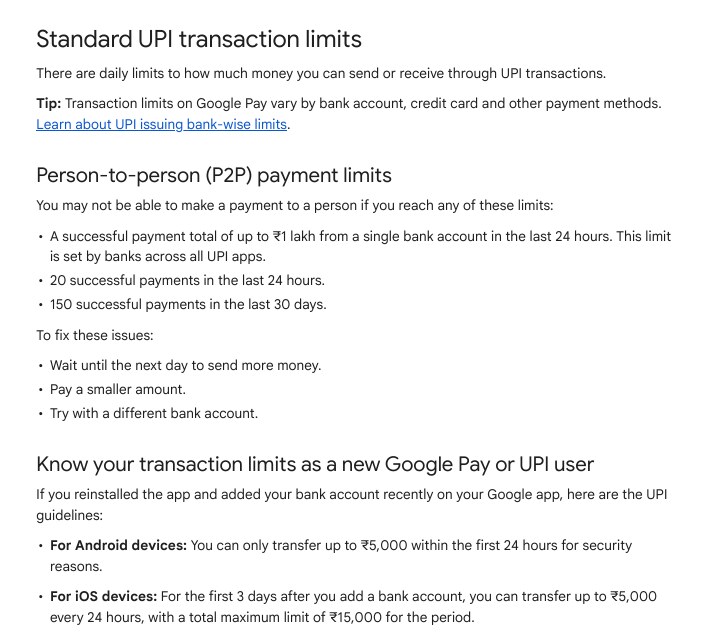
| Normal UPI, one bank account in 24 hours | Up to ₹1 lakh, set by banks | Google Pay Help, standard limits |
| Normal UPI person-to-person payments | 20 in 24 hours, 150 in 30 days | Google Pay Help, standard limits |
| New Google Pay user on Android | ₹5,000 in the first 24 hours | Google Pay Help, standard limits |
Your bank may also set its own limits. Google advises you to contact your bank if you still have trouble when you are inside the limits.
Lost Phone, New Phone or New SIM: Protect Your Balance
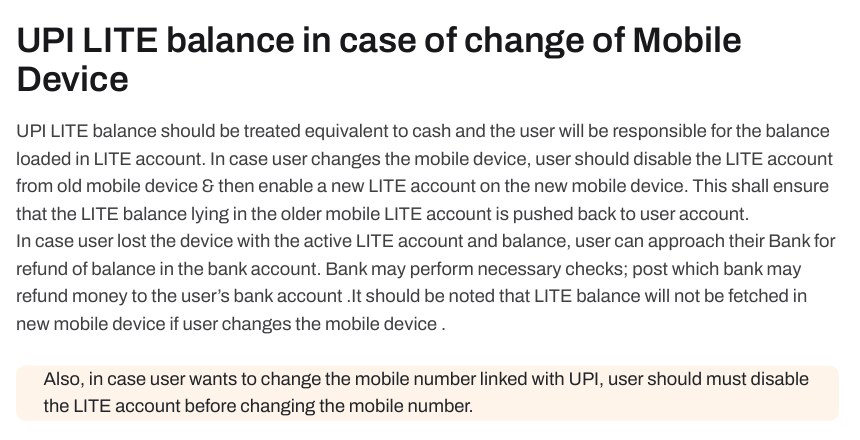
This is the part that matters most. The money is on the device, so a phone change needs a few steps in the right order. NPCI’s page says the following:
- If you change your phone, delete (disable) UPI Lite on the old phone first, then enable it on the new phone. This pushes the balance back to your bank account.
- If you want to change the mobile number linked to UPI, disable UPI Lite before you change the number.
- If you lose a phone that has UPI Lite and some balance, approach your bank for a refund. The bank may do checks first. NPCI also says the balance will not be fetched on a new phone.
Google’s page is slightly more relaxed. It says that if you use the same phone number on the new device, your balance stays intact, and that to claim it you can deregister UPI Lite with the same mobile number, which sends the money back to your bank account. For a lost phone, Google says to contact your bank and that it can take 10 business days.
The safe order for a phone change
Follow the stricter advice. Delete UPI Lite on the old phone while you still have it, check that the money reached your bank account, and only then set up the new phone. If you cannot use the old phone any more, call your bank.
How to delete UPI Lite
Google Pay > Three dots (top right) > Delete UPI Lite > DeleteGoogle says that when you deregister, the money is credited back to your bank account.
Help numbers from Google’s page
Google’s page points to DigiSaathi, a 24×7 helpline started by NPCI and payment companies. Find your bank’s contact details at digisaathi.info or call 14431 or 1800 891 3333. If you also lost your phone, our guide to finding a lost Android phone with Find Hub shows how to lock it quickly.
Common Mistakes
- Loading too much. Treat the wallet like cash. A small balance limits the damage if your phone is lost.
- Having no screen lock. UPI Lite payments need no PIN, so the lock screen is your only guard.
- Swapping phones without deleting UPI Lite first. The balance can get stuck and you may have to wait for your bank.
- Changing your mobile number first. NPCI says to disable UPI Lite before you change the linked number.
- Waiting for a refund in the wallet. Google says refunds go to your bank account, not to the UPI Lite account.
- Expecting every payment in your bank statement. They will not be there. Use Show transaction history inside Google Pay.
- Trying to add money with a card. Only the linked bank account works.
- Sharing your UPI PIN with someone who says they will send you money. You never need a PIN to receive money. If you were cheated, read our guide to reporting UPI fraud on 1930.
FAQ
Is UPI Lite safe?
The money at risk is only what you loaded, not your whole bank account. The real risk is your phone: with no PIN needed, anyone who gets past the lock screen can spend the wallet balance. Keep a screen lock, keep a small balance and delete UPI Lite before you sell or change a phone.
What if a payment fails but my UPI Lite balance went down?
Google says that if money is debited from UPI Lite but the transfer is denied because of network issues, the amount is credited to your bank account.
Can I have more than one UPI Lite account in Google Pay?
No. Google says you can have only one UPI Lite account on Google Pay, though you can have UPI Lite accounts on other platforms.
I uninstalled Google Pay by mistake. Is my balance gone?
Google says the option to reactivate appears when you reinstall the app. Open your profile picture, tap UPI Lite, tap Reactivate beside your UPI Lite account and follow the screen.
Why can’t I activate UPI Lite?
Google’s help page says to check that you have an okicici UPI ID. If not, create a new UPI ID with the okicici handle. If you have it and activation still fails, contact Google Pay support.
Sources & Documentation
- Google Pay Help: Pay with UPI Lite on Google Pay
- Google Pay Help: Top up UPI Lite with Autopay
- Google Pay Help: Standard UPI transaction limits
- NPCI: UPI LITE
- DigiSaathi (NPCI helpline initiative): digisaathi.info
Written & Verified by Sampath Anji
Sampath Anji is a technology researcher, systems developer, and digital creator based in Telangana, India. He specializes in on-device AI architectures, autonomous agent workflows, high-throughput inference engines, and digital media production. Every tutorial on ISMARTANJI CREATIONS is grounded in code reproducibility, verified documentation, and transparent test environments. Read our full testing methodology on our About Us page, or submit feedback and code updates via our Contact Desk.