
Short answer: a Short stuck at 0 views has almost never been played in anyone’s feed. Since March 2025 YouTube counts a view the moment a Short starts to play, so a true zero means the Short was not shown, is blocked, or is not treated as a Short at all. Check three things in YouTube Studio: the video shape and length, the Restrictions column for a copyright claim, and the visibility setting. Most zero-view Shorts fail on one of those.
Creators in groups like r/NewTubers keep asking this, and the replies are mostly "it is the algorithm" or "post more". That is not a fix. This guide gives you a checklist you can finish in ten minutes, and tells you honestly which part YouTube’s own pages disagree on.
What does 0 views on a Short really mean?
Think about a Short in the feed. A viewer scrolls, your video appears and starts playing. Even if they swipe away after one second, that counts. YouTube’s Shorts help page says views now count every time a Short starts or replays, with no minimum watch time. The older measure still exists as "Engaged views" in Analytics.
So a weak hook cannot give you zero. A weak hook gives you 40 or 200 views. Zero means nobody was shown the video. Your job is to find out why it was not shown, not to re-edit the first three seconds.
| What you see | What it usually means | Where to check |
|---|---|---|
| 0 views, 0 impressions after a day | Video not treated as a Short, or blocked | Studio, Content, Shorts tab |
| Few views, then flat at about 200 to 500 | Shown to a small test group, then stopped | Analytics, Engagement |
| Views frozen but not zero | Count is being verified, not a block | Wait, then recheck |
| 0 views and a grey Restrictions note | Copyright or policy limit | Studio, Content, Restrictions column |
Check 1: Is it really a Short?
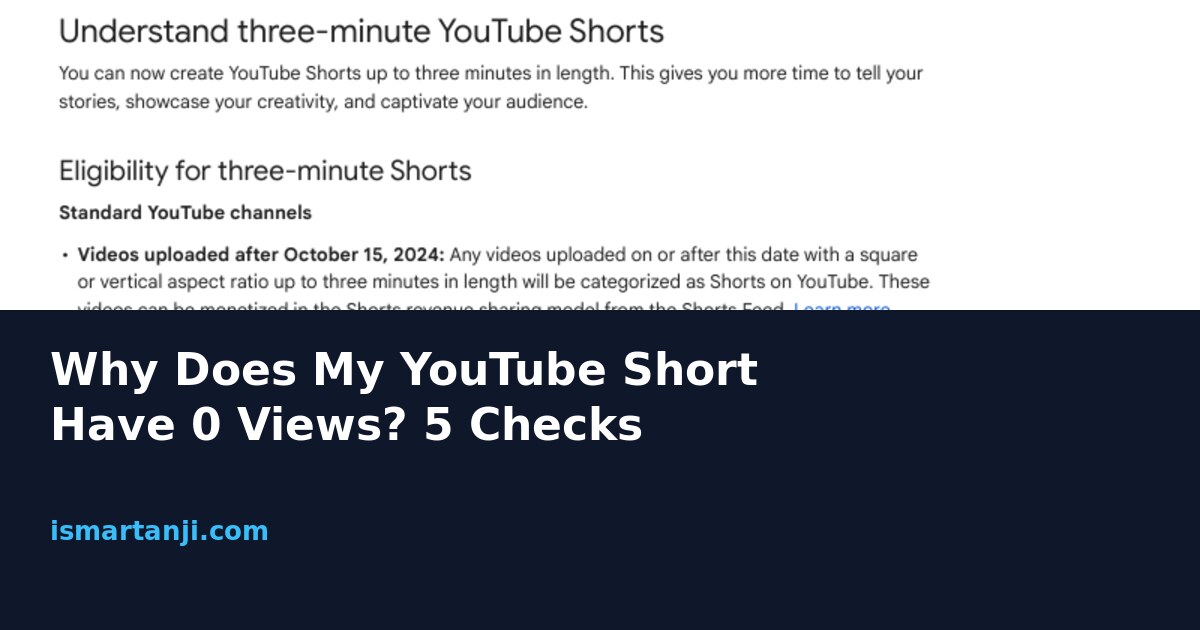
YouTube sorts a new upload into the Shorts feed by shape and length: square or vertical, and up to three minutes. The help page says this applies to videos uploaded on or after 15 October 2024. A 16:9 horizontal clip, even if it is 40 seconds long, is a normal video and will not appear in the Shorts feed.
This is the most common trap for Indian creators who edit in a laptop editor or on a phone and export in landscape by habit. The video looks fine on your gallery, but YouTube files it as a normal video.
- Open YouTube Studio on the web, then Content in the left menu.
- Click the Shorts tab. If your video is under Videos and not here, YouTube has classed it as a long video.
- Check the file: width must be equal to or smaller than height. A 1080 x 1920 export is the safe choice.
- Check the length: three minutes or less. A 3:05 clip falls out of the Shorts group.
- If the shape was wrong, re-export it vertical and upload as a new video.
Quick test:
Open the video in your phone gallery and rotate the phone. If the picture looks small with black bars on top and bottom, it is a landscape file inside a vertical frame, and you should re-export it with a true 9:16 canvas.
Check 2: Does it have a copyright claim, and how long is it?
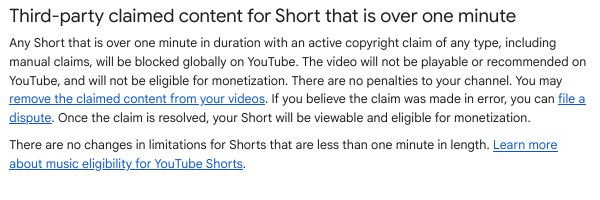
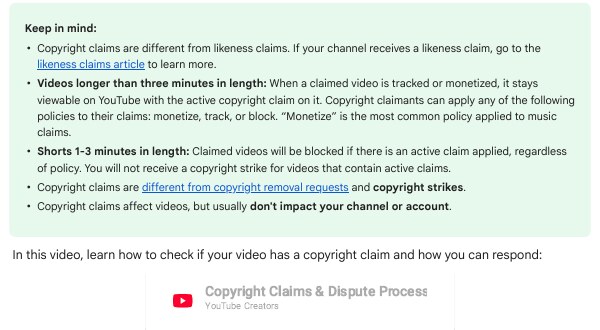
This is where the pages disagree, so read carefully. The YouTube Help page on three-minute Shorts says that a Short longer than one minute with an active Content ID claim of any type is blocked everywhere on YouTube: it is not playable or recommended. The page says there is no penalty to your channel and that once the claim is cleared, the Short can be viewed again. A shorter Short is not covered by that rule.
Other YouTube pages and a few regional versions of the same page say this blocking was relaxed for new uploads from 24 September 2026, so such Shorts can stay playable while a claim is active. I saw both wordings while researching this, so I cannot tell you which one applies to your channel today. The safe approach is the same either way: do not rely on a claimed song in a Short over 60 seconds.
Here is a real example. A student in Karimnagar makes a 90-second Short with a trending film song under a dance clip. Under the older rule, that Short could be blocked, which looks exactly like 0 views. A 45-second version with the same song falls under a different rule and may behave normally.
- In Studio open Content, then the Shorts tab.
- Click the filter bar and choose Claims.
- Look for your video. A claim also shows in the Restrictions column of the list.
- Click the claim to see what material matched: audio, video or both.
- Either remove the claimed part and re-upload, or, if you own the music, file a dispute.
If you do not need that song, the easiest fix is to replace it with music from the Audio Library inside Studio. YouTube says that royalty-free music from that library will not get a Content ID claim, and that most songs in the Shorts Audio Library can cover up to 90 seconds of a three-minute Short.
Check 3: Is the visibility and upload state clean?
Some zero-view Shorts are simply not public. A Short saved as Private, Unlisted or Scheduled for a later time will not enter the feed. Another common case is a Short that is still processing: it finishes the upload, but the public link works only after processing.
- Open Studio, then Content, then look at the Visibility column.
- It should say Public, not Private, Unlisted or a future date.
- Open the video link in a private browser window with no login. If it plays, it is public.
- If you see a grey Restrictions note, click it. It tells you what is limiting the video.
- If it says processing, wait until it finishes before judging the numbers.
Check 4: Is the view counter lagging, or is it really zero?
Counters can run behind. YouTube says it may slow down, freeze or adjust a view count while it checks plays. Replaying your own Short again and again from two phones does not help; those low-quality plays are the type YouTube discards.
The way to settle this is to compare two numbers. If Studio Analytics shows impressions and the public count is still 0, wait a day. If both show nothing, go back to checks 1 to 3.
Check 5: Did the video get shown and then stop?
Many questions that say "0 views" are really "stuck at 200". That is a different case. It is not a block. The Short went to a small group of viewers, they swiped away quickly, and YouTube did not push it further. YouTube has not published the size of any test group, so any number you hear, like 200 or 500, is a creator guess.
Look at the Engagement tab in the Short’s analytics. If viewers leave in the first two seconds, change the opening. Start on the interesting moment, not on a logo or a title card. For a cooking Short, show the finished dish first, then the steps.
What to do if all five checks are clean
If the Short is vertical, under three minutes, public, unclaimed and processed, and still has no plays after a day, try these in order:
- Wait 24 hours before judging. New uploads sometimes take a while to start.
- Check the channel page for any message in Studio, Dashboard and your email for Community Guidelines or monetisation notices.
- Re-export with a clean encode: H.264, AAC audio, 30 fps, 1080 x 1920. Odd formats can fail at processing.
- Upload a new version with a different first second and a fresh title. Do not delete a Short that already has watch time.
- Use the Help community or Studio’s Send feedback option for a channel-specific problem. Include the video link.
Be careful about re-uploading the same file again and again. Forum reports say it sometimes works and sometimes does not, and it can give you duplicate content on your channel.
# Check a video's size and length before uploading (needs ffmpeg)
ffprobe -v error -select_streams v:0 -show_entries stream=width,height,r_frame_rate:format=duration -of default=nw=1 myshort.mp4
The output shows width, height, frame rate and duration. Width smaller than height and duration under 180 means it matches the Shorts shape.
Common mistakes
- Exporting in 16:9. The Short is filed as a normal video and never reaches the Shorts feed.
- Using a film song in a Short over 60 seconds. It may be blocked while the claim is active.
- Judging a Short in the first hour. The counter can run late.
- Deleting and re-uploading again and again. You lose any watch time already collected.
- Paying someone to "boost" a Short before checking Studio. If the Short is blocked or not a Short, no promotion fixes it.
- Replaying your own Short to raise the count. YouTube discards those plays.
FAQ
Why does my Short have 0 views but my other Shorts get views?
The new Short probably has a specific block: a claim, a wrong shape, or a visibility setting. Compare it with a Short that works.
Is 0 views a shadowban?
Studio shows real restrictions in the Restrictions column. I found no YouTube page that describes a hidden ban for ordinary uploads, so check Studio first.
Does a copyright claim give my channel a strike?
YouTube’s help page says a claim by itself does not give a strike and usually does not affect your channel or account. A strike comes from a removal request, which is a different thing.
How long should a Short be to avoid problems?
Sixty seconds or less avoids the over-one-minute claim rule, and the limit for the Shorts format is three minutes.
Can I use a trending song from Instagram?
Not safely. Use the Shorts Audio Library inside the YouTube app, or music from the Audio Library in Studio.
Sources & Documentation
- YouTube Help: Understand three-minute YouTube Shorts (shape, length, claimed Shorts over one minute, music)
- YouTube Help: Learn about copyright claims (claims, Shorts 1 to 3 minutes, Studio Claims filter)
- YouTube Help: Get started creating YouTube Shorts (how Shorts views are counted)
- YouTube Help: Music eligibility for YouTube Shorts (using music in Shorts)
Written & Verified by Sampath Anji
Sampath Anji is a technology researcher, systems developer, and digital creator based in Telangana, India. He specializes in on-device AI architectures, autonomous agent workflows, high-throughput inference engines, and digital media production. Every tutorial on ISMARTANJI CREATIONS is grounded in code reproducibility, verified documentation, and transparent test environments. Read our full testing methodology on our About Us page, or submit feedback and code updates via our Contact Desk.